
Subscriber badges represent subscription loyalty; Bits badges represent channel cheering milestones. Build and label the two progressions separately.
Plan two readable badge progressions and upload each to its own Twitch reward system.
In this guide
Before you start
- Access to the channel’s subscription and Bits badge settings.
- Licensed transparent badge exports in the sizes requested by Twitch.
Decide what each badge tells the room
A subscriber badge and a Bits badge may both sit beside a name, but they answer different questions. One reflects subscription loyalty; the other reflects cheering support in the channel. A badge pack named “loyalty” by a designer doesn’t tell Twitch which system it belongs to. You make that choice in the destination settings.
Give each progression a visual identity. You could use growing leaves for subscription tenure and changing gem shapes for Bits tiers. Keep the family resemblance if it suits your channel, but don’t rely on a tiny text label inside the artwork to explain the difference.
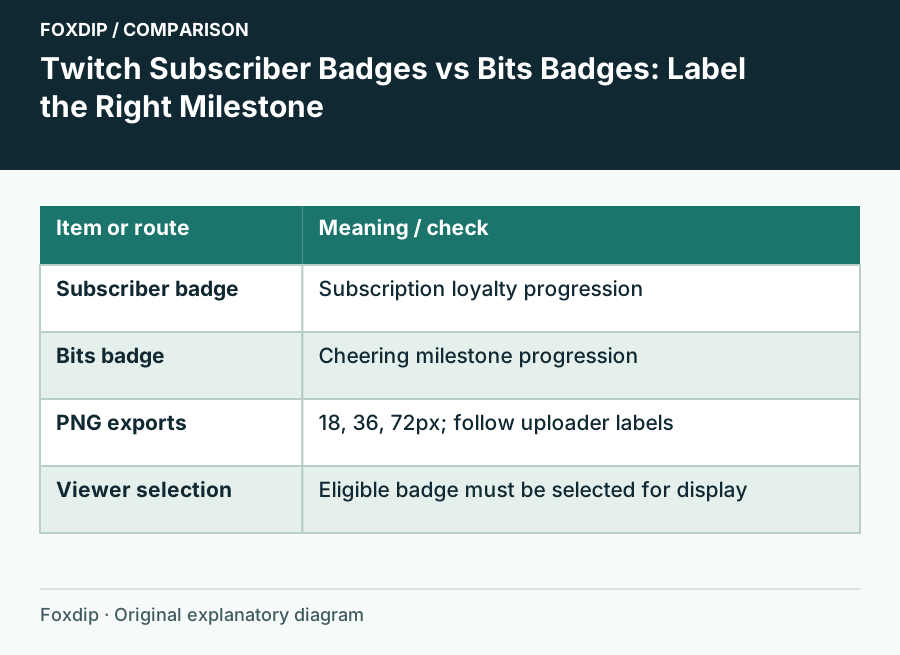
Original Foxdip schematic. Follow the labelled checks alongside the guide.
Map artwork to the slots you actually have
Open both badge settings before renaming your files. Write down the milestones Twitch currently presents for your account, then map one image to each intended slot. A downloaded bundle may contain more stages than you can or want to publish. You don’t need to use every drawing just because it came in the ZIP.
| Reward | Progression describes | File planning question |
|---|---|---|
| Subscriber badge | Subscription loyalty in this channel | Which image belongs to each displayed tenure slot? |
| Bits badge | Cheering milestone in this channel | Which image belongs to each displayed Bits tier? |
| Badge flair or another badge | A separate Twitch feature | Am I editing the intended badge system? |
Prepare readable exports
Use the size labels in the current uploader and supply the required transparent PNG files. Twitch’s Bits badge guidance calls for 18 × 18, 36 × 36 and 72 × 72 images. Don’t assume an emote export is a badge export merely because both use PNG. Check the exact file dimensions rather than the file name.
View the smallest export at its actual size against both light and dark backgrounds. Leave enough space around the silhouette so the icon doesn’t turn into a clipped block. For a progression, compare every stage together: a later milestone should still be recognizable beside the earlier one.
Upload one progression at a time
In Creator Dashboard, open the relevant subscription badge controls for loyalty art, or the Bits & Cheering badge controls for cheering art. Follow the account’s visible slot labels; dashboard navigation can change. Save after a small group of changes and read any review or validation message before continuing.
Assign the first stage
Upload the size variants for one milestone and inspect its preview.
Look for: The artwork and milestone agree.
Complete the sequence
Repeat using your mapping note, checking that no file has been placed one tier early.
Look for: The preview shows the intended order.
Keep a rollback set
Retain the previous exports and your slot map before replacing additional badges.
Look for: You can restore a mistaken assignment without recreating artwork.
Check the viewer’s selected badge
A viewer may have several eligible badges and a choice about which is displayed. If someone earned a Bits badge but you don’t see it beside their name, check the chat badge selection before assuming the image upload failed. Ask them to inspect their own chat identity settings; don’t request access to their account.
Explain the two progressions in a panel or short command: subscription loyalty and cheering milestones. Keep that description separate from a promise of access or a price. Once the preview and a willing eligible viewer’s selection agree, update any old channel artwork that still shows the previous badge family.
Sources & references
Based on the official documentation linked beside the relevant sections. Follow the checks on your own setup; no hardware measurements or account tests are claimed.
- Twitch — Subscriber Badge Guide ↗Checked 2026-10-27
- Twitch — Custom Bit Badges Guide ↗Checked 2026-10-27
- Twitch — How to Use Badges ↗Checked 2026-10-27
Spotted something out of date? Let Alex know.
How we put our guides together ↗