
Read the emote’s dashboard status first. Pending review needs approval; an approved library item still needs an active slot.
Identify a pending review, distinguish it from an unassigned emote and prepare the right information if you need support.
In this guide
Before you start
- The affected emote’s full code and dashboard submission status.
- Access to the channel’s account email and emote settings.
Read what Twitch is waiting for
Open the emote in Creator Dashboard and read the actual status rather than judging from chat alone. Pending Approval means the submission is awaiting review; it does not establish that the image is broken. An emote sitting in the library without a live slot is a different problem, even if the artwork has already been accepted.
Twitch documents instant upload as an eligibility benefit for qualifying accounts. It isn’t a switch every creator can enable. A previous immediate upload also doesn’t prove the next one will bypass review. Account standing and the applicable eligibility rules matter.
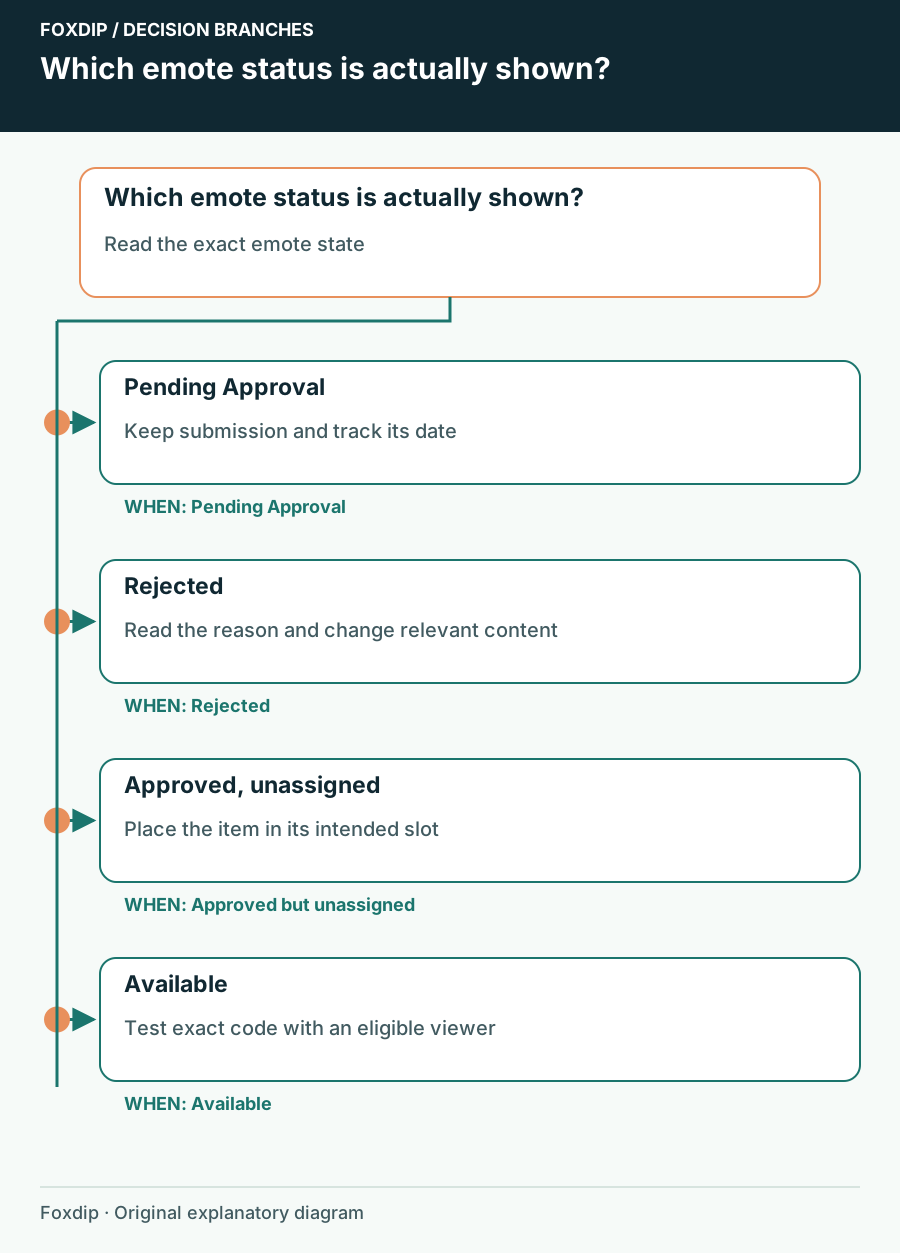
Original Foxdip schematic. Follow the labelled checks alongside the guide.
Capture enough detail to avoid repeating work
Make a short private note before editing. Record the full code, static or animated format, intended slot, submission date and exact status. Keep the submitted source file. If several emotes were uploaded together, inspect them separately: one visible reaction doesn’t confirm the status of the entire batch.
This note also helps distinguish the image you uploaded yesterday from a similarly named library item. Don’t delete the submission just to make the page look tidy. Removing and replacing it changes the object you are trying to follow and gives you less reliable information about the original wait.
Open the affected item
Go to Viewer Rewards → Emotes and select the exact emote code.
Look for: You can see the status for the relevant image.
Check the destination
Confirm whether it is assigned to the intended reward slot or only stored in the library.
Look for: A missing assignment is separated from a review delay.
Check communication
Read the account email and dashboard notices for an approval, rejection or removal message.
Look for: You know whether Twitch has requested a content change.
If it was rejected, follow the stated reason
If Twitch rejected the emote, use the stated reason to decide what needs changing. Review both the drawing and the suffix: an acceptable image doesn’t exempt its name from the rules. A near-identical emote on another channel is not a reliable approval precedent.
An upload failure is a different symptom
For a technical upload failure, examine the formatting requirements for the actual static or animated upload mode. That is different from a completed upload waiting for moderation. Keep the two symptoms separate so you don’t spend the review period repeatedly recompressing an already accepted file.
Retest after availability changes
When the dashboard says the emote is available, use its exact full code in your own channel and check the native picker. Ask a viewer with the appropriate entitlement to try it too. If it works for a subscriber but not a non-subscriber, revisit its reward destination before reporting an image-delivery failure.
If the code still renders as text, compare the spelling shown in the dashboard, then reload the chat page once. Test the native Twitch experience separately from any extension-emote service. This keeps a browser rendering issue from being confused with Twitch’s review queue.
Escalate the status, not a guessed deadline
The reviewed Twitch documentation does not provide a guaranteed review completion time. Avoid promising your community that the emote will appear tomorrow or after a particular number of days. Announce it when it is actually available.
If the status appears inconsistent or you need account help, contact Twitch Support with the code, submission date, format, destination and exact status text. Include a relevant screenshot with private account details removed. Keep the original submission while asking about it unless Twitch tells you to replace it.
Sources & references
Based on the official documentation linked beside the relevant sections. Follow the checks on your own setup; no hardware measurements or account tests are claimed.
- Twitch — Animated Emotes ↗Checked 2026-10-27
- Twitch — Emote Formatting & Instant Emote Upload Requirements ↗Checked 2026-10-27
- Twitch — How to Use Emotes ↗Checked 2026-10-27
Spotted something out of date? Let Alex know.
How we put our guides together ↗