
Nova 5 Quick Switch activates either Bluetooth or 2.4 GHz dongle audio at one time. Test each route separately before re-pairing.
Identify the active Nova 5 connection before repairing a headset that may simply be listening to the other device.
In this guide
Before you start
- The exact Nova 5, 5P or 5X and its intended dongle.
- A paired Bluetooth device if you use that route.
Expect a switch, not simultaneous mixing
Nova 5 Quick Switch moves between the 2.4 GHz dongle and Bluetooth. SteelSeries states that only one connection is active at a time while the other remains on standby. If your phone plays but the game falls silent after switching, first check the active route rather than assuming the dongle failed.
Don’t apply Nova 7’s simultaneous-audio behavior to Nova 5. Similar product names don’t guarantee the same connection design. Identify Nova 5, 5P or 5X from the headset or packaging before following platform-specific instructions.
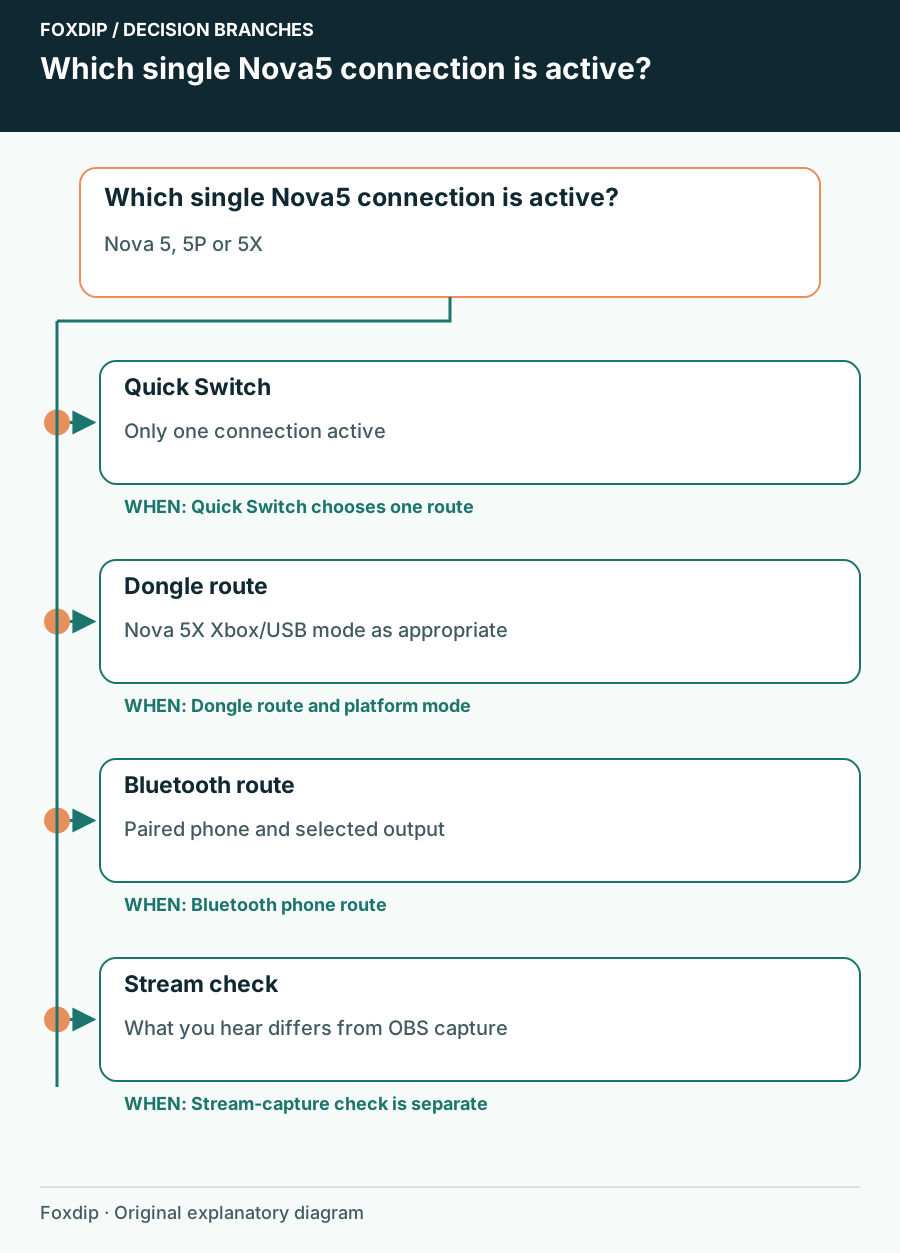
Original Foxdip schematic. Follow the labelled checks alongside the guide.
Test one source at a time
Pause phone playback, leave the headset at a comfortable level and switch to the dongle route. Trigger a repeatable sound on the gaming device. Then pause it, switch to Bluetooth and play a phone sound. Separate tests make it obvious which route works without two devices competing for your attention.
Confirm the dongle destination
Check that the gaming device’s audio output is the connected Nova dongle, not its speakers or another headset.
Look for: The sound is being sent toward the intended wireless route.
Switch to the gaming route
Use Quick Switch and listen for the gaming device’s repeated sound.
Look for: You can identify whether the dongle route is active.
Switch to Bluetooth
Pause the game sound and play one sound from the paired phone.
Look for: You can identify whether Bluetooth works independently.
Inspect model-specific dongle mode
Connect the dongle firmly to the device and compare a direct port if a hub is involved. On Nova 5X, use Xbox mode for Xbox and USB mode for PC, PlayStation or other supported platforms. The base Nova 5 and 5P do not gain Xbox support simply by purchasing a 5X dongle.
If the route still fails, use the model’s documented re-pair procedure. SteelSeries specifies holding the dongle pairing button for four seconds, then using the headset’s corresponding pairing mode. A successful pairing produces a “Dongle Connected” announcement and a solid dongle status LED. Follow the headset-on or headset-off sequence that matches its actual state.
Check the phone route without disturbing the working dongle
If only Bluetooth fails, inspect the phone’s Bluetooth list and the selected media output. Confirm you are using the same headset entry you intend to hear. If re-pairing is necessary, forget that headset entry and pair it again using the official instructions for your exact model.
Avoid clearing every device pairing on your phone or resetting the entire headset as a first move. Preserve the working gaming route while isolating the Bluetooth symptom. After reconnection, repeat the same phone sound and then switch back to the dongle once to prove both routes remain available.
Check what OBS captures after you switch
Changing what your headset hears can affect your confidence in a stream without changing the actual audience feed. If you use Sonar, confirm its physical playback destination and record a short clip. If you capture a desktop output directly, inspect which endpoint that source follows.
Keep a note of the connection intended for gameplay and the button action used to return to it. If one route repeatedly disconnects, report the exact Nova variant, platform, dongle mode and observed connection announcement. That is a more useful starting point than describing Quick Switch as a broken mixer.
Sources & references
Based on the official documentation linked beside the relevant sections. Follow the checks on your own setup; no hardware measurements or account tests are claimed.
- SteelSeries — Nova 5 Quick Switch ↗Checked 2026-10-27
- SteelSeries — Nova 5 connection troubleshooting ↗Checked 2026-10-27
Spotted something out of date? Let Alex know.
How we put our guides together ↗