
Route each app to the Sonar channel that matches its job, using the app’s own device selector when external routing cannot change it.
Assign applications to Gaming, Chat and Media and confirm each moves the expected Sonar channel.
In this guide
Before you start
- Windows 11 and SteelSeries GG Sonar.
- The game, communication app and media app you want to separate.
Choose the controls you want to have
Put gameplay on Gaming, voice-call playback on Chat and music or other media on Media when you want to adjust them independently. The label is a role you assign; installing Sonar does not prove every app already follows your preferred plan. Start with three named apps rather than trying to reorganize the entire computer at once.
This guide concerns which virtual channel receives an app. It is separate from choosing fallback headphones after a restart. Keep your existing physical playback destination while doing this test, so a new device selection cannot disguise an app-routing mistake.
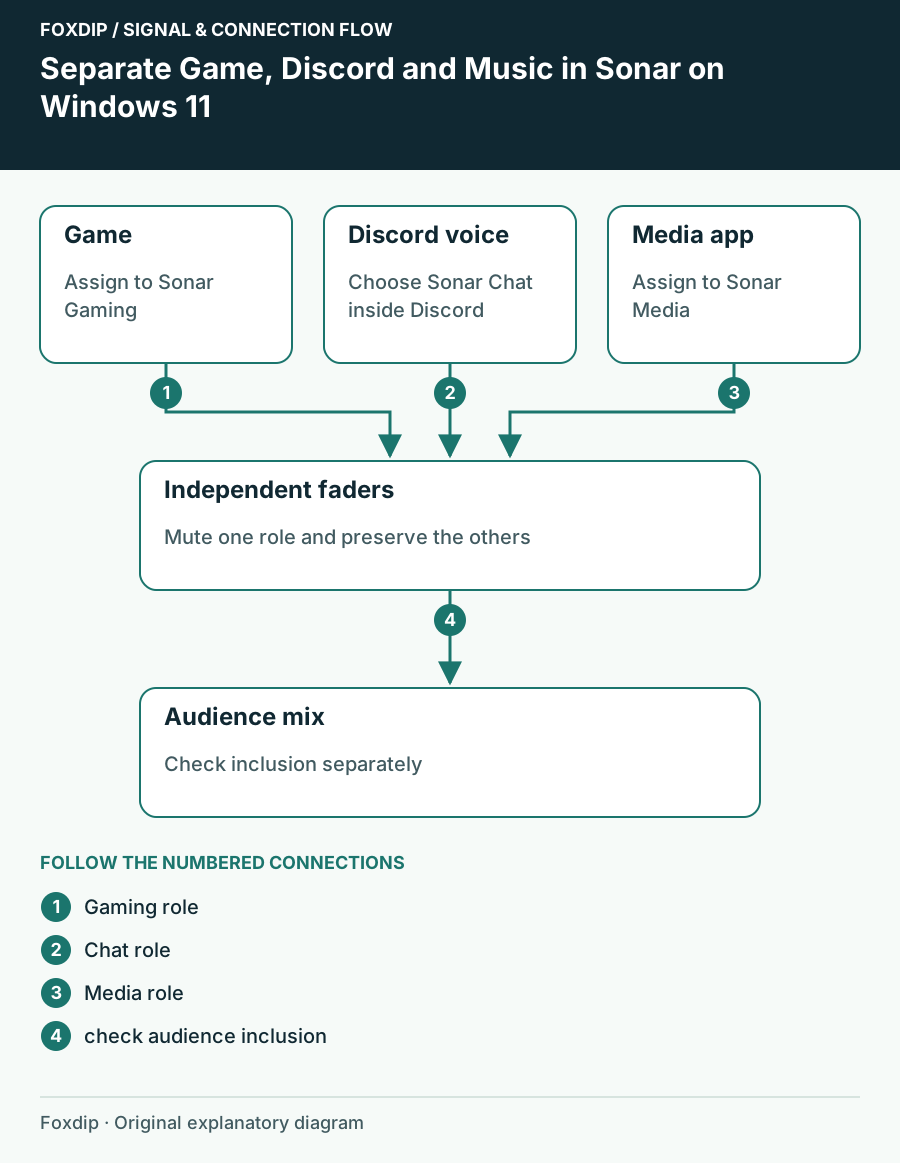
Original Foxdip schematic. Follow the labelled checks alongside the guide.
Make the app visible to routing
Start playback in the app you want to move, then look in Sonar’s routing area. SteelSeries says this area displays apps currently producing or capturing sound. Drag the app into the intended output channel where supported. The microphone channel is for capture; it is not a destination for ordinary playback apps.
An app name may not match its familiar window title, and an old session may remain listed briefly after playback stops. Use a distinctive sound and watch the meter to identify the right session. Don’t move a similarly named launcher merely because its label looks closer to the game title.
Use Windows or the app when needed
If the route does not take effect, inspect Windows 11 → Settings → System → Sound → Volume mixer while the app plays. Select its output endpoint there, or use the app’s own output setting. Some applications keep control of their audio session and cannot be moved externally.
Route the game
Choose Sonar Gaming in the game or its Windows output row.
Look for: Only the intended game signal should move Gaming.
Route call playback
Choose Sonar Chat as Discord’s Output Device; leave its Input Device for your microphone route.
Look for: The caller’s voice arrives on Chat rather than becoming a microphone source.
Route media
Choose Sonar Media for the media app and replay a recognizable sound.
Look for: Media has a separate meter and fader from Gaming.
Treat multiple sessions as separate paths
Discord can create more than one audio session. SteelSeries documents a distinction between activity audio and the voice-channel session, so dragging one Discord tile is not proof that every Discord sound moved. Choose the voice output inside Discord itself when that is the route you need to control.
If an application holds its old output after a change, close and reopen that application, then replay the same sound. Restarting the entire PC is a much larger comparison and may change several devices at once. Keep the original output in your notes so you can undo the experiment.
Verify three independent controls
Play the game alone and lower Gaming; then restore it. Ask a call participant to speak and lower Chat; then restore it. Finally play media and lower Media. Each fader should affect the intended source while the other roles stay put. If two sources follow one fader, inspect their selected endpoints again.
Once local routing is right, check what the Stream mix includes and make a short OBS recording. Local separation is useful, but it does not grant permission to broadcast music or a private conversation. Keep the route map with your stream notes and update it when replacing an application.
Sources & references
Based on the official documentation linked beside the relevant sections. Follow the checks on your own setup; no hardware measurements or account tests are claimed.
- SteelSeries — Drag and drop app routing ↗Checked 2026-10-27
- SteelSeries — Music app routing on Windows ↗Checked 2026-10-27
Spotted something out of date? Let Alex know.
How we put our guides together ↗