
Create a named mix containing only the intended microphone, then select that mix as Discord’s Input Device.
Send your processed voice to Discord while keeping callers, game sound and the audience mix out of its microphone input.
In this guide
Before you start
- Wave Link 3 and a working mic input.
- Discord and a willing caller for the exclusion test.
Build the feed for the person in the call
Your stream mix may contain your mic, game, music, alerts and the other callers. Discord’s microphone input should usually contain only your voice. Give the call its own mix so you don’t have to remove useful broadcast sources from the audience mix just to make a conversation work.
Wave Link 3 does not automatically create the old dedicated MicrophoneFX output. Elgato’s current guide recreates that role with a named mix. You can call yours “Discord Mic” so its purpose is obvious in every app’s device list.
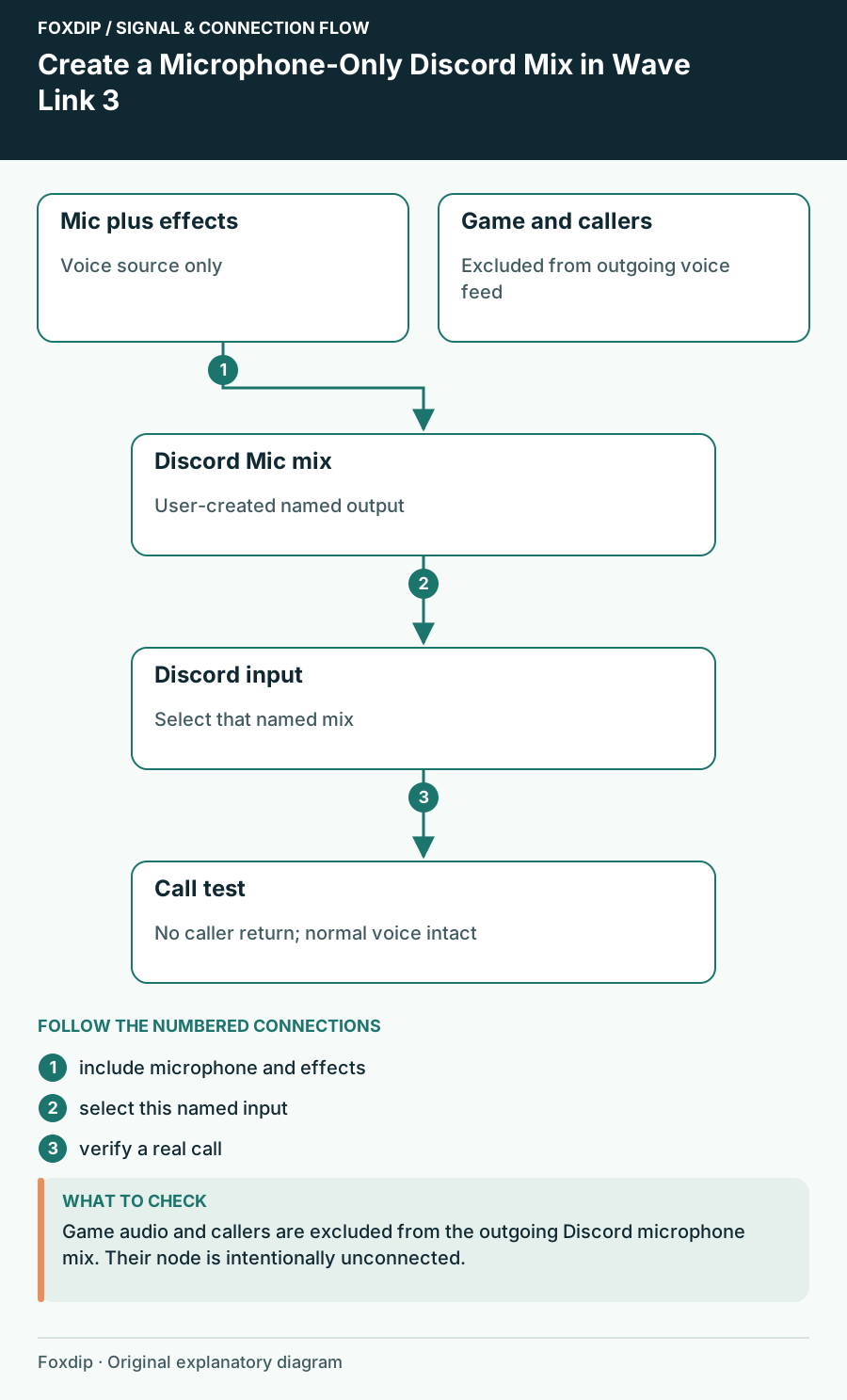
Original Foxdip schematic. Follow the labelled checks alongside the guide.
Add the microphone and leave other inputs out
In the mix view, use the plus control to create the new mix and name it. Add your intended mic as an input if it is not already present, then include that mic in the new mix. Leave the game, media, system sounds and Discord playback channels unassigned to this destination.
Set a sensible microphone level while speaking normally and watch the mix respond. A muted or missing mic input cannot be repaired by choosing the mix in Discord. First prove the new destination contains one working voice signal.
Choose the route that actually carries processing
For an older Wave device or a third-party microphone, select the Wave Link mix to carry the effects you added in Wave Link into a receiving app. Selecting the raw physical mic can bypass that software effect route. Devices with Wave FX Processor integration have different hardware processing behavior, so don’t generalize a newer Wave example to an older mic.
Keep the processing modest for the first call. A gate or suppression setting that sounds impressive during silence may remove a quiet word. Add effects gradually after the input route is proven, using the same phrase for each comparison.
Select the voice mix and test what it excludes
Open Discord User Settings → Voice & Video and choose the new mix under Input Device. Choose your intended listening device separately under Output Device. The input and output selectors do not have to carry the same label or the same mix.
Speak into the mic
Run a short Discord Mic Test using the named mic-only mix.
Look for: Your voice reaches Discord through the intended processing route.
Play a harmless game sound
Pause your speech while playing a repeatable sound that belongs only in the stream or headphone mix.
Look for: That sound should not appear in Discord’s mic test.
Check a caller return
With a willing caller, confirm they do not receive their own voice through your mic route.
Look for: The call’s return audio is excluded from its outgoing voice feed.
Add another source only when you mean it
If you later want a soundboard in the call, add that specific source to the Discord mix and balance it during a rehearsal. Don’t switch the input to the complete Stream mix as a shortcut. Keep an off control available so an unexpected sound can be stopped without muting the entire broadcast.
If an echo appears only during screen sharing, compare the selected shared app and its audio path: a clean microphone mix does not prove the shared application path is isolated. Save the working mix name, included sources and Discord selections so you can restore this small, deliberate feed after an update.
Sources & references
Based on the official documentation linked beside the relevant sections. Follow the checks on your own setup; no hardware measurements or account tests are claimed.
- Elgato — Create a MicrophoneFX Mix in Wave Link3 ↗Checked 2026-10-27
- Discord — Voice, Video & Streaming Guide ↗Checked 2026-10-27
- Elgato — Use Wave Link3 for Streaming ↗Checked 2026-10-27
- Elgato — Current software downloads ↗Checked 2026-10-27
- Elgato — Wave Link3.3 Windows Release Notes ↗Checked 2026-10-27
- Elgato — Upgrade Wave Link2 to3 ↗Checked 2026-10-27
Spotted something out of date? Let Alex know.
How we put our guides together ↗