
Check the game’s Sonar Gaming output, then confirm Gaming is routed to your actual headphones in the Sonar mixer.
Follow the game output, Sonar channel and physical playback device in order before changing effects.
In this guide
Before you start
- SteelSeries GG Sonar on Windows.
- A connected headset and repeatable game sound.
Treat Gaming as a route, not the headset
SteelSeries Sonar Gaming is a virtual playback device. Choosing it in Windows sends sound into Sonar; Sonar still needs a physical destination such as your USB headset or interface headphones. A game can therefore be assigned to Gaming correctly while nothing reaches your ears.
Use one game menu sound or another repeatable source for the diagnosis. Set a comfortable headphone level, stop other playback and note whether the Gaming meter moves. The first question is where the signal stops, not which equalizer preset might sound better.
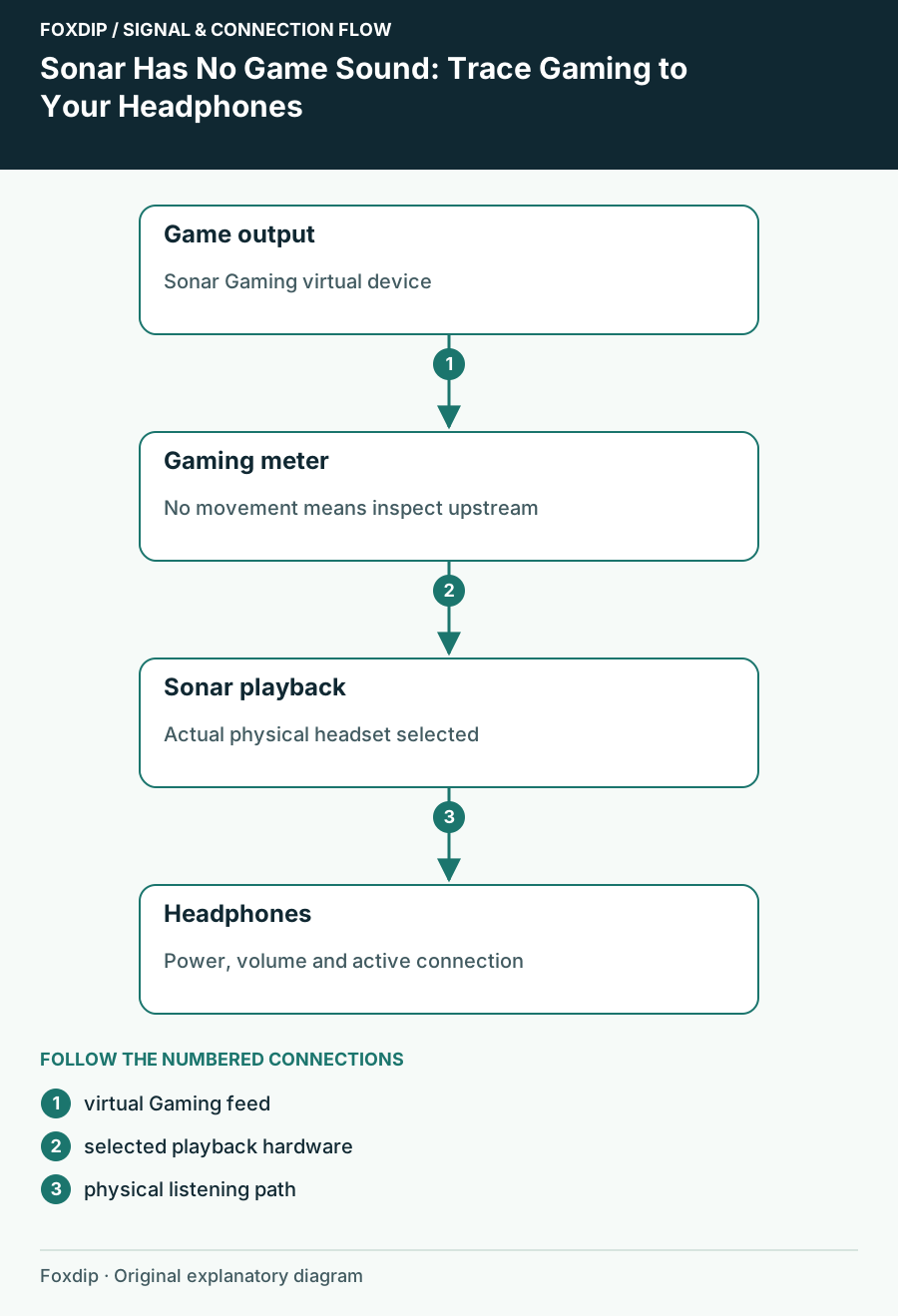
Original Foxdip schematic. Follow the labelled checks alongside the guide.
Check the physical destination first
In GG → Sonar → Mixer, inspect the playback device assigned to Gaming, or the Personal output if you are using the streamer layout. Select the headphones you are actually wearing. A monitor’s HDMI audio, an unplugged interface and a similarly named wireless output are easy to confuse.
Check the headset’s power, physical volume and mute state for playback. If Sonar offers an in-app test sample, use it as another controlled sound. A moving mixer meter paired with silence at the headset makes the downstream device and level choices the next sensible checks.
Follow the game into Sonar
Open the game’s audio settings and inspect its output choice. If it uses the system default, check Windows’ default playback device; SteelSeries documents Sonar Gaming for normal playback and Sonar Chat for communications. If the game is pinned to a physical headset, it may bypass Sonar entirely.
Select the intended route
Choose Sonar Gaming in the game when it offers a device selector, or use the intended Windows default route.
Look for: The repeatable game sound should move the Gaming meter.
Check Windows app routing
In Windows 11, open System → Sound → Volume mixer while the game is producing sound and inspect its output.
Look for: An app-specific override is visible rather than hidden behind Default.
Restart only the game if necessary
After a route change, close and reopen the game if it keeps the old audio session.
Look for: The newly opened session uses the selected endpoint.
Interpret what changes when you move one control
If Gaming has no signal, stay upstream with the app, its mute state and its selected output. If Gaming moves but your headphones are silent, stay downstream with Sonar’s destination and playback level. If other apps work through Gaming, compare their selected endpoint with the game’s.
Temporarily testing the game directly on the physical headset can help isolate Sonar’s route. Note the starting choice so you can put the game back afterward. This comparison is useful only if you change one route and replay the same sound, rather than also changing presets and devices.
Restore the route you intend to keep
Once the game plays, check chat and the stream separately. Hearing the game locally does not prove OBS records it, and fixing Gaming should not require moving Discord’s voice output into the same channel. Keep each route’s purpose visible in your notes.
Reopen the game once and repeat the sound before the next broadcast. If silence returns only after devices reconnect, compare the selected physical playback destination before and after that reconnect. If it remains silent throughout, record the game output label, Gaming meter behavior and physical destination for support rather than describing every part of the PC as broken.
Sources & references
Based on the official documentation linked beside the relevant sections. Follow the checks on your own setup; no hardware measurements or account tests are claimed.
- SteelSeries — What to know about Sonar ↗Checked 2026-10-27
- SteelSeries — How to set up Sonar ↗Checked 2026-10-27
- SteelSeries — Setting up Sonar for Streaming ↗Checked 2026-10-27
- SteelSeries — Music app routing on Windows ↗Checked 2026-10-27
Spotted something out of date? Let Alex know.
How we put our guides together ↗