
Keep your mic position consistent, compare the raw input with Sonar, and bypass one processing stage at a time.
Compare raw and processed speech, then adjust the gate or suppression stage that removes words.
In this guide
Before you start
- A working physical microphone and SteelSeries GG Sonar on Windows.
- A way to record the raw mic and processed route separately.
Check whether the words reach the microphone
Record a short phrase directly from the physical microphone before the Sonar processing route. Include a normal sentence, a quiet ending and a pause. If those words are already missing or distorted, inspect microphone position, physical mute and input gain before adjusting a software noise gate.
If the raw recording is intact but the Sonar version loses words, keep the same distance and phrase for every comparison. That makes a gate or suppression change audible. Turning toward the mic for one test and away for another makes even a correct setting difficult to judge.
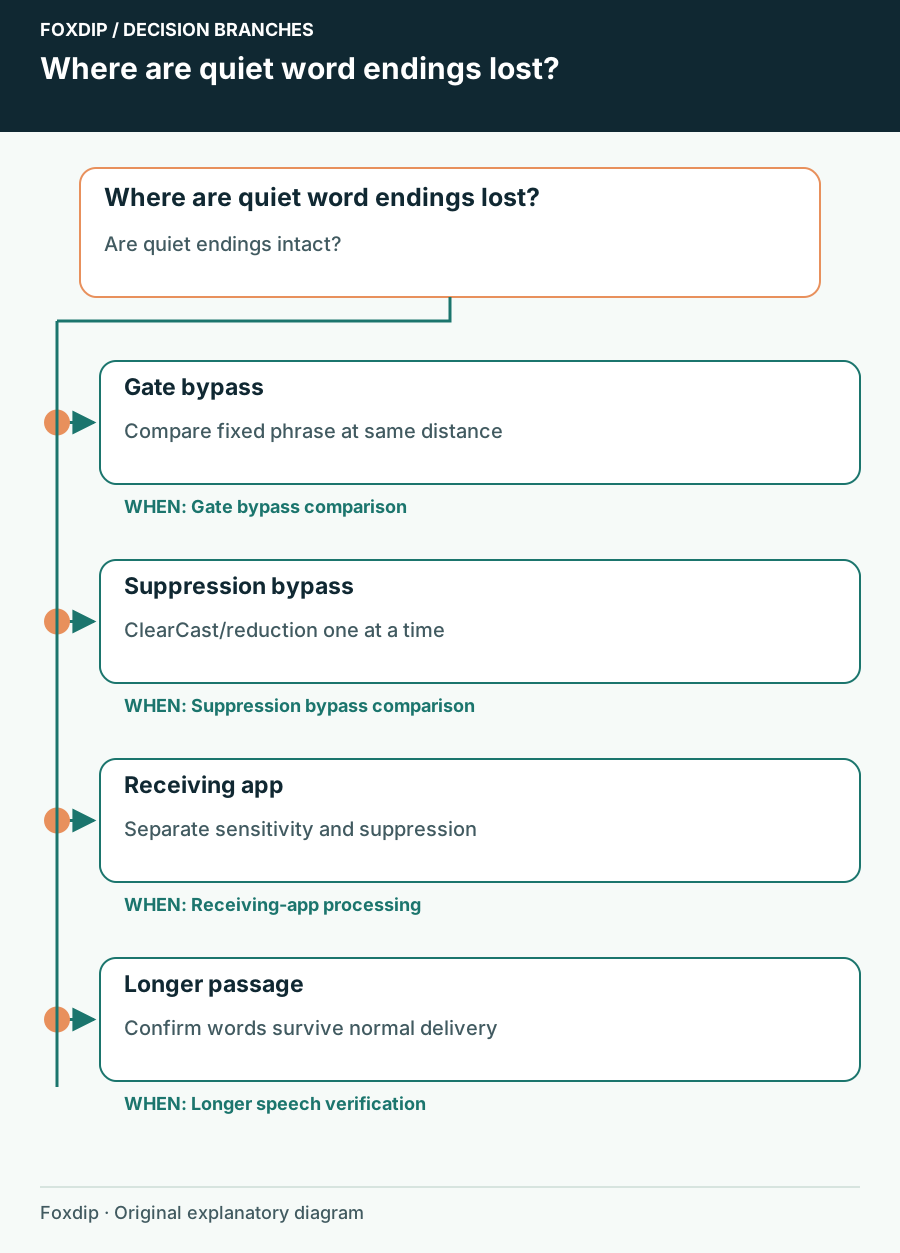
Original Foxdip schematic. Follow the labelled checks alongside the guide.
Start with the threshold that can close on speech
SteelSeries explains that a noise gate rejects sound below its threshold. If your quiet speech sits near the background noise, a high threshold can remove both. Inspect manual and automatic gate controls on the microphone processing path. Note the current value before changing or bypassing one control.
Compare silence with your softest normal speech. Lower the threshold enough to keep the phrase intact, or temporarily bypass the gate to establish the difference. There is no single dB value that suits every mic, speaking distance and room; copying another streamer’s number does not establish that it fits your input.
Compare suppression independently
If the gate is not responsible, compare noise reduction and ClearCast AI one at a time. SteelSeries documents that aggressive processing can affect voices and suggests a ClearCast comparison for cutting-out calls. This is a possible processing cause, not proof that the feature is faulty on every system.
Keep a reference phrase
Use the same normal sentence and quiet ending for every recorded comparison.
Look for: You can compare the same sounds across settings.
Bypass one stage
Disable only the selected gate or suppression stage, leaving gain and position unchanged.
Look for: A recovered word can be associated with that change.
Restore and reduce
If that stage caused the loss, restore it at a gentler useful setting or leave it bypassed if unnecessary.
Look for: Your voice remains intact with the least processing that solves the room noise.
Check processing in the receiving app
If Sonar’s output is clean but Discord still cuts words, inspect Discord’s transmission mode and its own suppression or sensitivity settings. Two programs can act on the same speech. Keep the Sonar comparison recording so you know which stage was clean before the call.
Also distinguish a complete mute from a word being suppressed. A button or hotkey can mute an otherwise healthy signal. Ask a listener whether the silence follows quiet words, a key press or an application switch. That pattern decides whether further audio processing work is relevant.
Keep the voice, then accept some room sound
A gate that makes pauses silent but deletes the end of every sentence is a poor trade. Improve speaking position and remove avoidable room noise before demanding stronger suppression. Record typing only if typing is part of the real use; don’t optimize the voice around a deliberately exaggerated noise demonstration.
Finish with a longer normal passage and one louder reaction. Listen through the route viewers or callers actually receive. Save the working preset only after that check, and keep the old setting values so you can reverse a change if the next room or microphone behaves differently.
Sources & references
Based on the official documentation linked beside the relevant sections. Follow the checks on your own setup; no hardware measurements or account tests are claimed.
- SteelSeries — Microphone levels and noise gate ↗Checked 2026-10-27
- SteelSeries — Adjust Mic and Audio levels ↗Checked 2026-10-27
- SteelSeries — Friends voices cutting out ↗Checked 2026-10-27
Spotted something out of date? Let Alex know.
How we put our guides together ↗