Choose the game’s presentation first: preserve the full width with spare space, or use a deliberate crop only when losing the edges is acceptable. Then place the webcam in a region that stays clear through actual gameplay states.
In this guide
Decide what happens to the extra width
An ultrawide game does not naturally fill a 16:9 output without a trade-off. Preserving its proportions leaves space above and below when it is fitted across the output width. Filling the entire output instead can cut off the sides. Stretching changes the geometry and can make the game and interface look distorted.
The OBS aspect-ratio guide distinguishes fitting, cropping and stretching. For a first layout, keep the whole game visible until you know which edge information can be lost. This is especially valuable when subtitles, maps or inventory panels move between states. Your webcam frame should follow that decision rather than force the crop.
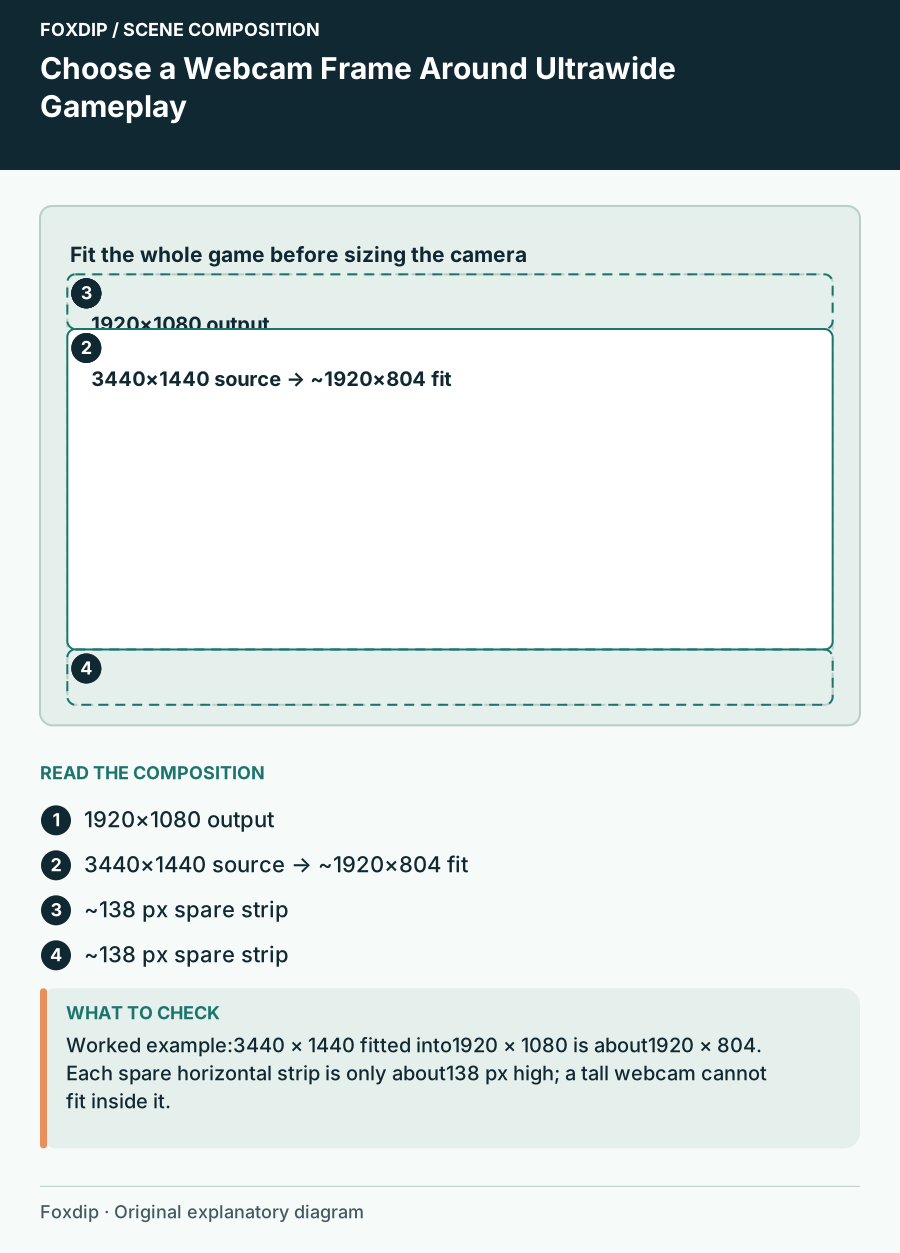
Original Foxdip scene plan. Positions illustrate this example; check the actual game or camera view.
Measure the spare space in a worked example
Consider a 3440×1440 capture placed proportionally at 1920 pixels wide on a 1920×1080 canvas. Its displayed height is about 804 pixels, leaving roughly 276 pixels in total above and below. If centred, each strip is about 138 pixels tall. Those are example dimensions, not platform requirements.
A large camera cannot fit completely inside one narrow strip without changing the composition. Options include using a shallower camera crop, giving the lower strip more of the spare height, or reducing the game slightly to create a wider side column. Check the resulting game text size before sacrificing more picture area to the camera.
Choose the frame opening, not only its outer decoration
Compare the transparent opening with the camera image you want to show. A wide head-and-shoulders crop may suit a shallow strip; a tall portrait frame may work better beside a smaller game image. The decorative border adds to the occupied area, so include its glow, nameplate and drop shadow when measuring.
For a side-column example, reserve a consistent camera block near the top, a short topic label below it and a clear alert region farther down. Avoid filling every remaining space with chat and social handles. The purpose of the column is to support the ultrawide game, not become a second equally busy programme.
| Layout choice | Camera opportunity | Main trade-off |
|---|---|---|
| Full-width game | Shallow spare strip | Limited camera height |
| Smaller game plus side column | Taller camera block | Smaller game interface |
| Crop game to fill output | Conventional corner frame | Lost game edges |
Test the real HUD before locking the frame
Capture examples of combat, map, dialogue, inventory and a pause menu. Mark the areas that must remain visible in each, then choose the camera position against the combined map. A corner that is empty during movement may hold party status or objective text during another state.
If you stream several games, create layout variants rather than assuming one webcam position fits all. Keep the camera’s visual style consistent while moving its block. A frame with an oversized fixed nameplate may be harder to adapt than a simple border with a separate text label. Choose adaptability when the games change often.
Review at the output size
Watch a short local recording in a smaller player. Can you still follow small map details and game subtitles after fitting the ultrawide image? If not, reconsider the output composition before decorating it further. A technically complete game capture can still be too small to follow comfortably.
Save the chosen game rectangle, camera block and reserved regions in a layout note. That makes future frame comparisons concrete. You are looking for a border whose opening and visual weight fit this composition, rather than buying an ultrawide-labelled pack and expecting it to decide where your game information belongs.
Sources & references
Foxdip editorial design advice with platform behavior grounded in the linked official documentation. Layout dimensions and palettes are worked examples, not platform requirements.
- OBS: Aspect Ratio Guide ↗Checked 2026-10-27
- OBS: Stream Layout Tutorial 1: Game Screen ↗Checked 2026-10-27
Spotted something out of date? Let Alex know.
How we put our guides together ↗