An animated file supplies the artwork. An alert widget connects an event to artwork, text and playback behaviour. Check whether you are buying media to configure yourself or a compatible widget setup with instructions.
In this guide
Split an alert into three parts
An event alert needs a trigger, a presentation and a place on the scene. The trigger might be a platform event handled by your alert service. The presentation combines animation, sound and a live label. The scene decides where that result appears relative to your game, camera and captions.
A product can supply only one part. A beautiful video may contain no event handling, name replacement or account connection. A widget template may supply the presentation logic but still require you to upload its media. Start with the part missing from your existing setup so you do not buy a second animation while expecting a complete event system.
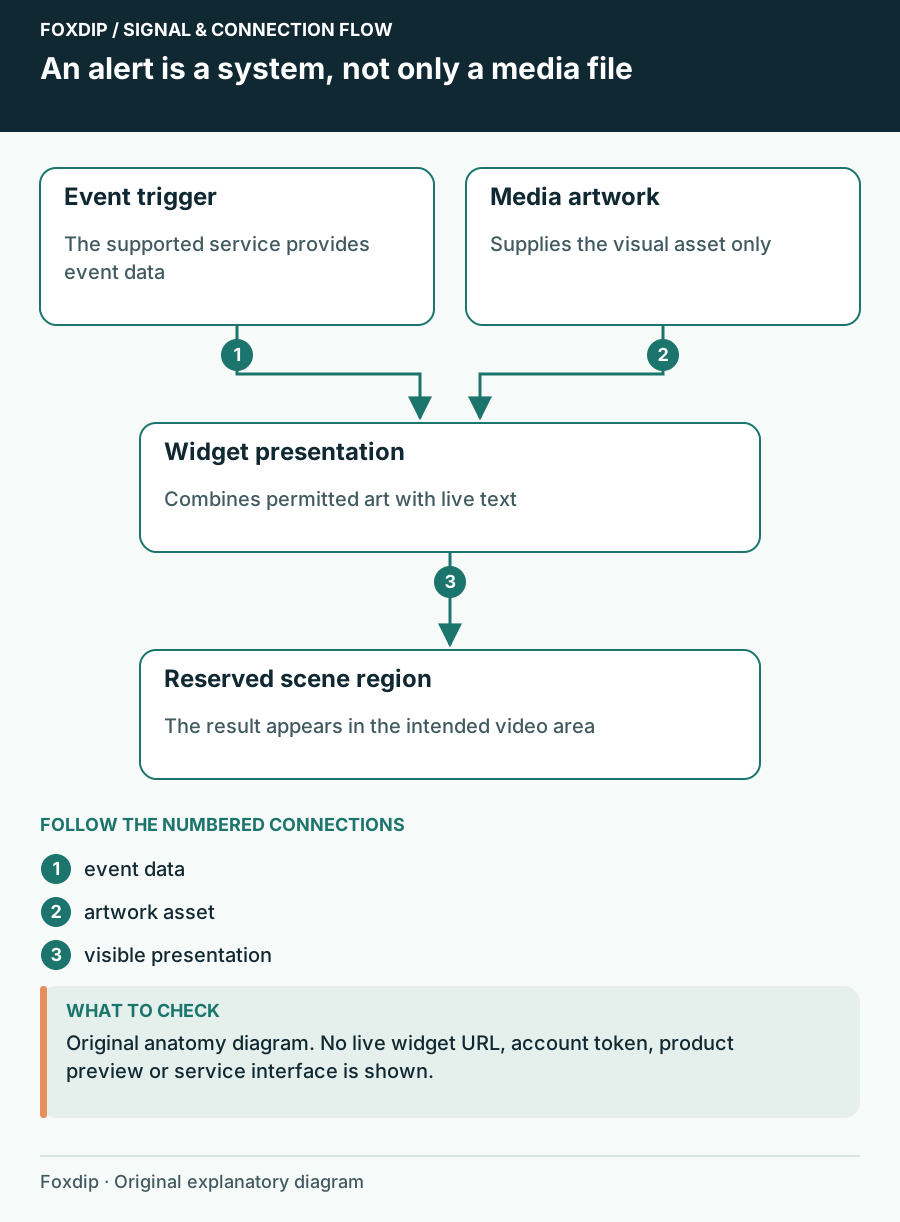
Original Foxdip schematic. Follow the labelled checks alongside the guide.
Recognise a media-only purchase
A media asset is typically a downloadable visual or audio file. You can preview it without receiving a real follower or subscriber event. In OBS, a Media Source plays local media; that playback alone is not an account-aware alert system. Your alert service or another controller must decide when the event should run.
Look for transparency, the intended background, duration, sound and any text already rendered into the file. A sample name shown in the shop preview should be identified as a preview or replaceable field. If it is baked into the video, a widget cannot automatically remove it merely because the animation looks like an alert.
Recognise a widget setup
A widget runs as web content and can combine live information with media according to its configuration. OBS Browser Sources display web pages; this is why many alert services provide a private URL for your scene. Compatibility still depends on the named service and the product’s instructions, rather than the general word widget.
Ask what you must do after purchase: import settings, upload assets, paste code, connect an account or configure event types. Keep private widget URLs out of screenshots and public support posts. A ready-made setup can reduce design work while still requiring a real connection and a test event before you rely on it.
Compare the missing tasks, not just the preview
Use a simple comparison sheet. Mark each task supplied by the product and each task you will perform. This makes a media-only pack comparable with a widget-based option without pretending that one format is always better. Existing alert users may prefer art they can drop into a service they already know.
For a new setup, the instructions matter as much as the visual. Confirm supported services and whether settings include dynamic names, message lengths and different events. Do not assume that a follower alert automatically covers subscriptions, tips and every other event. Those behaviours should be listed or demonstrated.
| Task | Media file | Widget setup |
|---|---|---|
| Supply visual design | Usually the main deliverable | May bundle or reference media |
| Respond to account events | Needs another controller | Confirm service and connection |
| Show a live viewer name | Not inherent in video | Confirm the field is configured |
| Appear in your scene | You place it | You still place it |
Test the complete result in a busy scene
Use the service’s supported test controls after setup. Try a short and a long invented display name, then look at the alert while gameplay, captions and your camera are visible. Leave a predictable alert region instead of relying on an empty corner that only exists on the waiting screen.
Check the recording as well as the preview if the alert includes sound. The animation working does not prove that the audio reaches the stream. Keep a note of the service, media folder and scene location so the next update is easy to trace. Buy the visual you want with a clear understanding of the setup work that remains.
Sources & references
Foxdip editorial design advice with platform behavior grounded in the linked official documentation. Layout dimensions and palettes are worked examples, not platform requirements.
- OBS: Media Sources ↗Checked 2026-10-27
- OBS: Browser Source ↗Checked 2026-10-27
Spotted something out of date? Let Alex know.
How we put our guides together ↗