
In this guide
Decide where you want people to look
A layout can look great across your whole monitor and become a jumble in a small player. Before moving anything, name the job of the scene. Are people watching the game, following a conversation or waiting for you to come back? Give that job the biggest, clearest part of the screen.
For gameplay, keep the action open and place your camera, labels and decoration around it. In a chat scene, your face or the thing you’re showing may need more room. On a break screen, one readable message often does more than five tiny panels. If everything is competing for attention, try taking something away before adding another frame.
Check the output size and keep faces in proportion
In OBS, the Base (Canvas) Resolution is where you arrange sources. The Output (Scaled) Resolution is what you send to the recording or stream. Check both. A label that looks crisp on a large canvas can shrink considerably in the output, so use the saved video for your final look.
Fit the webcam to the opening you want to use. A 16:9 camera image won’t fill a 4:3 opening without either cropping some image or leaving space. Stretching it to fit can flatten or widen your face. Use Edit Transform to size and crop it deliberately, then check that people, circles and artwork still have their normal proportions.
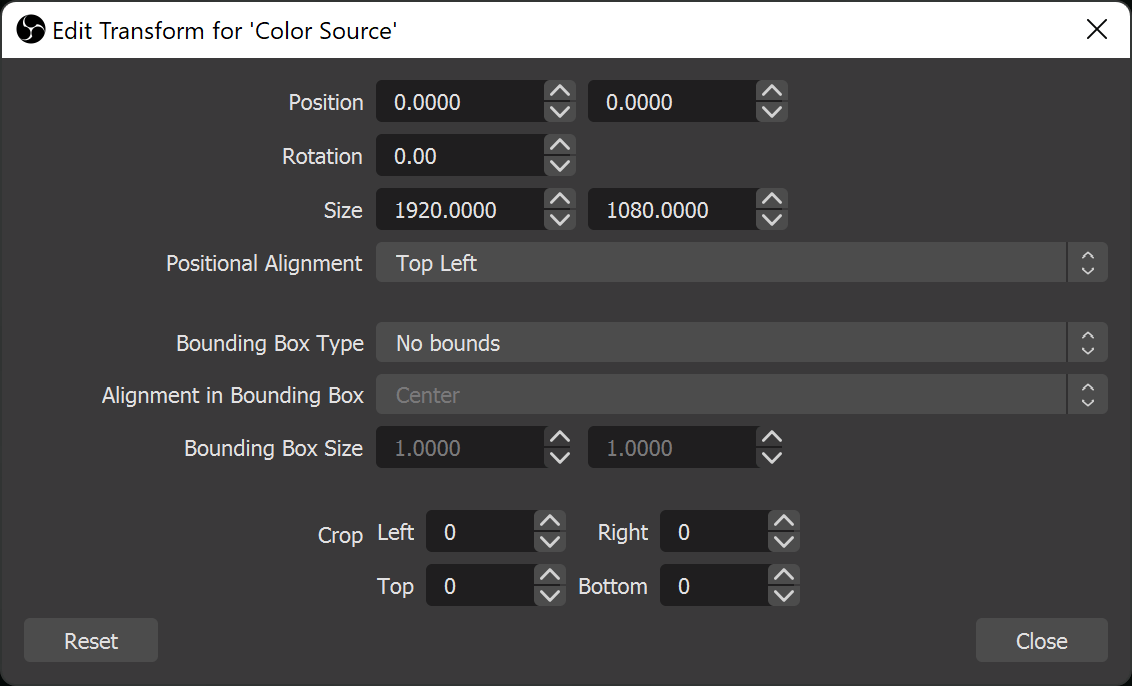
Edit Transform provides numeric controls for source size and cropping. This example edits a Color Source; your webcam uses the same transform dialog.
Once the layout fits, check whether its text stands out from the background. Check Overlay Text Contrast with a Simple Colour Exercise ↗
Keep the game’s information in view
The quiet corner in one game may be the minimap in the next. Look at the game you actually stream, including its subtitles, health display and inventory. OBS’s gameplay tutorial makes the same basic point: put the webcam where it won’t cover information people need to follow the game.
Try a few busy moments together: an inventory screen, dialogue, a fight and an alert. If a label or camera edge disappears, check the source list. Items higher in the list appear above lower ones. Leave breathing room around essential information instead of squeezing it against a frame; there isn’t one safe-zone measurement that suits every game.
If the camera is too wide for its opening, crop it without stretching your face. Fit Your OBS Webcam to a Frame Without Stretching It ↗
Make the player smaller and take another look
Record a short sample and play it in a smaller window. If you can, open a private local copy on your phone without zooming in. Can you tell what’s happening? Can you read the one message the scene needs to communicate? A layout shouldn’t need a full-screen player just to explain that you’re on a break.
If a label is hard to read, shorten the wording before making every box larger. Put important text on a quieter background or a solid panel when gameplay keeps swallowing the letters. Keep written labels such as Starting Soon or Be Right Back, too. A subtle colour change is easy to miss and shouldn’t carry the whole message.
Run through the scene once more
Use this quick check after changing a frame, camera crop or output size. Keep a note of what you moved, especially if you’re still comparing two layouts. Undoing one change is a lot easier than trying to rebuild last night’s scene from memory.
- In a small player, you can tell what the scene is for straight away.
- The camera and decoration leave faces and essential game information visible.
- Status text is short enough to read and stands apart from the background.
- Faces, circles and artwork keep their intended proportions.
- An alert can appear without covering the camera, captions or key information.
- Starting, break and ending scenes make sense without reading tiny labels.
Translate canvas text into viewer-size text
Use a simple scale calculation to identify text that deserves a closer look. A 1920-pixel-wide scene displayed 960 pixels wide is shown at one half of its original scale; a 40-pixel-high label becomes roughly 20 displayed pixels high before other playback scaling. This is an illustrative calculation, not a universal minimum font size.
Export or record the complete scene and view it at the smaller player width you expect. Include the longest real label, a two-line name and the busiest game image. Check text against the background behind it in that moment, rather than against a blank design preview.
| Observation | Next change | Expected result |
|---|---|---|
| Long name touches the frame edge | Reserve space using a realistic long name | The label stays inside its intended area |
| Fine decorative text disappears after downscaling | Shorten it or increase its visible weight/size | The important message survives the smaller view |
| Text works on one game scene only | Give it a stable backing or change placement | Normal gameplay no longer determines legibility |
Evaluate the smallest useful text against its actual background. Make Overlay Text Easier to Read: A Colour Check ↗
Sources & references
The OBS controls follow its official guides; the layout checks are Foxdip’s design advice. November 2026 addition: documentation-based diagnostic examples; no new hands-on hardware result or platform upload test is claimed.
- OBS: Sources Guide ↗Checked 2026-10-18 · Published January 11, 2022
- OBS: OBS Studio Overview Guide ↗Checked 2026-10-18 · Published August 25, 2021
- OBS: Stream Layout Tutorial 1: Game Screen ↗Checked 2026-10-18 · Published January 13, 2022
- OBS: Quick Start Guide ↗Checked 2026-10-18 · Published August 25, 2021
- OBS — Aspect Ratio Guide ↗Checked 2026-11-04
- W3C — Understanding Contrast (Minimum) ↗Checked 2026-11-04
Spotted something out of date? Let Alex know.
How we put our guides together ↗