
One notification can be duplicated in three different places. First decide whether you see two events, two pictures, or one picture with two copies of the sound.
In this guide
Describe what is actually doubled
Use one replayable event and a spare scene. If the activity feed lists two separate events, compare their types and timestamps. Confirm that they refer to the same action rather than two different event types. If the feed shows one event while the preview shows two copies of its artwork, inspect the sources instead.
When the picture appears once but the sound flams or echoes, move to the audio branch. This is why replacing the animation is a poor first experiment. It changes the look while leaving the duplicated path in place.
| What you observe | First place to inspect |
|---|---|
| Two entries in the event feed | Event types, times and provider rules |
| One event, two visible alerts | Browser/widget sources and nested scenes |
| One visible alert, doubled sound | Source audio, monitoring and desktop capture |
Find an extra visible source
In a spare scene, hide one Alert Box or browser source at a time, then replay the same event. Inspect nested scenes as well as the top-level source list. Two different overlays can both contain an AlertBox even when their source names do not mention alerts.
StreamElements recommends keeping an AlertBox in its own overlay and removing or hiding extra AlertBoxes from other overlays. Keep a known-good copy while testing. A source reused across separate inactive scenes is not automatically a duplicate in the current composition; focus on the sources active together.
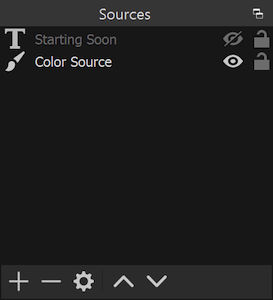
Use the eye controls to isolate active sources. Also inspect sources inside any nested scene.
If only the sound is duplicated
Trace the alert from the browser or widget to the recording and your headphones. If its monitored sound is also captured by Desktop Audio, the listener may receive a second path. Decide which path you want before changing monitoring options.
Replay one event into a short recording after each change. Listen to the saved file, not only your headphones. If the saved file is clean while you hear an echo locally, investigate your monitoring path. If the file itself has two copies, continue tracing the paths that reach the recording or stream mix.
The same route map helps separate missing sound from duplicate sound. Review the alert audio routes ↗
Write the intended destinations before changing them. Map a source to stream, recording and monitoring ↗
Keep the fix understandable tomorrow
Name the retained source for its job and provider. Note which scene or overlay owns the alert rather than leaving several nearly identical sources named Browser 2. Test the next scene as well; fixing a duplicate in one place should not silently remove the only alert from another.
If two providers intentionally respond to the same event, decide which one is responsible for that event in this layout. Keep independent alerts only when you actually want both. A tidy composition makes the next alert problem much less mysterious.
Sources & references
StreamElements documents extra AlertBoxes and audio-routing checks; OBS documents the source controls shown here. The guide uses those references to separate three different kinds of duplicate.
- StreamElements — Add overlays and alerts ↗Checked 2026-10-27
- StreamElements — SE.Live troubleshooting ↗Checked 2026-10-27
- OBS — Sources Guide ↗Checked 2026-10-27
- Streamlabs — How Do Alert Box Variations Work? ↗Checked 2026-10-27
Spotted something out of date? Let Alex know.
How we put our guides together ↗