
In this guide
Unzip it before you upload anything
The ZIP holds your download. Extract it on your computer, then open the new folder to find the images inside. If a paid collection arrives in several ZIP parts, download and extract each part before looking for a missing reaction or scene.
In the free GG sample, you will find seven image files plus README.txt, LICENSE.txt and manifest.json: ten entries altogether. The archive is 55,705 bytes. The image folders are where you will choose a reaction; the three text files explain the download, its use and its recorded file details.
Read the format and size in the folder name
Animated_GIF_28, Animated_GIF_56 and Animated_GIF_112 each contain 01_GG.gif at the named size. Static_PNG_28, Static_PNG_56, Static_PNG_112 and Static_PNG_512 each contain 01_GG.png. Start with the size your destination requests. The large 512 px still gives you another export to work with, but the biggest file is not automatically the right upload.
For this sample, the GIFs move and the PNGs are still. All seven show the same GG design. You will not find an editable project, an OBS scene collection or a complete overlay inside this download; those are different deliverables to look for in a product’s contents.
| Item in the GG sample | What it is | How to use the information |
|---|---|---|
| 3 GIF image files | One animated design in three sizes | Play the loop, then choose the size you need |
| 4 PNG image files | The same reaction as four still exports | Open the small version as well as the large preview |
| README.txt and LICENSE.txt | Instructions and permitted use | Keep these with the images |
| manifest.json | A record of the supplied files and their properties | Useful if you need to identify an exact file for support |
Animated_GIF_112/01_GG.gif112 × 112 px · Animated GIFAnimated_GIF_28/01_GG.gif28 × 28 px · Animated GIFAnimated_GIF_56/01_GG.gif56 × 56 px · Animated GIFStatic_PNG_112/01_GG.png112 × 112 px · Static PNGStatic_PNG_28/01_GG.png28 × 28 px · Static PNGStatic_PNG_512/01_GG.png512 × 512 px · Static PNGStatic_PNG_56/01_GG.png56 × 56 px · Static PNG
Seven exports of one design. Folder names describe the format and size; they are not seven different reactions.
Use two backgrounds to see whether the file or the source needs attention. Fix a solid overlay background ↗
Open one still and one animation
Choose the smallest PNG and open it, then play its GIF counterpart through a full loop. Compare the expression, the edge and the space around the artwork. This quick look tells you far more about whether you like the reaction than the total number of files in the folder.
The manifest keeps the sample’s technical file details together if you need them later. For help with a download, begin with the file name, order reference and what happened when you opened it. A screenshot of the problem is useful; a publicly shared paid ZIP or payment details are not.
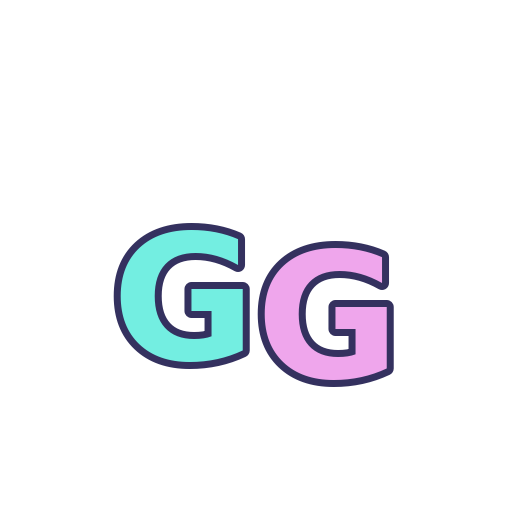
The actual GG sample artwork. This enlarged PNG helps identify the design; the chat-size examples below show how the smaller exports read.
Choose Image, local media or scene import to match the file you have. Add the files in Streamlabs Desktop ↗
Keep the licence; follow the upload form
Once you know which file you want, follow the current emote instructions in your platform account. Use the format and size that upload slot asks for. The artwork licence explains your permitted use, while the platform decides which slots are available and whether an upload is accepted.
Keep the GG licence with your extracted files. If you choose a larger collection later, compare its distinct reactions as well as its export count. Six sizes of a reaction give you flexibility, but they are still the same expression when you use it in chat.
Choose the upload mode before choosing the biggest file
A folder can contain every correct export while you still select the wrong one for the upload form. For Twitch, standard emotes use PNG and animated emotes use GIF. The current guidelines distinguish one square image for auto-resize from the three prepared 28, 56 and 112 px images used for manual sizes.
Keep the extracted original files unchanged while choosing. Renaming a PNG to .gif does not add animation, and changing an extension does not convert the format. If the uploader rejects a file, note its actual format, dimensions, byte size and upload mode so you can compare the relevant requirement.
| Observation | Next change | Expected result |
|---|---|---|
| You want a static emote with automatic resizing | Choose an eligible square PNG, at least 112 px | The upload uses a still image of a supported size |
| You want manual animated sizes | Select the matching 28, 56 and 112 px GIF exports | All sizes show the same intended reaction |
| One file is rejected while the other sizes open | Compare the rejected file with that mode’s limits | Diagnose that file rather than renaming the entire ZIP |
Review the smallest result even when auto-resize accepts the source. Will Your Animated Emote Read at 28 px? ↗
Give it a run in chat.
Try the free GG emote, or bring your own PNG or GIF to the preview. Look at the smallest size first and watch the whole loop.
Dark chat Illustrative preview



Light chat Illustrative preview
Sources & references
The folder names and file counts below come from our checked GG sample download. November 2026 addition: documentation-based diagnostic examples; no new hands-on hardware result or platform upload test is claimed.
- Foxdip GG sample — actual exported-file manifest ↗Checked 2026-11-04
- Foxdip GG sample — included channel-use licence ↗Checked 2026-10-18
- Twitch — Subscriber Emote Guide ↗Checked 2026-10-18
- Twitch — Emote Formatting & Instant Emote Upload Requirements ↗Checked 2026-11-04
Spotted something out of date? Let Alex know.
How we put our guides together ↗