
Press the small mode button directly behind the wheel once, then roll the wheel again. The original G502 Proteus Core has two wheel modes; free spinning alone does not mean scrolling has failed.
You can tell whether the wheel mode changed and whether the computer receives scrolling.
In this guide
Before you start
- This guide covers the original wired Proteus Core. HERO, LIGHTSPEED and G502 X models need their own instructions.
1. Use the mode button, not the wheel click
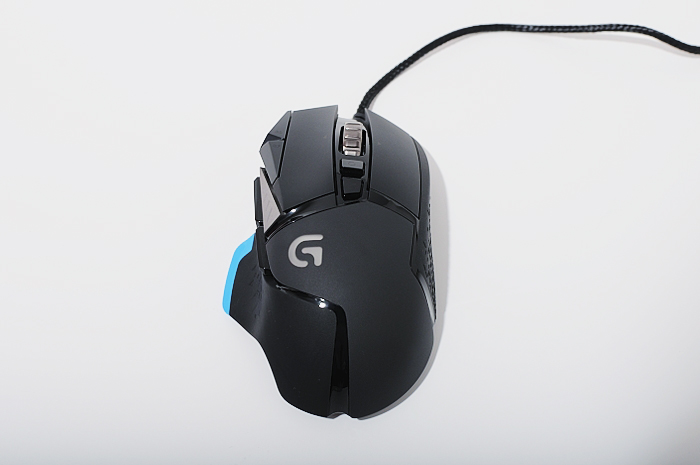
Look just behind the metal wheel. The small separate button changes how the wheel turns. Pressing the wheel itself is the middle-click action; tilting it is another input again.
Press the mode button once and roll the wheel slowly. Compare its feel with the previous position. You are checking the wheel’s mechanical mode here, so there is no software setting to save.
 12
The wheel and the separate mode button on the original Proteus Core. Keep the two controls distinct when testing.
- Scroll wheel / middle click
- Mechanical mode button
2. Check scrolling separately
Open a long page with room to scroll. Move it away from the top and bottom so that a lack of movement is meaningful, then roll the wheel in both directions. Repeat after changing the wheel mode.
If the page moves in both modes, the wheel is registering. Choose the feel you prefer. A wheel that carries on turning freely and a wheel that sends no scroll input are different symptoms; give the next diagnosis the right name.
3. If the page still does not move
Try a second application before changing system settings. If scrolling fails there too, reconnect the wired mouse directly to the computer and compare another USB port. The original manual also suggests another computer when one is available.
If one computer works and another does not, keep that distinction in your support notes. If the wheel is physically stuck, the mode button will not change its feel, or scrolling fails across the comparison, stop treating it as a simple free-spin setting. Describe the remaining symptom to support or a repair service.
Keep the mouse’s exact name with those notes. This page does not turn an original Proteus Core diagnosis into a repair procedure for a newer G502.
Sources & references
The original Proteus Core setup guide identifies the mechanical wheel-mode control. General wheel checks come from Logitech Support. The photograph is Sinchen.Lin’s 2014 original, reused unchanged under CC BY 2.0 with separate numbered callouts.
- Logitech G502 Proteus Core — Setup Guide ↗Checked 2026-10-18
- Logitech Support — Scroll wheel stuck or does not respond ↗Checked 2026-10-18
- Sinchen.Lin — original G502 Proteus Core photograph ↗Checked 2026-10-18
Spotted something out of date? Let Alex know.
How we put our guides together ↗