
Copy the complete message and record where it appeared. A number alone is not enough to choose a repair: the game, launcher, platform and stage tell you which support path applies.
In this guide
Keep six pieces of context together
Write down the game and edition, the full code, the full message, your platform, the launcher and the stage that failed. “Steam on Windows, downloading an update” is a different starting point from “the same game on a console, joining a match.” Keep the prefix and punctuation: VAL and VAN codes are not interchangeable labels.
Add the time and time zone, the last successful attempt and the one change just before the problem. Screenshot only the relevant message and remove private account details before sharing it. The downloadable sheet keeps those details in one place without asking you to upload a log to Foxdip.
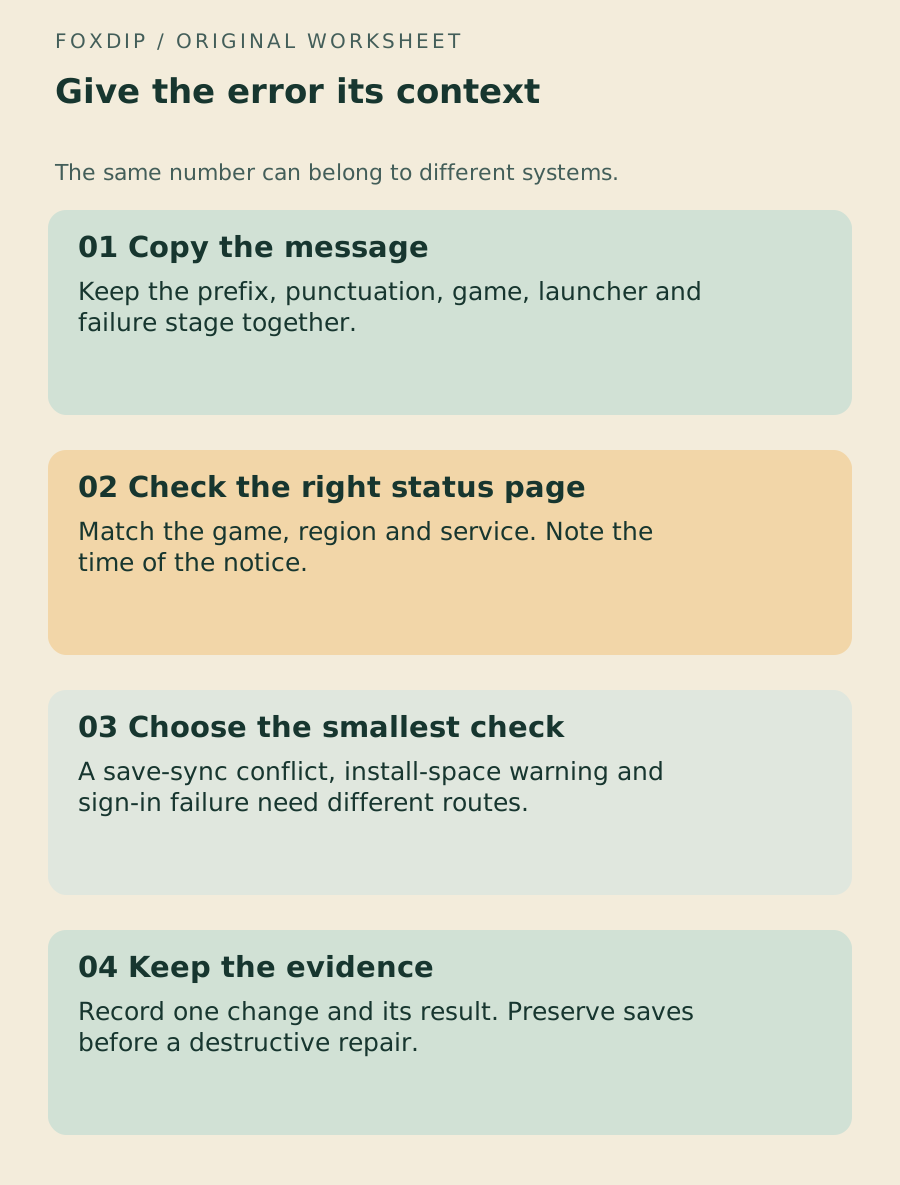
Original Foxdip worksheet. The examples are planning prompts, not a software screenshot or a measured result.
Use the text template to record a small, comparable test. Download the error-context sheet ↗
Check the matching official service notice
Look at the publisher’s current support banner or status page for the exact game, region and service. A sign-in incident can explain a failure that a local driver reinstall cannot repair. Note when you checked: a notice from last month is not evidence of an outage tonight.
Also read the caveat above a code table. Riot’s VALORANT page currently warns that its list is out of date and some errors display incorrectly. Treat that as a reason to use current notices and support context, not as permission to turn the old table into a certain diagnosis.
Choose the route that matches the failure stage
The following examples show why a single restart-and-reinstall checklist is a poor fit for every message. Follow the dedicated guide for the actual case instead of trying all repairs in a row.
| Context | First useful route | Avoid assuming |
|---|---|---|
| Steam Cloud conflict or failed sync | Preserve the last good save and identify the relevant device/session. | That a newer timestamp always contains the progress you want. |
| Epic IS-DS01 / IS-IN-DS01 while installing | Check the destination drive’s available space. | That a sign-in reset or random driver update supplies disk space. |
| VALORANT code plus a current service notice | Read the notice and the page’s current code-display warning. | That an old code table establishes the present cause. |
Keep the copies before choosing a conflict result. Protect a Steam Cloud save ↗
Match the full IS-DS01 message to the install stage. Check Epic installation space ↗
Use the current publisher caveat alongside the account-session checks. Review VALORANT session context ↗
Make one reversible change and repeat the same attempt
Keep the starting condition fixed and choose the smallest relevant check. Record what changed and what happened. If you clear a cache, reinstall a launcher and update drivers together, you lose the comparison even when the error disappears.
Protect saves, custom files and account access before a repair that removes or replaces data. Avoid registry changes, firmware toggles, security exclusions and third-party “fixer” downloads unless current official guidance for your exact case establishes that step.
Recognize when you need a better support record
If a different message appears, stop and record it as the next stage. Repeating the first fix for a new code can remove useful evidence. Give support the specific context and the result of each small check, with private details redacted.
Once the game runs, make a short local OBS recording of the actual scene. A launcher repair can change the running window or audio route without requiring you to rebuild the entire stream layout.
Confirm the stream setup after the game is working. Check the finished recording ↗
Sources & references
The steps follow the linked platform documentation. Practice downloads and planning examples are original Foxdip resources.
- Riot — VALORANT error codes and solutions ↗Checked 2026-10-27
- Epic — IS-DS01 install-space error ↗Checked 2026-10-27
- Steam Support — Cloud synchronization ↗Checked 2026-10-27
Spotted something out of date? Let Alex know.
How we put our guides together ↗