
Exit the same experience on your other devices, then reopen it on one device. If the other session is unfamiliar, review your account’s logged-in sessions.
Run the experience on one device and identify whether another account session needs attention.
- Code / message
264- Platform
- Windows · macOS · iOS · Android · Amazon Fire OS · ChromeOS
- App / launcher
- Roblox Player
- Scope
- Current official support guidance reviewed on 27 October 2026; no specific affected client build is listed.
In this guide
Before you start
- Your Roblox sign-in and verification method.
- Access to the phone, tablet, console or computer you used most recently.
Look for the second session
Roblox identifies 264 as a conflict when the same account tries to access the same experience from multiple devices at once. That makes your phone, tablet or previous computer the first place to look. A fresh installation on this computer will not end an experience that is still open elsewhere.
Write down when 264 appeared: immediately after moving devices, after resuming a tablet, or while another person was using a shared machine. Those details help you separate an expected overlap from a session you do not recognize. Keep the screenshot private if it includes account details.
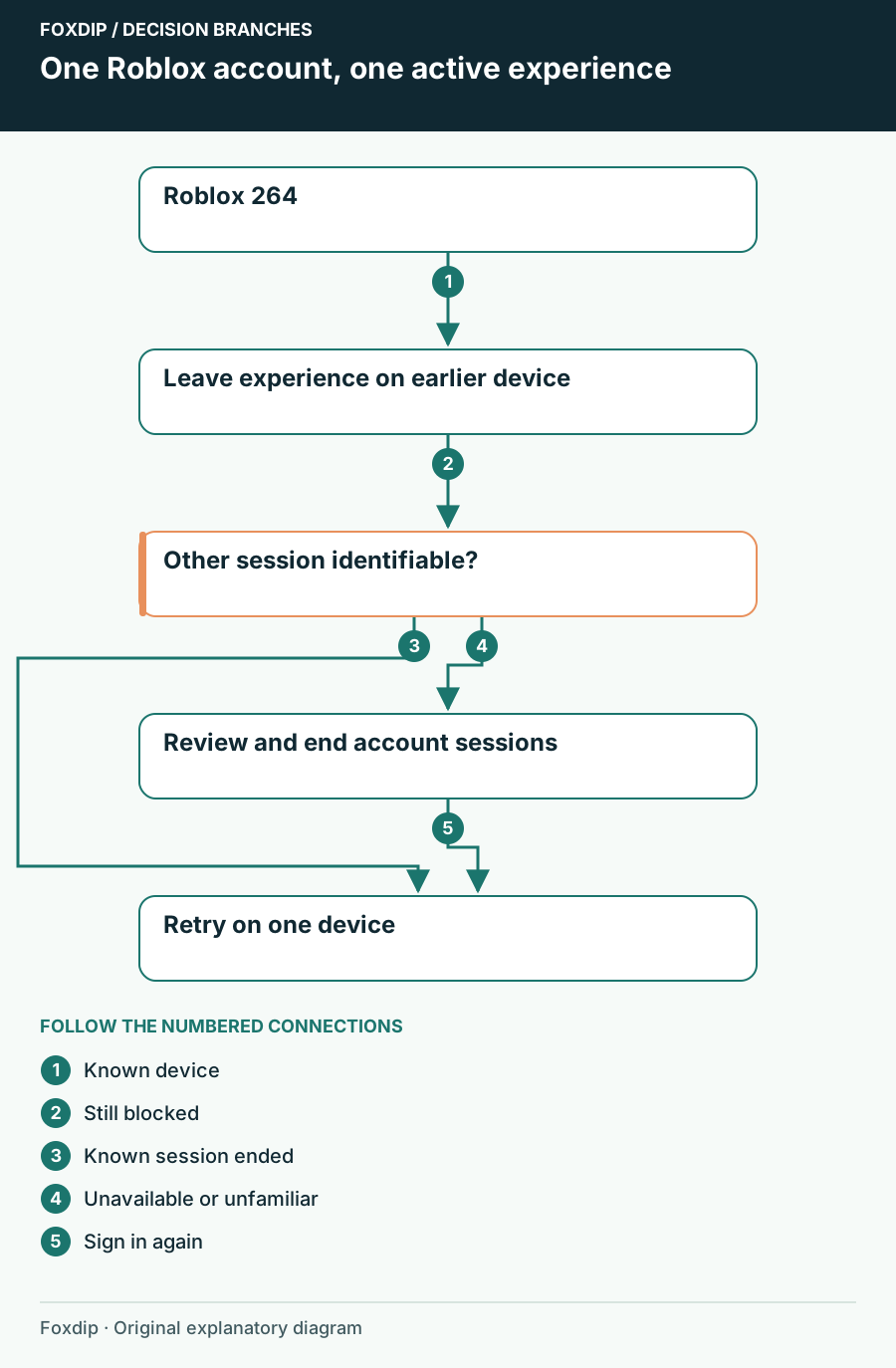
Original Foxdip schematic. Follow the labelled checks alongside the guide.
Use one player at a time
Move between devices deliberately. Finish the earlier session before opening the next one, particularly when you keep a tablet beside your streaming computer for chat or moderation.
Leave the experience on the previous device
Leave the experience normally on the earlier device and close its player. Close and reopen Roblox on your intended device, then join once.
Look for: The intended device enters without 264.
If the earlier device is unavailable, review logged-in sessions.
Remove the obvious overlap
Keep Roblox closed elsewhere while you retry. Anyone using a shared device should sign into their own account.
Look for: Only one device is entering this experience with your account.
If 264 repeats, note the time and inspect your session list.
Review where you are logged in
In Roblox account Settings, open Security and find Where you’re logged in. Review the device, approximate location and last activity before ending a session. Roblox notes that older sessions can have incomplete or unknown details, so an unfamiliar label alone is not proof of an intruder.
End the session you no longer need
Select the relevant session and choose Log out of session. If you need to close every other session, use Log Out of All Other Sessions while keeping your current session.
Look for: The unwanted session is signed out.
Try one experience on your current device; if access is lost instead, use official account recovery.
Treat an unexplained session as an account issue
If the second session belongs to you, there is no reason to change network ports or install a repair utility. If it does not, stop using shared credentials and follow Roblox’s account-protection support route. Do not give a helper your password, verification code or a copied login cookie.
Before signing out broadly, confirm you can complete your normal sign-in verification. This matters when your only working session is on a borrowed phone. Session cleanup should leave you able to return to your own account; do not keep guessing passwords until another problem obscures the original one.
Retry once and preserve the pattern
Join the same experience on your chosen device, then watch whether 264 returns while the other devices stay closed. If it does, send Roblox Support the code, device type, operating system, experience link and the times of the tests. Mention that you ended the other sessions. This is more actionable than a report that says only that reinstalling did not help.
For a planned stream, launch the experience before opening the broadcast. Once it stays connected, run a brief OBS capture check. Avoid putting your account security screen into a shared browser source or full-screen display capture.
Return to capture troubleshooting only after the experience opens. Check your OBS game capture ↗
Still stuck?
You recognize the other device
Leave the experience there and retry on one device.
The other session is unfamiliar
End it through official session management and use Roblox account-protection help.
Sources & references
Guidance follows the linked publisher and operating-system support resources.
- Roblox Support: Error 264 and simultaneous devices ↗Checked 2026-10-27
- Roblox Support: Review and end account sessions ↗Checked 2026-10-27
- Roblox Support: Account sharing guidance ↗Checked 2026-10-27
Spotted something out of date? Let Alex know.
How we put our guides together ↗