
Check Riot’s current support notice and the full message first. If the message really describes an account session elsewhere, review the session controls; the code number alone is not a reliable diagnosis while Riot’s code-display warning remains.
Play from one Riot account session or identify an account-access issue that needs support.
- Code / message
VAL 5- Platform
- Windows
- App / launcher
- Riot Client
- Scope
- Current official support guidance reviewed on 27 October 2026; no specific affected client build is listed.
In this guide
Before you start
- Your Riot sign-in and multi-factor authentication method.
- A note of the computers or shared devices where you recently signed in.
Check that the prefix is VAL
Before treating VAL 5 as a definite account-session diagnosis, read Riot’s current support banner. Its code table warns that the list is out of date and some errors may display incorrectly. Match the full message and service context; if those disagree with the table, use Riot Support rather than repeating a code-only fix.
Read the complete message before changing anything. VAL 5 belongs to the VALORANT client error table; VAN codes belong to Vanguard’s separate support route. Riot lists VAL 5 as an account logged in elsewhere and tells players to log out from all devices. That is your starting point.
The message does not tell you who used the other session or why it remained active. A computer at home, a shared gaming station or a client left open after switching machines deserves a check before you assume somebody has stolen the account. Conversely, do not dismiss a genuinely unfamiliar sign-in.
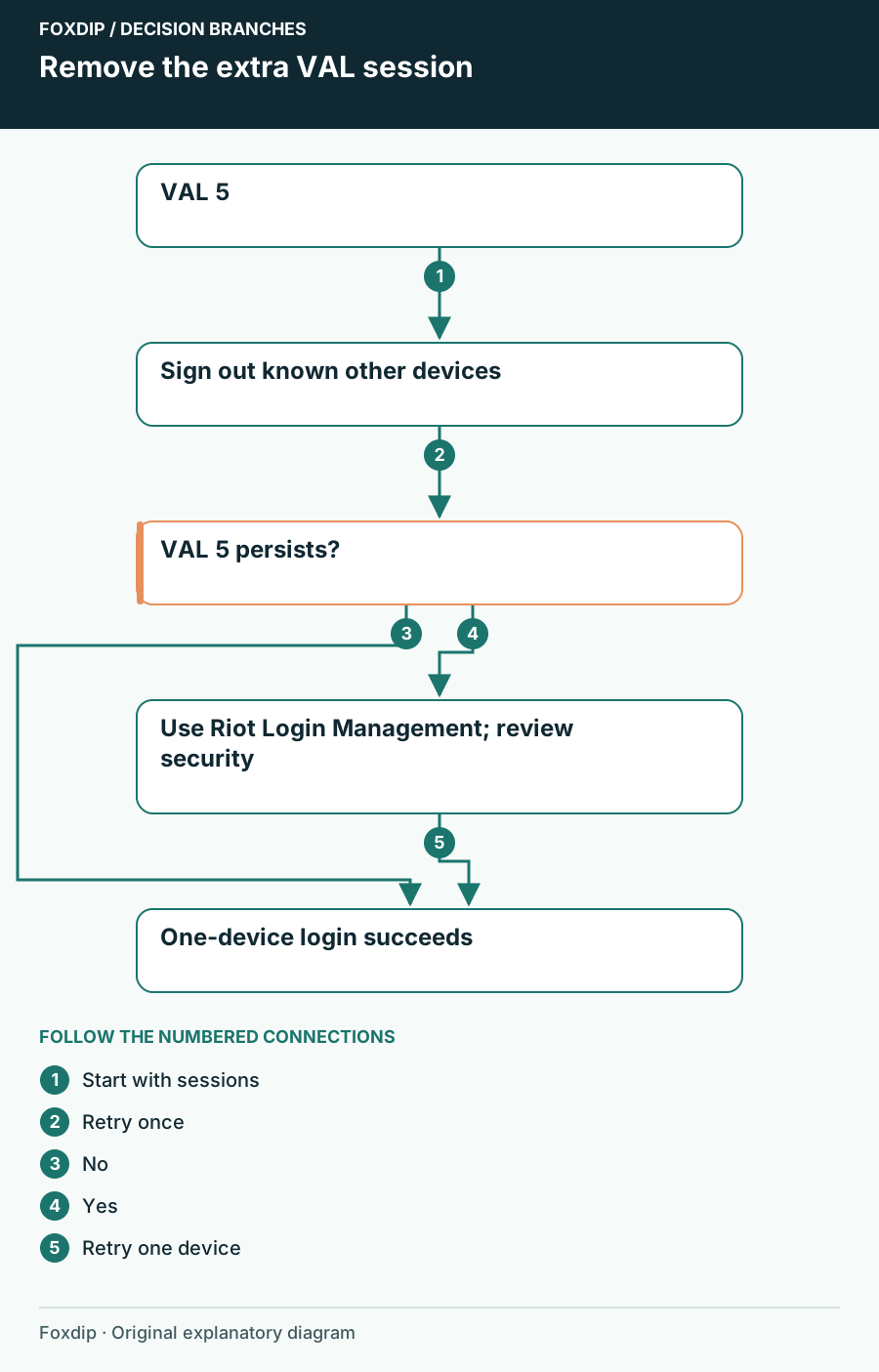
Original Foxdip schematic. Follow the labelled checks alongside the guide.
Use the prefix guide if you are unsure which family the message belongs to. Match VAL and VAN correctly ↗
Start with devices you recognize
Leave the game and sign out of the Riot Client on the other computers you used. Close the client after signing out, then retry on the PC you intend to play on. Do this outside a match and before starting the broadcast so account screens stay private.
Retry with one active device
Keep the other clients signed out. Open Riot Client on your chosen PC, sign in and launch VALORANT once.
Look for: VALORANT reaches its normal menu without VAL 5.
If the other device is inaccessible or VAL 5 continues, use Riot’s remote logout control.
End remote sessions through Riot Account
Riot provides a remote option on the account page. Before using it, confirm you can receive your normal verification challenge. Remote logout also removes trusted-device status, so you may need to verify devices again when you return.
Use Login Management
Sign into the official Riot account page, find Login Management and select LOG OUT EVERYWHERE. Then sign in only on the PC you are troubleshooting.
Look for: Other account sessions are signed out and must authenticate again.
If VAL 5 still returns, record the time, region and exact message, and check Riot’s support notices.
If you cannot explain the other login
If no known device accounts for the overlap, follow Riot’s account-protection guidance. Use a unique password and protect the linked email account, because access to that email can affect account recovery. Enable Riot’s available multi-factor authentication from the official account settings.
Do not turn a session problem into a network-repair experiment. Router resets and firewall edits cannot establish who has access to the account. If you lose access or see activity you did not authorize, use Riot’s recovery support route with private evidence rather than discussing credentials in a public stream or chat.
Keep a repeated VAL 5 report precise
Check Riot’s current support-site notices for your game and region before repeating the same logout cycle. A notice may change the recommended action. This guide does not assert that an incident is happening today, and yesterday’s social post is not proof that it still applies.
For an unresolved ticket, include when you last changed devices, whether remote logout completed and the first recurrence after signing in again. Once the game opens, verify game capture and voice routing with a local recording. There is no need to rebuild OBS to correct an account-session error.
Return to the broadcast setup after account access is stable. Run a brief pre-stream recording ↗
Still stuck?
The other device is not available
Use Riot Account Login Management to log out everywhere.
You cannot explain a recurring session
Protect account and linked-email access, then use Riot recovery support.
Sources & references
Guidance follows the linked publisher and operating-system support resources.
- Riot Support: VALORANT client error meanings ↗Checked 2026-10-27
- Riot Support: Login management and multi-factor authentication ↗Checked 2026-10-27
- Riot Support: Account protection ↗Checked 2026-10-27
Spotted something out of date? Let Alex know.
How we put our guides together ↗