
Keep the game closed on both devices until you identify the save containing your latest progress. Back up the local saves before choosing a Cloud conflict copy.
Select a save copy deliberately, or preserve both copies while you ask the developer for help.
- Code / message
Cloud Out of Sync·Unable to sync- Platform
- Windows · macOS · Linux · Steam Deck
- App / launcher
- Steam
- Scope
- Current official support guidance reviewed on 27 October 2026; no specific affected client build is listed.
In this guide
Before you start
- The names of every device you recently used for this game.
- The game developer’s save-folder instructions and enough space for a separate copy.
Stop before the next launch
If you have just switched from a desktop to a laptop or Steam Deck, cancel the launch while you check the warning. Another quick session can make the history harder to untangle. Write down the last device you played on, the approximate finish time and one memorable piece of progress: a mission, checkpoint or character level.
An upload failure and a choice between conflicting files are different situations. Steam documents that a failed sync can be temporary or connection-related, while a conflict means it cannot choose between changed local and cloud files. Neither message proves that your save is corrupt. Steam Support also cannot promise to recover lost progress.
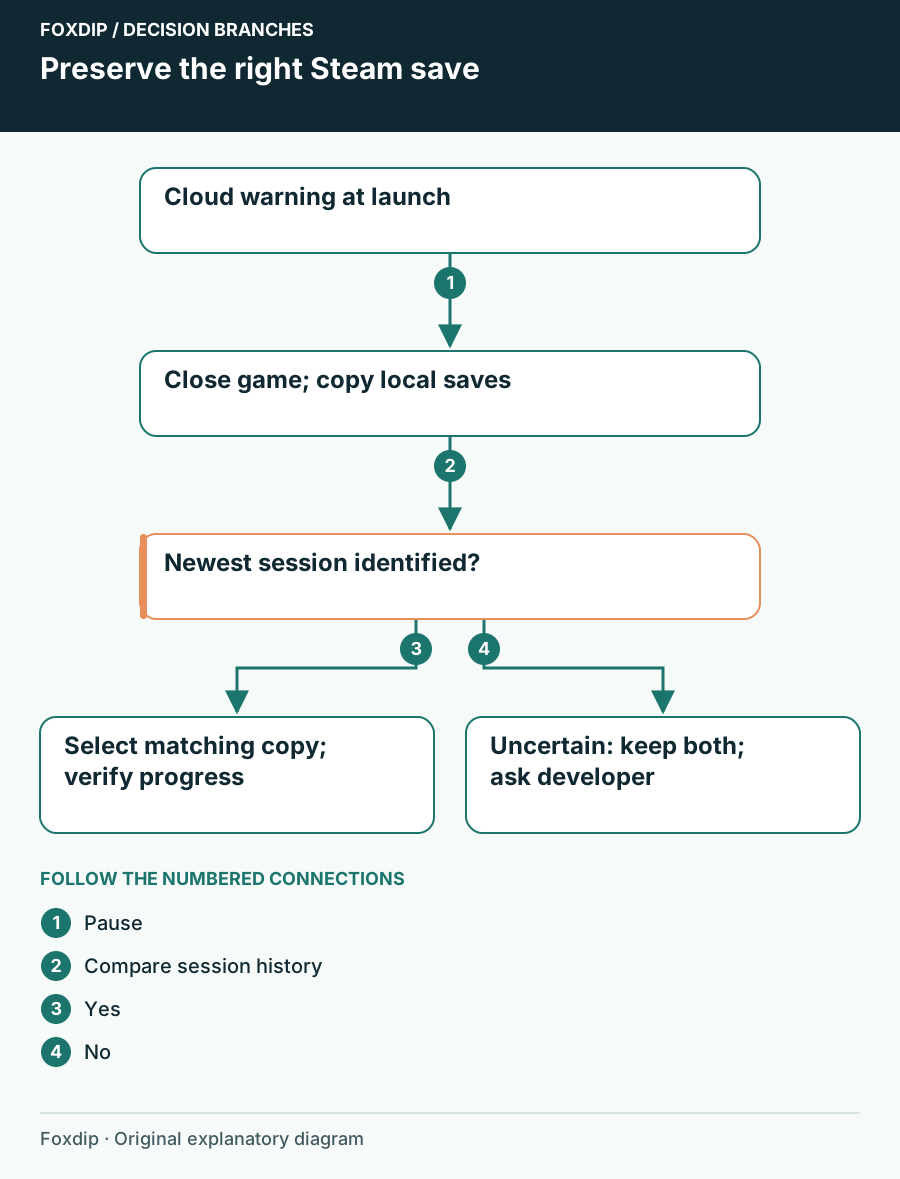
Original Foxdip schematic. Follow the labelled checks alongside the guide.
Make a separate copy of the saves
A backup of installed game files is not automatically a backup of your progress. Steam’s backup guidance warns that saves and custom files may be excluded, and third-party games choose their own locations. Use the developer’s instructions for this exact game rather than assuming every save lives in steamapps.
Keep your copies outside the active save directory and label them with the device and date. This is an extra precaution before you make a selection, not a method for forcing one version into the cloud. Do not overwrite the original folder while trying to collect evidence.
Preserve each local version
Close the game. Locate its save folder using the developer’s support instructions, then copy the complete relevant folder to a separate location on each available device.
Look for: You have distinguishable copies without changing the game’s originals.
If you cannot identify the saves confidently, stop and ask the developer before selecting a conflict copy.
Read the warning you actually have
For a sync failure without a choice dialog, return to the device containing the latest session. Keep it online and allow Steam to finish uploading with the game closed. Observe the Cloud status before opening the game elsewhere. Resist toggling Cloud off and starting fresh: that creates another local history to account for.
Retry on the last-used machine
Open Steam on the device with your newest progress, check its connection and retry the offered synchronization action.
Look for: The game’s Cloud status completes without an error.
If it stays unsuccessful, preserve that machine’s copy and investigate its connection before playing on the second device.
Match timestamps to what you played
If Steam offers a local/cloud choice, compare both displayed times with your session notes. A newer timestamp is a clue, but the device, session and expected checkpoint should agree. For example, a cloud copy from before your evening boss fight should not beat your later local copy merely because you are now sitting at a different computer.
When the history is uncertain, keep both backups and leave the decision pending. There is no universal button that merges two independent campaigns. Cross-platform sharing also depends on the game, so desktop-to-Deck or Windows-to-Mac support needs a game-specific check.
Confirm progress before your stream
After selecting a copy and completing sync, launch on one device only. Check the expected character or checkpoint before committing a new save. If progress looks wrong, close the game and contact the developer with the preserved copies; avoid a series of experiments across multiple machines.
Once the right progress is visible, end the session normally and let its upload complete before moving devices. Before going live, make a short local recording to confirm your game capture and microphone still work. A save problem does not require rebuilding your OBS scene.
Check the recording after the game is ready. Run the OBS audio check ↗
Still stuck?
The other device has the newest progress
Preserve that local save and finish its upload before launching here.
Neither timestamp fits your session
Keep both copies and ask the game developer for save-specific guidance.
Sources & references
Guidance follows the linked publisher and operating-system support resources.
- Steam Support: Cloud synchronization and conflicts ↗Checked 2026-10-27
- Steam Support: What a game backup includes ↗Checked 2026-10-27
- Valve Steamworks: File sync and platform integration ↗Checked 2026-10-27
Spotted something out of date? Let Alex know.
How we put our guides together ↗