
Close the game and unnecessary apps, restart and retry the affected installation. IS-MF-01 reports a file relocation failure; it does not identify the interfering program by itself.
Finish the installation or collect a repeatable relocation failure with the background-software test recorded.
- Code / message
IS-MF-01- Platform
- Windows · macOS
- App / launcher
- Epic Games Launcher
- Scope
- Current official support guidance reviewed on 27 October 2026; no specific affected client build is listed.
In this guide
Before you start
- The exact code, game title, operating system and installation stage.
- A backup of saves and custom game files before any uninstall.
Confirm where the installation stops
Epic documents IS-MF-01 when the Launcher cannot relocate a file while installing a game. Preserve both hyphens: IS-MF01 is a common shorthand, but the official entry uses IS-MF-01. This is an installation-stage problem, so begin with the failed install rather than changing graphics settings inside the game.
Record whether this is a fresh install or an update, and whether the failure repeats at the same stage. A specific file path, if shown, belongs in your private support notes. It does not automatically mean the file should be deleted or downloaded from a DLL website.
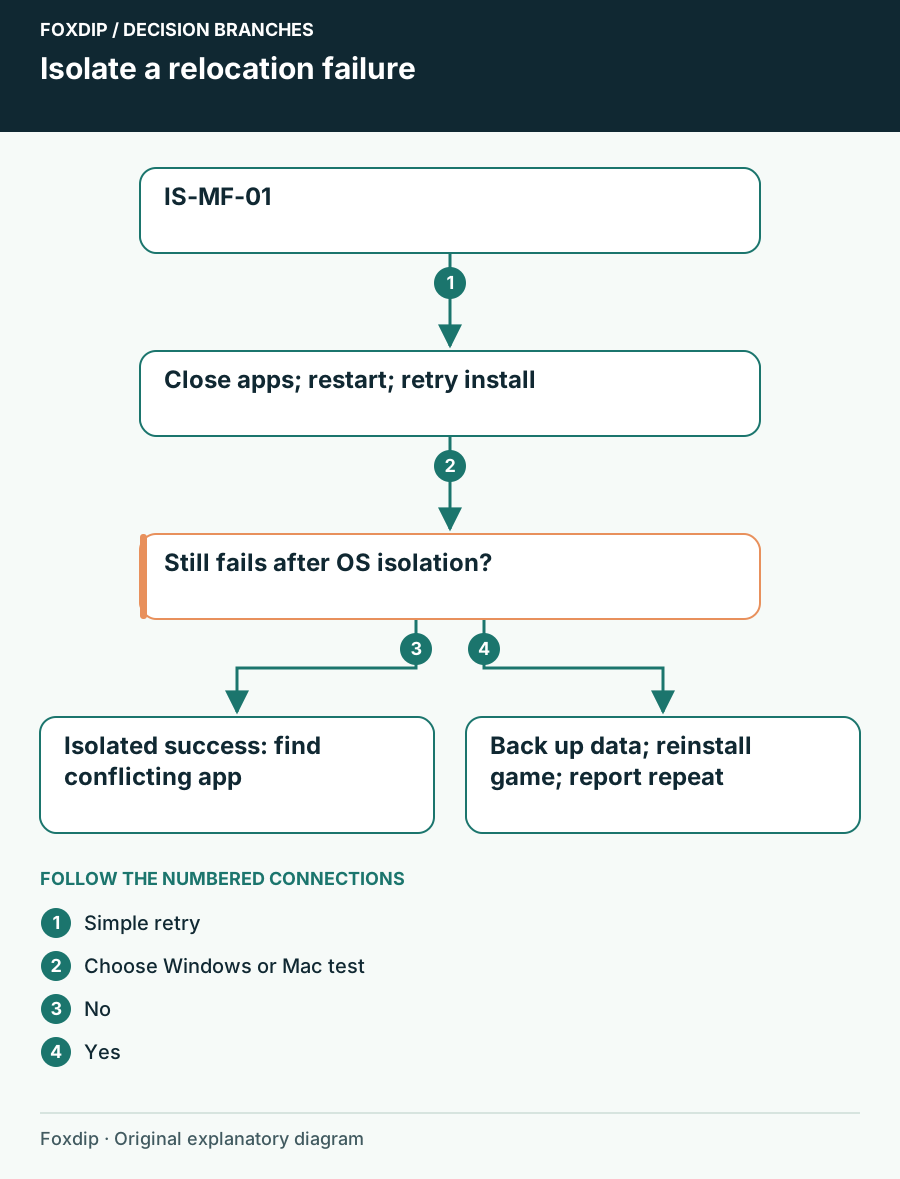
Original Foxdip schematic. Follow the labelled checks alongside the guide.
Release the obvious overlap first
Finish and close the game if any copy remains open. Save work in editors or other tools that may be using that game’s files, close them normally, then restart the computer. Keep security protection enabled while checking these ordinary application overlaps.
Retry with unnecessary apps closed
Open the Launcher by itself after the restart and resume the same install. Note the stage where it completes or fails.
Look for: The installation gets past the earlier relocation failure.
If it fails again, use the operating-system-specific background test below rather than terminating unfamiliar system processes.
On Windows, isolate third-party startup software
Epic links Windows users to Microsoft’s clean-boot procedure and Mac users to Apple’s safe-mode instructions. These are different tests. On Windows, follow the official sequence, hide Microsoft services before disabling third-party services and record every startup item you change. Leave advanced boot options alone. A managed computer may require its administrator.
Compare the isolated result
In the appropriate test environment, retry the affected installation once and record whether IS-MF-01 remains.
Look for: Success only in the isolated environment points you toward background software to investigate.
Restore the normal environment and narrow down the responsible app with the OS guide; if the error remains, keep that result for support.
On Mac, use Apple’s safe-mode branch
For a Mac, first identify Apple silicon versus Intel, then follow that branch of Apple’s safe-mode guide. Do not borrow the Windows procedure or guess a startup key from another Mac model. After the install test, return to normal startup: use Microsoft’s reset section on Windows or a normal restart on Mac.
Keep a reinstall specific to this game
Epic’s next step is uninstalling and reinstalling the affected game. Before doing so, locate the publisher’s save instructions and keep a separate copy of saves, mods and configuration you need. Resolve any cloud-sync warning first. Do not assume a successful previous cloud upload covers files created since that upload.
Use the Launcher’s normal game uninstall and install controls. There is no reason here to remove the entire Epic library, empty unfamiliar application-data folders or rebuild Windows. If the game cannot be safely backed up, ask its publisher before removing it.
Show what the test changed
If the same error survives the documented tests, send Epic Support the full code, game title, OS, installation destination and failure stage. Include whether a restart, isolated startup and one protected reinstall changed the outcome. Never attach account tokens or a screenshot containing a stream key.
After installation succeeds, restore your normal background apps and launch the game once. Check your save, then record a short OBS sample. A recording or audio utility that was closed for diagnosis needs its usual routing restored before the audience hears it.
Verify the normal recording path before you stream. Check audio after restoring your apps ↗
Still stuck?
The install works only during the isolated startup test
Restore normal startup and isolate the third-party app using the OS procedure.
The failure survives a protected game reinstall
Send Epic the full code, paths and exact tested conditions.
Sources & references
Guidance follows the linked publisher and operating-system support resources.
- Epic Support: IS-MF-01 and file relocation ↗Checked 2026-10-27
- Microsoft Support: Isolate background software with a clean boot ↗Checked 2026-10-27
- Apple Support: Start a Mac in safe mode ↗Checked 2026-10-27
Spotted something out of date? Let Alex know.
How we put our guides together ↗