
Identify the display adapter and graphics driver on Windows. GLFW 65542 reports an OpenGL support problem in Minecraft Java Edition; a random replacement DLL is not a diagnosis.
Check the correct graphics-driver route and give support the hardware and version information it needs.
- Code / message
GLFW error 65542- Platform
- Windows
- App / launcher
- Minecraft Launcher → Java Edition
- Scope
- Current primary indexed error text checked2026-10-27; no affected game build is listed.
In this guide
Before you start
- Minecraft Java Edition on Windows and the full GLFW 65542 message.
- Your PC model, display-adapter names, driver version and a backup of worlds and custom files before changing an installation.
Keep Java Edition and the exact error together
Minecraft Help identifies GLFW 65542 with the WGL message that the graphics driver does not appear to support OpenGL. The documented context is Java Edition on a Windows PC. A Bedrock sign-in failure or a generic Launcher exit code is a different problem, even when the same Launcher starts both editions.
Save the full message and note the game version you selected. Keep a copy of worlds, mods and custom configuration before experimenting with installations. Updating a graphics driver does not require deleting a world or replacing every Java file on the computer.
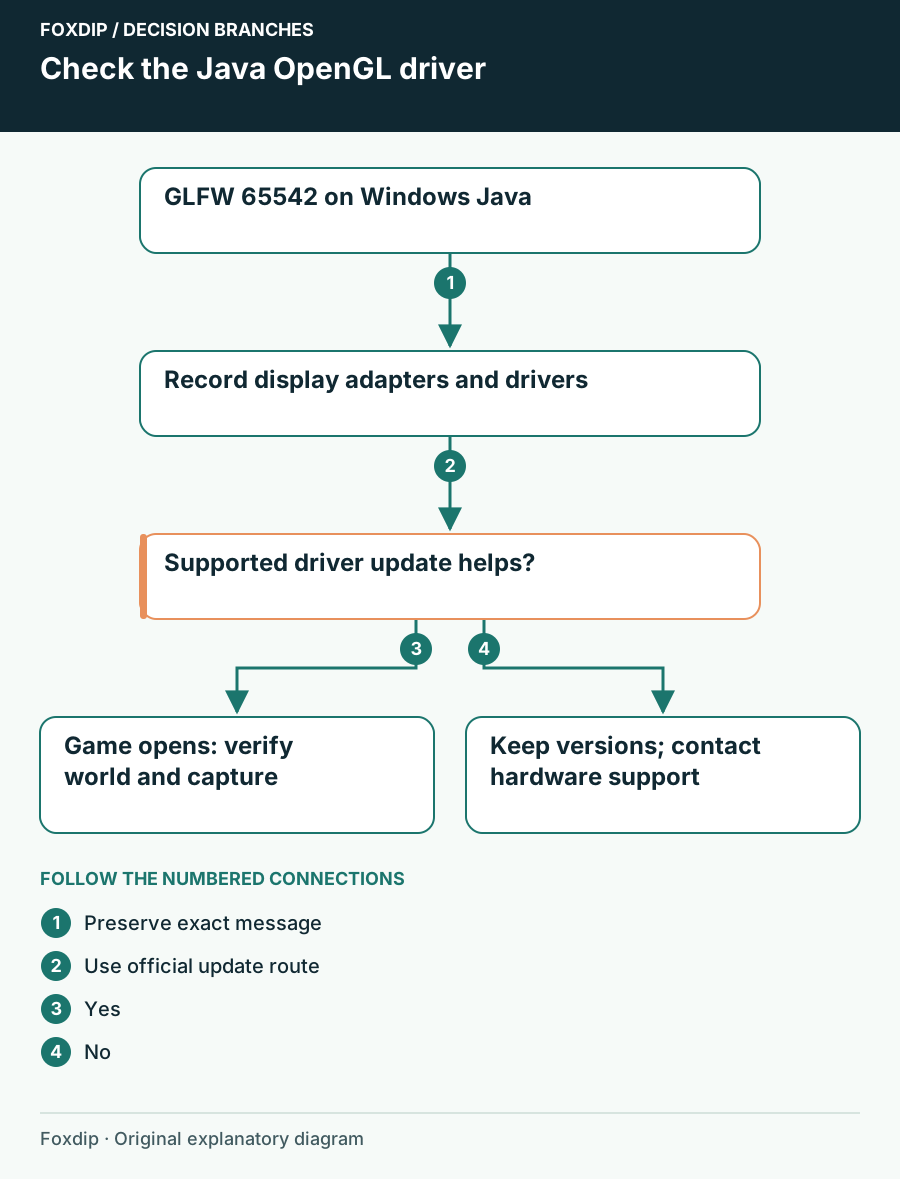
Original Foxdip schematic. Follow the labelled checks alongside the guide.
Read the adapter and driver details
Right-click Start and open Device Manager. Expand Display adapters and note each listed adapter. Open the relevant adapter’s Properties and read its Driver tab, including provider, date and version. A laptop can list more than one adapter, so record both rather than selecting a driver solely because its vendor name looks familiar.
Match the hardware
Record the computer’s exact model and the display adapters shown in Device Manager. Compare those with the driver package offered by the PC or graphics-hardware manufacturer.
Look for: The package applies to your model, Windows version and architecture.
If you cannot match them confidently, ask the PC manufacturer before installing a different package.
Use an official driver update route
Microsoft recommends Windows Update for normal driver delivery. Check its available updates, install an applicable graphics update and restart if required. If a manufacturer directs you to a manual driver, use its official support page for the exact hardware and Windows version. Do not use a third-party driver pack or a file-hosting link from an error-code video.
Retry after the supported update
After the update and restart, reopen the same Minecraft Java installation and try reaching the menu. Keep the version unchanged for this comparison.
Look for: The OpenGL warning disappears and the game reaches its menu.
If it remains, record the new driver version and exact error; an installed update alone does not prove the hardware meets the game’s requirements.
If the error began after a driver change
Compare the timing with the last driver installation. Windows can offer Roll Back Driver in Device Manager when a previous driver is available; it requires administrator access and may be unavailable. Use that supported option only when you are investigating a recent change, then restart and retry the same game version.
Do not uninstall adapters, remove display-driver files manually or replace opengl32.dll in system or game folders as a general fix. Those actions change more than the evidence supports. If the official update route does not restore support, take the model and driver details to the hardware manufacturer.
Keep the next report about graphics support
For an unresolved case, provide Minecraft Support or the PC manufacturer with the full GLFW message, Windows version, game version, adapter names and before/after driver versions. Mention whether the issue began after a specific update. If the hardware cannot support the game’s current graphics requirements, a clean game reinstall cannot add that capability.
Once Minecraft reaches its menu, check a backed-up world deliberately before starting a long session. Then confirm OBS captures the intended window. If only OBS remains black, use the capture guide; do not keep changing drivers to solve an unrelated scene-selection problem.
Use the capture diagnostic after the game itself opens. Check the Minecraft capture in OBS ↗
Still stuck?
The PC lists two display adapters
Record both and match updates through the PC manufacturer’s model-specific support.
The error started with a recent driver update
Check whether the supported Windows Roll Back Driver option is available.
Sources & references
Guidance follows the linked publisher and operating-system support resources.
- Minecraft Help: Java OpenGL error on Windows ↗Checked 2026-10-27
- Microsoft Support: Update or roll back a device driver ↗Checked 2026-10-27
- Microsoft Support: Identify a display adapter ↗Checked 2026-10-27
Spotted something out of date? Let Alex know.
How we put our guides together ↗