
Verify the affected game through the Epic Launcher before reinstalling it. LS-0014 means a referenced file or directory cannot be located.
Restore the game’s installed files or identify whether a repeatable background-software conflict remains.
- Code / message
LS-0014- Platform
- Windows
- App / launcher
- Epic Games Launcher
- Scope
- Current official support guidance reviewed on 27 October 2026; no specific affected client build is listed.
In this guide
Before you start
- The exact LS-0014 message, game title and installation location.
- A copy of saves, mods and custom configuration you need to preserve.
Read a missing path as a clue
Epic defines LS-0014 as a game being unable to find a file or directory it references. That narrows the first check to the installed game. It does not tell you why the path is unavailable, prove that an antivirus deleted it or mean that a replacement DLL from a search result is safe.
Note whether this started after an update, a drive change or moving folders manually. Keep the full path, if displayed, in private notes. If the library drive is disconnected, restore its normal connection before you ask the Launcher to repair an installation that is not presently available.
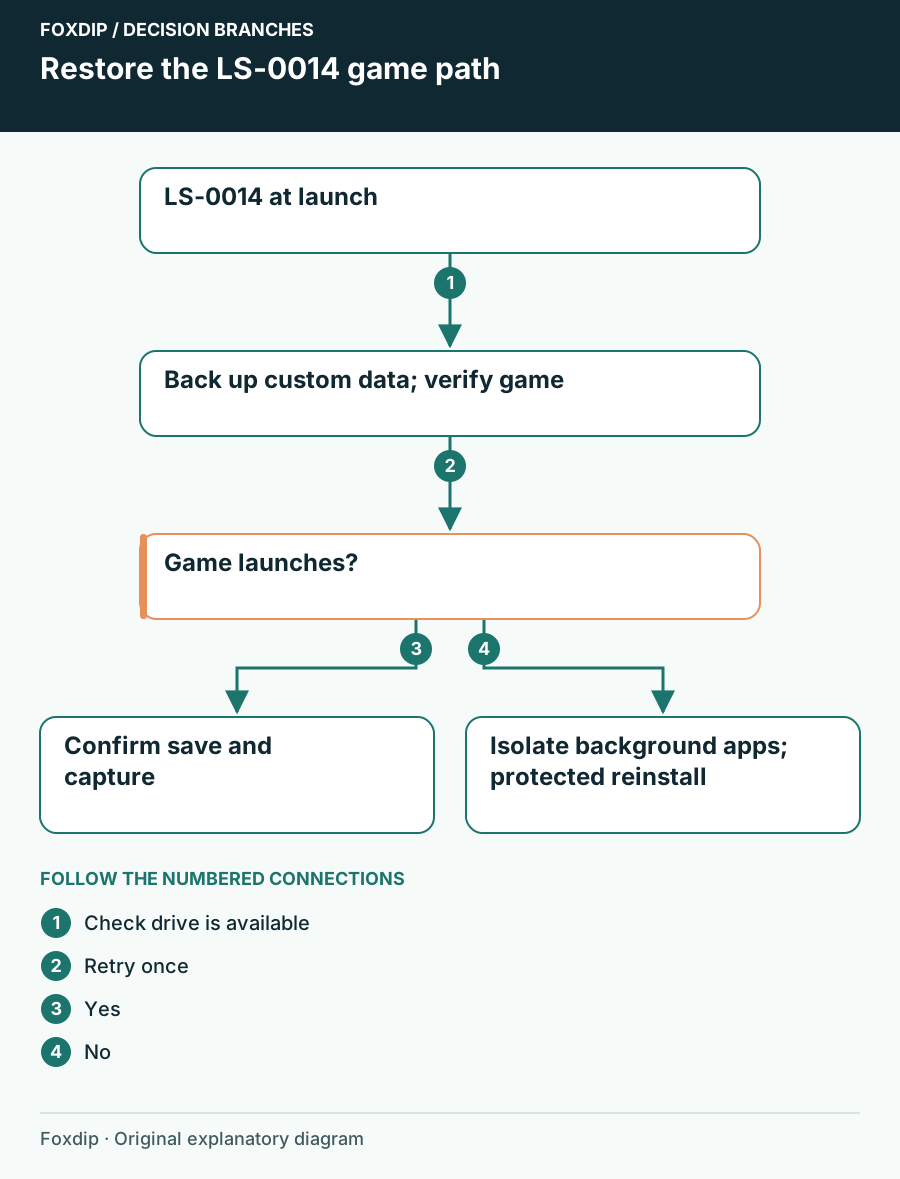
Original Foxdip schematic. Follow the labelled checks alongside the guide.
Preserve custom data, then verify the title
Close the game. Copy local saves, mods and settings you want to keep to a separate location using the game publisher’s instructions. Verification concerns the installed game files; it is not a substitute for a save backup. Also resolve any existing cloud conflict before creating a new session.
If you use a modded installation, make a note of the modifications rather than immediately putting them back after repair. The first comparison should establish whether the official game installation launches. Restoring every modification at once can hide which change causes the failure again.
Verify the affected title
In the standard Epic Launcher, open Library, select the game’s three-dot menu, choose Manage and select Verify beside Verify Files. Let the operation finish. If your Launcher variant presents a different layout, follow its current verification instructions.
Look for: Verification completes and any required game files are reacquired.
Launch once. If LS-0014 remains, record whether the named path is the same before testing background applications.
Check a repeatable background conflict
Epic’s next branch is background applications. Close nonessential applications normally and retry; do not terminate an unfamiliar system service or switch off security software across the computer. If a security product has a relevant event, review it with that product’s support before restoring or allowing a file.
If the problem persists, use the official OS isolation procedure linked by Epic. On Windows, record startup changes, hide Microsoft services in the clean-boot procedure and leave advanced boot options untouched. Return to normal startup afterward. A successful isolated launch is a useful comparison; it is not a reason to keep the whole computer stripped down indefinitely.
Reinstall only after those results
If verification and the background test do not resolve LS-0014, Epic’s remaining listed step is reinstalling the game. Preserve its data first and use the Launcher’s uninstall/install controls for that title. Keep the game destination on an available drive and let the installation finish before trying to launch.
If the same path fails again, send Epic the title, full code, install location and the results of verification and isolation. After the game opens, check that your expected save is present, then confirm OBS captures the running game. There is no need to delete your scene collection during a game-file repair.
Check the selected source if the repaired game no longer appears. Restore the capture after the game launches ↗
Still stuck?
The installation drive is unavailable
Restore its normal connection before verification.
The game launches only during background isolation
Restore normal startup and narrow down the conflicting app with the OS guide.
Sources & references
Guidance follows the linked publisher and operating-system support resources.
- Epic Support: LS-0014 and missing game paths ↗Checked 2026-10-27
- Microsoft Support: Isolate background software with a clean boot ↗Checked 2026-10-27
Spotted something out of date? Let Alex know.
How we put our guides together ↗