
Check free space on the selected game drive. Epic groups IS-DS01 and IS-IN-DS01 as insufficient installation space; free space or choose another suitable drive.
Resume the game installation with a deliberate storage plan and without deleting valuable stream files.
- Code / message
IS-DS01·IS-IN-DS01- Platform
- Windows
- App / launcher
- Epic Games Launcher
- Scope
- Current official support guidance reviewed on 27 October 2026; no specific affected client build is listed.
In this guide
Before you start
- The full code and the installation destination shown by the Launcher.
- A separate backup location for saves, projects and recordings you want to keep.
Check the drive the installer is using
Epic documents IS-DS01 and IS-IN-DS01 as insufficient space to complete a game installation. Read the code and the selected destination together. Space available on a different drive does not establish that the game’s chosen drive has room.
Pause the installation while you inspect storage. Note the requested space shown by the current installer rather than relying on a game’s old download-size estimate. A planned stream recording also needs its own available space, so do not allocate every last byte to an installation you intend to play and record immediately.
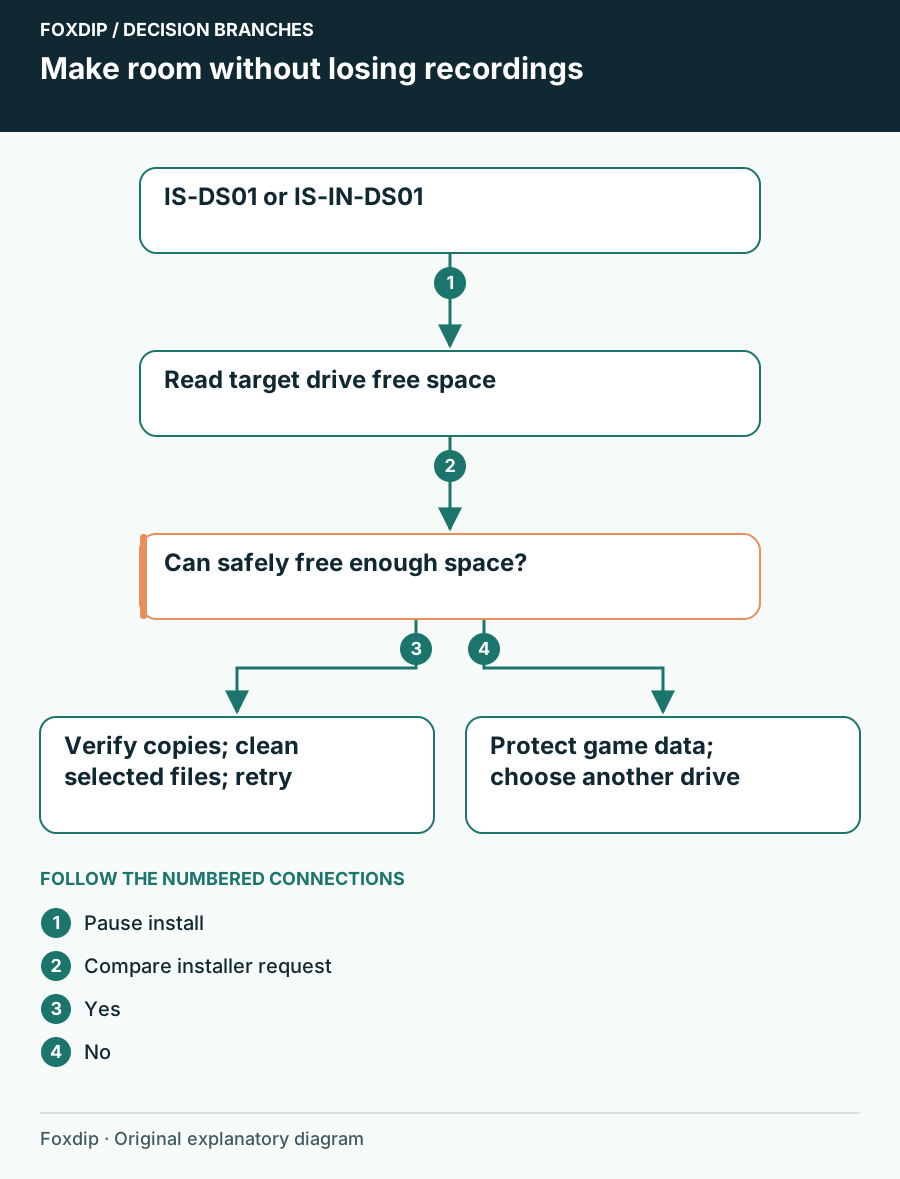
Original Foxdip schematic. Follow the labelled checks alongside the guide.
Read available space before cleaning
On Windows, open File Explorer > This PC and check the available space for the actual destination drive. Then open Settings > System > Storage to see which categories use that drive. Keep your game saves and active editing projects out of a rushed bulk-delete selection.
Choose what can safely move
Identify large finished recordings or exports you no longer need on the game drive. Copy any files you want to keep to a separate available drive and check the copies before removing originals.
Look for: The copied files open, and the destination game drive gains space after removal.
If you have no verified extra copy, keep the originals and use another cleanup or installation destination.
Review cleanup categories individually
Windows Cleanup recommendations can show temporary files, unused apps and other candidates. Review each category and select only items you understand. A Downloads folder can contain purchased stream assets or project material; a Recycle Bin may contain something you still need to restore.
If Windows offers to remove a previous Windows installation, recognize that this removes the option to return to it. Do not accept every suggested category solely to clear an error. Recheck available space after the cleanup you chose, then compare it with the installer’s current request.
Use another drive if that is the better fit
Epic also documents choosing another installation directory. Before removing any existing game installation, preserve its saves and custom content using the publisher’s guidance. Choose an available drive you can keep connected during play; an unplugged library cannot serve the game later.
Choose a destination in the Launcher
For a game ready to install, select Install in the Epic library, use Browse to choose an appropriate destination and confirm Install. If the game must first be uninstalled to show Install, stop until its data is protected.
Look for: The installer points to a drive with enough room for the requested installation.
If another exact code appears, record it and follow that code instead of continuing to delete files.
Leave room for the session you will record
Let the installation finish, launch once and confirm your expected save. If IS-DS01 remains despite adequate reported space, send Epic the full code, selected drive, free-space reading and requested installation size. Do not treat a generic disk-space message as evidence that the drive needs formatting or a repair command.
Before recording, check where OBS saves your videos. A smaller final export does not free space while a large source recording is still being written. You can compress a copy afterward if it suits the editing workflow, but keep the original until you have checked the result.
Use this after recording when you need an archive or sharing copy. Make a smaller copy of a finished recording ↗
Still stuck?
Another drive has space but the selected target does not
Use the Launcher destination control after protecting existing game data.
The same code remains with sufficient reported target space
Give Epic the exact target path, requested size and free-space reading.
Sources & references
Guidance follows the linked publisher and operating-system support resources.
- Epic Support: Installation space errors IS-DS01 and IS-IN-DS01 ↗Checked 2026-10-27
- Microsoft Support: Review storage and cleanup choices ↗Checked 2026-10-27
Spotted something out of date? Let Alex know.
How we put our guides together ↗