
Restart the official Roblox player and check whether268 follows one experience, one connection or the device. Review conflicting applications before reinstalling.
Restore ordinary Roblox access or isolate the app or connection condition that reproduces268.
- Code / message
268- Platform
- Windows · macOS · iOS · Android · Amazon Fire OS · ChromeOS
- App / launcher
- Roblox Player
- Scope
- Current official support guidance reviewed on 27 October 2026; no specific affected client build is listed.
In this guide
Before you start
- The exact268 message, device type and Roblox installation source.
- Your account sign-in and any local creator files you need to preserve.
Do not turn the wording into an accusation
The268 message mentions unexpected client behavior. Roblox’s own explanation points to connection trouble and possible conflicts with applications that override permissions, including security software. The code alone does not establish cheating, a ban or a hardware defect.
Record the device, OS and installation source, then note whether the error followed an update or a newly installed application. This timeline is evidence to compare, not permission to remove every recent program. If a separate moderation notice appears, use that notice’s support route rather than trying to evade it.
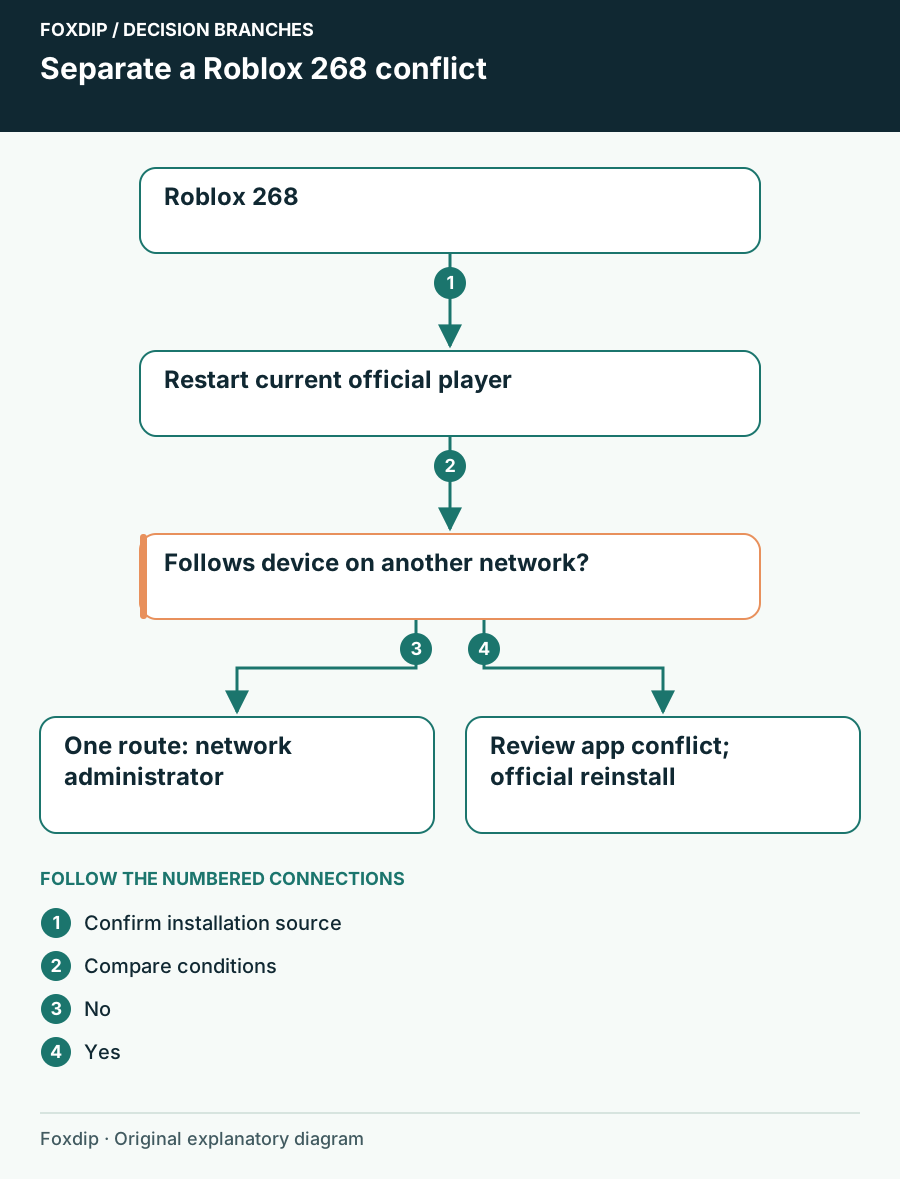
Original Foxdip schematic. Follow the labelled checks alongside the guide.
Start with the current player
Close Roblox and restart the device. Open the official client from its intended source, then join one experience. If you have both Microsoft Store versions installed on Windows, identify which app you launch: Roblox’s current Store guidance names the new listing Roblox - Windows. Sign in successfully before removing an old copy.
Keep creator projects out of the experiment. Roblox Player and Studio serve different jobs, so do not delete Studio work or assume a broad Roblox folder reset is harmless. Check the exact app before using any uninstall control.
Make a clean player attempt
Restart, open the intended official player and try one experience without optional tools running alongside it.
Look for: The player joins without268.
If the code remains, compare one other experience and one authorized connection before changing security settings.
Check whether the failure follows the connection
Use the same player and try a second experience. If practical, retry briefly on a different authorized network. Record both outcomes. Roblox’s268 help includes a different-connection test, but a single success is a clue about the route, not a complete diagnosis of the router.
If the error follows one experience, keep its link in the report. If it follows the device on both networks, prioritize the player and local application evidence. Avoid changing DNS, router rules and client files together, because a result after three changes will not identify which one mattered.
Review permission conflicts with the right vendor
Look for a security event or application notification at the error time. Keep protection enabled while reading that evidence. If the product reports a block affecting Roblox, use its official support guide or administrator to decide the appropriate app permission; do not globally allow every executable in a downloaded folder.
Close nonessential tools normally for a short comparison. If268 disappears only when one application is closed, update that application and discuss the conflict with its vendor. Return the rest of your normal setup afterward. The goal is a working, protected configuration, not a permanent stripped-down computer.
Use a protected reinstall as a later step
If the code persists, follow Roblox’s platform-specific reinstall instructions after confirming account access and backing up local files you care about. Use the official installation route. Do not paste a recursive AppData removal command or download an “anti-kick” utility as a shortcut.
Send unresolved cases to Roblox with the code, device, OS, installation source and the experience/network/app comparisons. After the player works, reopen your normal streaming tools and make a local recording. If that combination reproduces268, keep the exact tool version and condition for the support report.
Verify the game alongside the tools you normally use. Check your normal streaming setup ↗
Still stuck?
268 appears only alongside a particular application
Record the application version, update it and use its vendor support.
You also receive a moderation notice
Use the official notice and appeal route; do not attempt a client bypass.
Sources & references
Guidance follows the linked publisher and operating-system support resources.
- Roblox Support: Error 268 and unexpected client behavior ↗Checked 2026-10-27
- Roblox Support: Restart before reinstalling ↗Checked 2026-10-27
- Roblox Support: Identify the current Microsoft Store app ↗Checked 2026-10-27
- Roblox Support: Security software and router permission ↗Checked 2026-10-27
Spotted something out of date? Let Alex know.
How we put our guides together ↗