
Camera, capture and lighting checks
Choose compatible camera and capture connections, then diagnose exposure, signal modes, power and desk lighting.
Find your starting point.
Separate the picture you play on from the picture you record. Write down the camera or console, capture device, display and connection before changing a mode.
For a face camera, compare focus, motion, exposure and light with the same short movement. For capture, keep a known signal mode as the starting point.
- Choosing camera capture gear? Check the actual HDMI and power requirements.
- The devices disagree about the signal. Follow the documented EDID choices.
- The face camera smears in motion. Compare exposure and light before adding resolution.
Choose the capture path
Distinguish connector, playback and recorded-output requirements.

Check a mirrorless camera for clean HDMI before buying capture gear
Test overlays, supported output, power and usable run time before choosing a camera-to-USB capture adapter.
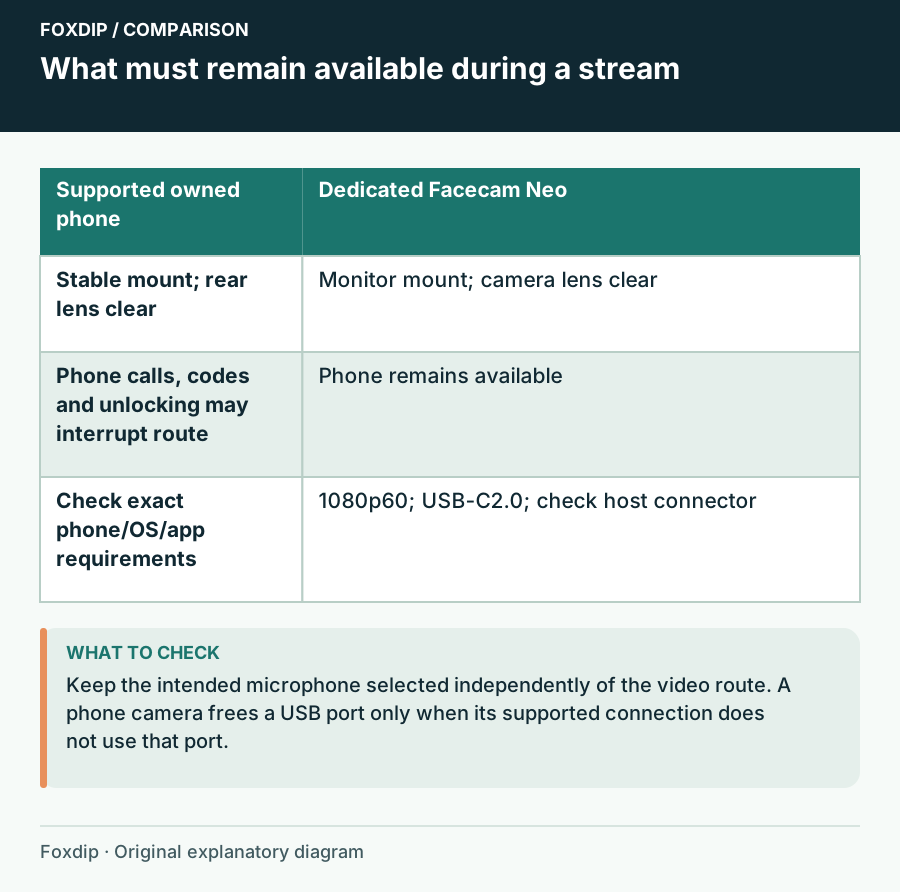
Phone Camera vs USB Webcam for Streaming at Your Desk
Try the phone you already own before buying a webcam. When a phone works well, when a USB webcam like Facecam Neo is worth it, and what each one needs.
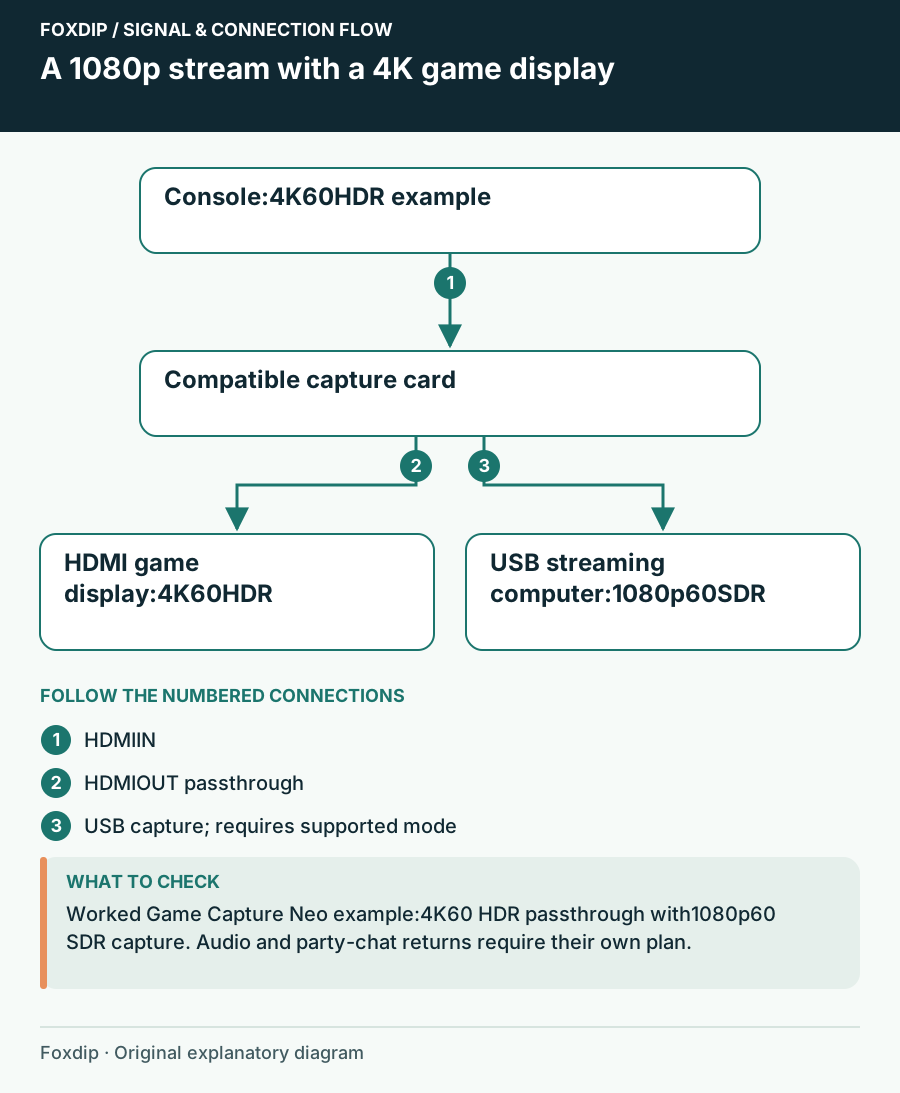
Choose a 1080p60 Capture Card for Your Console and USB Ports
Shortlist Game Capture Neo or 4K S by the game-screen mode, host USB connection and audio route you need, even when the stream itself is only 1080p60.
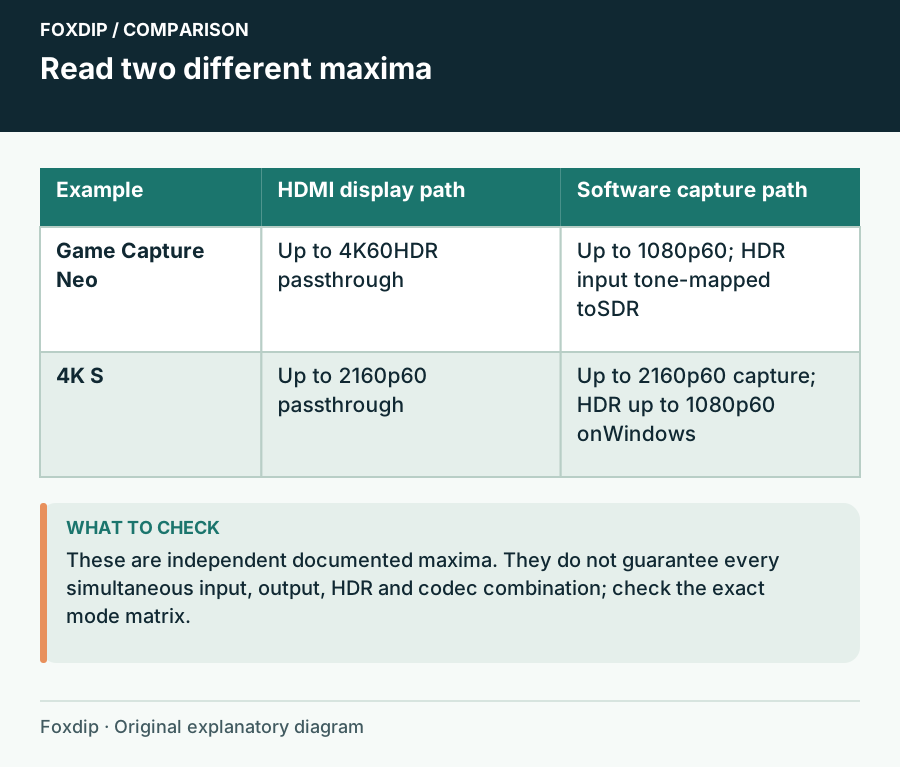
4K Passthrough or 4K Recording? Read the Capture Card Spec
Separate the HDMI display path from the USB recording path, then read resolution, frame rate, HDR and host bandwidth as one supported combination.
Use an iPad for HDMI capture: check USB bandwidth first
Check the exact iPad, capture device and cable before building a portable HDMI recording setup.
Signal and capture modes
Keep the display result and recording result as separate checks.
Elgato Studio EDID: choose Merged, Internal or Display
Choose an EDID mode for a console or dual-PC capture chain, then test the source, passthrough display and recording separately.
4K Pro green or distorted video: check PCIe lanes
Check the electrical link behind a physically compatible PCIe slot before changing capture resolution or replacing the card.
4K Pro: monitor works but high-refresh capture is black
Test Display Stream Compression and source-format compatibility when a high-refresh monitor works but 4K Pro capture remains black.
VRR through a capture card: test the play display and recording
Separate variable-refresh gameplay from the saved stream when testing a capture chain for flicker, tearing or uneven motion.

Switch capture loses sound with headphones: wire Chat Link Pro
Restore a wired audio route for Nintendo Switch or Switch 2 capture and test game sound, headset listening and commentary separately.
Camera picture and power
Make one controlled comparison before changing multiple camera settings.
Webcam motion blur: balance shutter speed, light and noise
Use a repeatable hand-motion test to tune Facecam exposure without confusing bright video with sharp motion.

Webcam color keeps changing: simplify mixed light and white balance
Build a repeatable white-balance check for daylight, room bulbs and a desk key light without relying on a universal Kelvin value.
Sony USB streaming drains the battery: check power and session load
Separate USB power capability, camera settings and heat-related shutdown when planning a long camera session.
Camera Hub background works in preview but disappears in another app
Check the processed virtual-camera route, supported RTX requirements and application selection when a Camera Hub effect is missing.
Control Camera Hub exposure from Stream Deck with clear reset states
Build a small camera-control profile with explicit targets, tested property changes and a known return setting.
Light and display accessories
Match the generation, connection and power source before replacing an accessory.
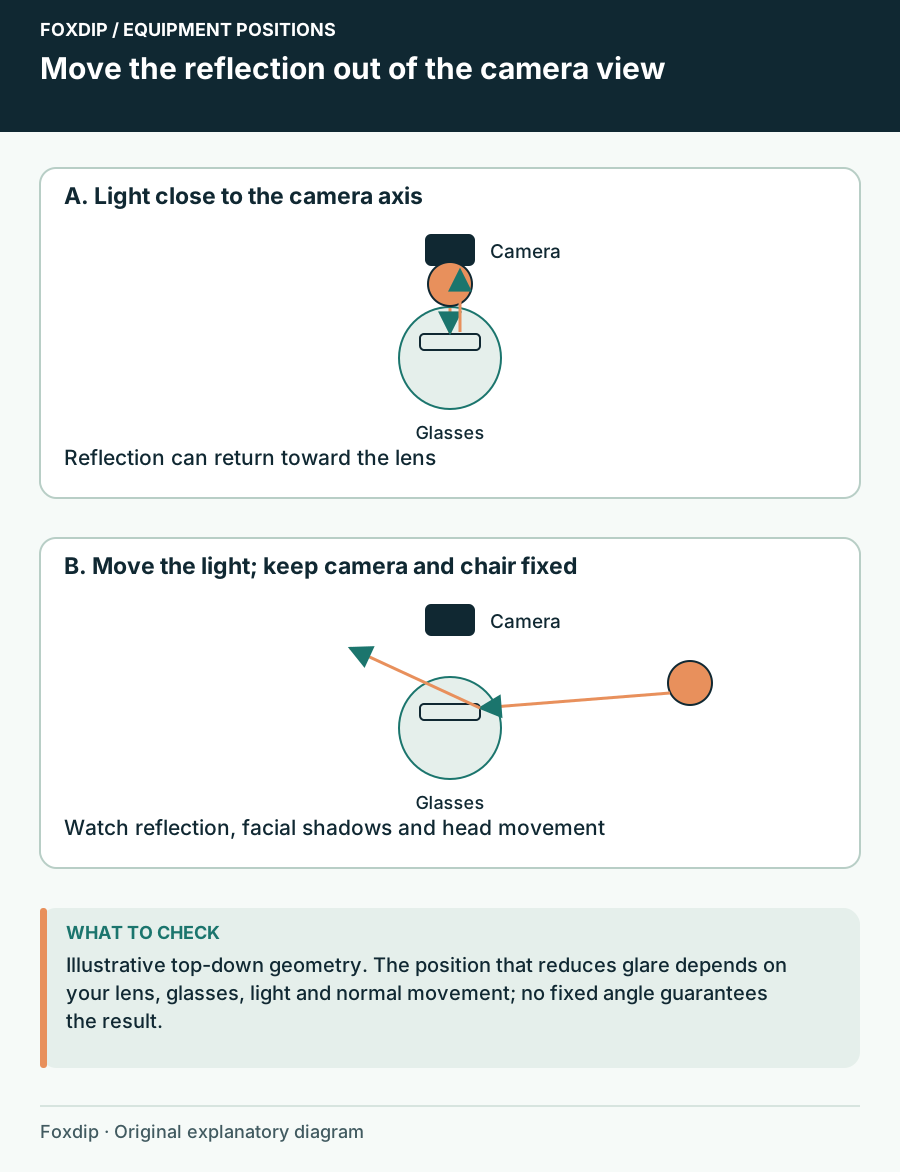
Ring Light or Key Light When You Wear Glasses?
Compare a current NEEWER ring-light kit with an Elgato panel, then choose the placement and mount that let viewers see your eyes as you move.
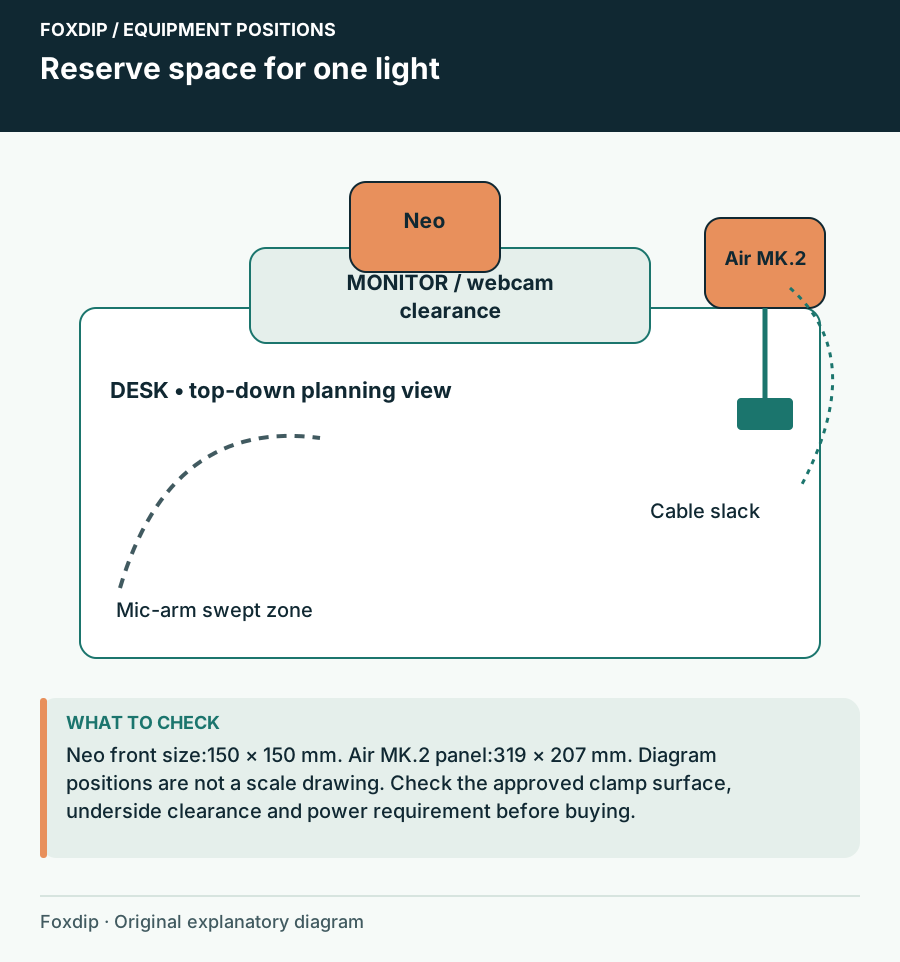
One Light for a Small Streaming Room: Choose the Position First
Compare Key Light Neo and Key Light Air MK.2 by mounting, power and the face-camera image you need before adding a second light.
Key Light will not pair: match Wi-Fi settings to the generation
Identify original Key Light versus MK.2 before applying network advice, then separate power, pairing and discovery faults.
Key Light Mini Studio Mode: move between desk power and battery use
Use battery bypass for a permanently powered desk light, then verify the return to portable operation before packing.
Key Light Neo looks dim: check the USB power tier
Compare Key Light Neo's documented power-dependent brightness before compensating with camera gain or replacing the light.
Elgato Prompter is blank on Mac: check the display layer first
Separate USB display detection, DisplayLink permission and prompting software when the Prompter screen stays blank.