
Start with the smallest preview. If the subject or headline disappears there, simplify the image before polishing details that only show at full size.
An on-device preview and downloadable result, with the limits described below.
Read it at the size people see.
Bring a still image and compare it at three small widths. Check faces, words and the main subject.
JavaScript powers your local preview and download.
These are size previews, not an exact recreation of any platform’s interface or a prediction of click-through rate. The original image is unchanged.
No account or upload. Selected files and entered text stay on this device; exports are saved only when you ask.
In this guide
Before you start
- Use files and text you have permission to use.
- Enable JavaScript in a current browser.
Bring one finished still
Choose a PNG, JPG or WebP that you are allowed to use. The image is fitted proportionally, so faces and text are not stretched to a different aspect ratio. The preview does not crop it into an assumed platform card.
A screenshot of someone else’s thumbnail may help you think about composition, but it is not your own publishable artwork. Keep the file you plan to use and its rights separate from references.
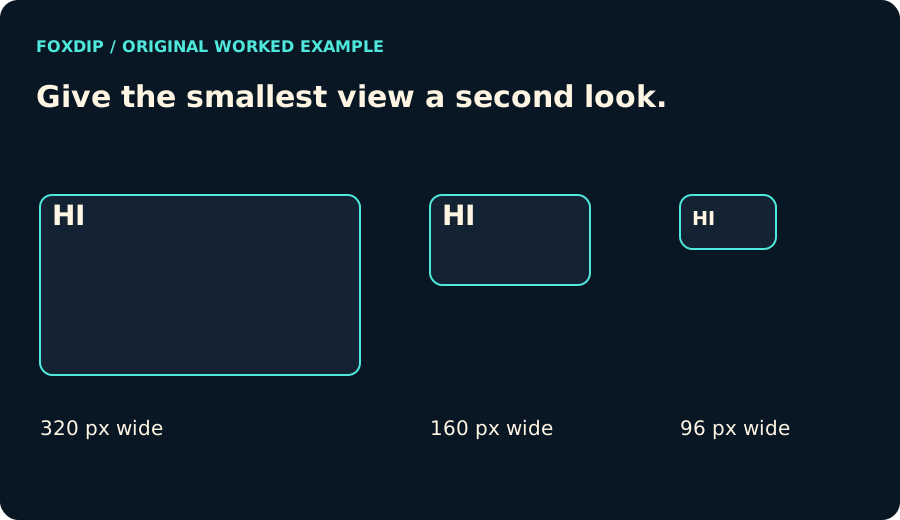
Original Foxdip diagram. The interactive tool above produces your own preview and export; this is not a platform interface screenshot.
Check the subject before the decoration
Compare the three widths without zooming in. Can you tell what the frame is about? Is the face still visible? Does the headline remain distinct from the background? The goal is to notice the weak spot before you upload.
Switch between light and dark surfaces. A border that seems strong on one can vanish on the other. These surfaces and widths are viewing exercises, not exact recreations of YouTube, Twitch or a phone model.
Keep a sheet for your next edit
Download the PNG preview sheet and put it beside your full-size original. It contains the same still at each width with a size label, which makes comparing two revisions easier. Very tall images are rejected for the sheet instead of creating an excessive canvas.
This is not a click-through prediction or an audience test. A more readable image may still receive fewer clicks for reasons this tool cannot measure. Use the sheet to make a visual decision, then evaluate real results with the data actually available to you.
Want graphics that already fit? See the complete stream packs ↗
Sources & references
Original Foxdip browser-local tool and explanatory example. Platform or file-format guidance is linked below; account upload and moderation are separate.
- WHATWG — Canvas and bitmap serialization ↗Checked 2026-10-27
Spotted something out of date? Let Alex know.
How we put our guides together ↗