
Mark the game information you want to protect, then position an overlay box. The preview checks the rectangles you enter; it cannot know every HUD state in your game.
A visible placement comparison and a list of game states still needing review.
Keep the important part in view.
Choose a still from your own scene and mark the region you want to protect. The rectangles are your choices, not official platform safe zones.
JavaScript powers your local preview and download.
Image selection sets the canvas to its dimensions. Recheck every gameplay state before committing to a layout. Your file stays in this browser.
No account or upload. Selected files and entered text stay on this device; exports are saved only when you ask.
In this guide
Before you start
- A canvas size and a list of information viewers must see.
- Approximate positions for a protected region and the overlay.
- A real gameplay recording to inspect after the planning stage.
Treat the sample as a measuring surface
The preview is an original diagram with labelled regions. It is not a screenshot from a game, and it is not an official platform safe-area standard. Enter a protected rectangle where important information appears and a second rectangle for the proposed camera or graphic.
For a real layout, list more than the minimap. Think about score, health, inventory, dialogue choices, subtitles and accessibility HUD settings. A rectangle that protects one quiet scene can miss a panel that appears only when you open a menu or join a match.
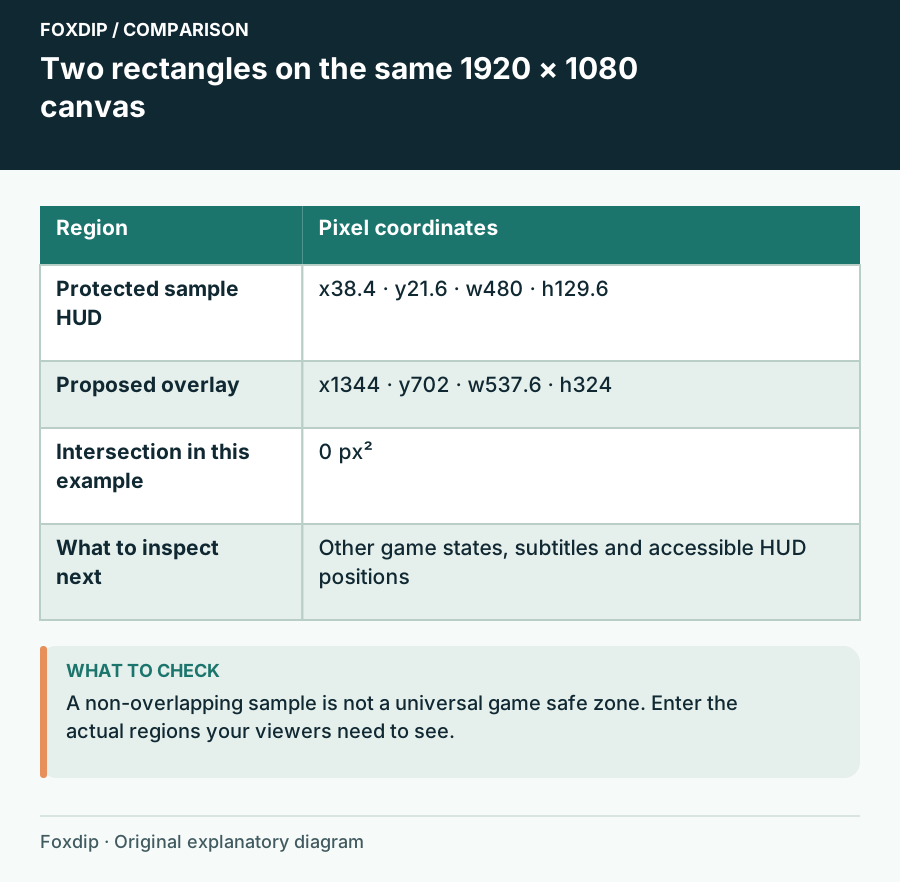
Foxdip worksheet example. Change the inputs above to make your own plan.
Use percentages while keeping the canvas visible
The position values are percentages of canvas width and height. On a 1920 × 1080 canvas, a box 25% wide spans 480 pixels and a box 12% high spans 129.6 pixels. This makes it easier to compare a relative placement without pretending that every canvas uses the same pixel dimensions.
Update the two rectangles
Enter the protected region and overlay position/size, then choose Update preview.
Look for: Both labelled boxes stay within the canvas and the result identifies any area overlap.
If a box extends outside the canvas, correct its position or size before treating the comparison as meaningful.
No overlap is a checkpoint, not a finished review
With the default example, the protected region starts near the upper left and the overlay sits near the lower right. Those rectangles do not overlap. Moving the overlay over the protected region should change the result, which gives you a quick way to understand the preview.
An overlay's bounding box can include transparent space; a rectangle check therefore does not inspect every visible pixel. The opposite problem also matters: a panel can block the viewer's attention without touching the sample box. Keep the result as one planning observation.
Check the source order and the unusual game screens
In OBS, sources higher in the list appear above sources below them. A perfectly positioned gameplay source can still be covered by a graphic above it. Use the real scene to inspect both placement and layer order after your preview is ready.
Record the game states from your notes: normal play, map, pause menu, score screen and any dialogue or subtitle layout. Add any game-specific screens you use often. If an important element disappears, move or reduce the overlay, or create a separate scene for that activity.
Keep the protected information in the notes
Use Download notes or Print to keep the canvas, rectangles and remaining game-state checks. Include why you protected that area, so a later redesign does not undo the decision. Save in this browser is a local convenience, and Reset lets you compare a different position.
Finally view the recording at phone size. If the game and overlay remain readable, you have evidence about that scene and those conditions. Repeat when the game, HUD scale or subtitle settings change. The preview helps you ask a better question; the actual delivered picture supplies the answer.
Use a still from the scene you want to change
Choose a PNG, JPG or WebP still from your own scene. The canvas takes its dimensions, and the two rectangles show your protected region and proposed overlay. Change the percentages, update the preview and watch for the overlap result.
Download annotated PNG keeps the still and the two labels together. These are your chosen regions, not official platform safe zones. Check menus, subtitles and other game states separately; one still cannot show them all.
If you need the next part of this task. Continue with the related guide ↗
Sources & references
An original Foxdip worksheet or calculation, with linked platform references reviewed on 27 October 2026.
- OBS Project — Sources Guide ↗Checked 2026-10-27
Spotted something out of date? Let Alex know.
How we put our guides together ↗