
Choose the original PNG or GIF. Read the file facts first, then compare them with the upload mode and message in your account. A file report cannot check your slots or moderation status.
An on-device preview and downloadable result, with the limits described below.
Find out what is in the file.
Inspect a PNG or GIF before changing anything. Compare file facts with the upload mode in your dashboard.
JavaScript powers your local preview and download.
This checks readable file structure and browser decoding, not platform eligibility, moderation or available slots. Your original stays unchanged.
No account or upload. Selected files and entered text stay on this device; exports are saved only when you ask.
In this guide
Before you start
- Use files and text you have permission to use.
- Enable JavaScript in a current browser.
Separate file facts from account questions
A file may be perfectly readable while an account has no animated slot available. It can also have the right extension while containing incomplete image data. These are different problems, so avoid changing the account and the artwork at the same time.
The inspector reads PNG or GIF structure from the selected bytes, then asks the browser to open the image. The report identifies the format, dimensions, byte size and whether the canvas is square. A broken record or incomplete file stops the check.
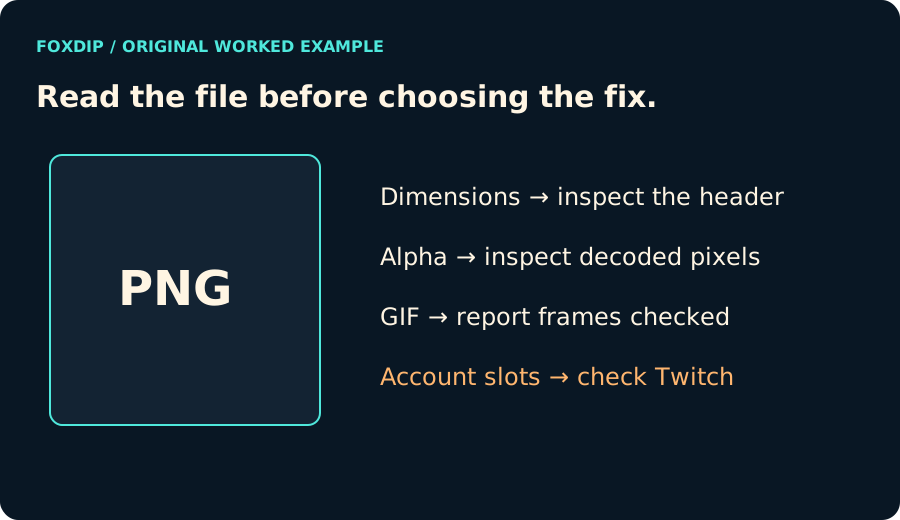
Original Foxdip diagram. The interactive tool above produces your own preview and export; this is not a platform interface screenshot.
Check transparency without guessing from the thumbnail
For a static PNG, the tool reads the decoded pixels and counts fully and partly transparent pixels. A PNG can support an alpha channel while every pixel in this particular image is opaque; file capability and actual transparent content are not interchangeable.
Animated PNG is identified but not flattened or fully analysed frame by frame. For GIF, the report identifies transparency flags in frame records. It does not claim that a transparent pixel appears in every frame.
Read GIF timing with the right limits
The structural frame count comes from image records in the file. The displayed duration adds their declared delays. Players can interpret zero or very short delays differently, so that sum is not a stopwatch measurement of every application’s playback.
Where ImageDecoder is available, the tool also decodes a bounded set of pixel frames. The report says exactly how many were decoded and whether this covered the decoder’s full count. Browsers without that API still get a structural report and normal image playback; they are not presented as having passed a full decoder check.
Keep a report with the original
Download the JSON report if you want to compare two exports. It includes the selected filename and the facts read during this check; keep private names out of a report you plan to share. The original image is unchanged.
If the file facts look right, return to the exact platform error and the account’s current requirements. A successful file read does not establish copyright permission, emote eligibility, moderation approval or available slots.
Want graphics that already fit? Browse emote packs that pass these checks ↗
Sources & references
Original Foxdip browser-local tool and explanatory example. Platform or file-format guidance is linked below; account upload and moderation are separate.
- W3C — PNG specification ↗Checked 2026-10-27
- WHATWG — Canvas and bitmap serialization ↗Checked 2026-10-27
- Twitch — Emote Formatting & Instant Upload Requirements ↗Checked 2026-10-27
Spotted something out of date? Let Alex know.
How we put our guides together ↗