
Give each graphic one inventory row with its filename, dimensions, scene and rights record. Flag missing information before you move files or replace a pack.
Try it with your setup.
Change the example, update the preview, then keep the notes you want to use. Everything stays in this browser unless you download or print it.
Your entries remain local. Review file paths and licence notes before sharing.
Worked example
2 assets listed with format, dimensions, scene/use, rights/source and review status; missing columns flagged as incomplete if feasible.
In this guide
Make one row describe one usable asset
Use the order shown in the field: asset | file or format | dimensions | scene or use | rights or source | status. The asset name should tell you its job, such as Gameplay camera frame. The filename should help you find the actual export rather than merely repeating “overlay.”
Split a pack into the pieces you use. A Starting Soon screen and a camera frame can come from the same purchase but belong to different scenes and may have different file types. One pack-level row will not tell you which export is missing when a scene breaks.
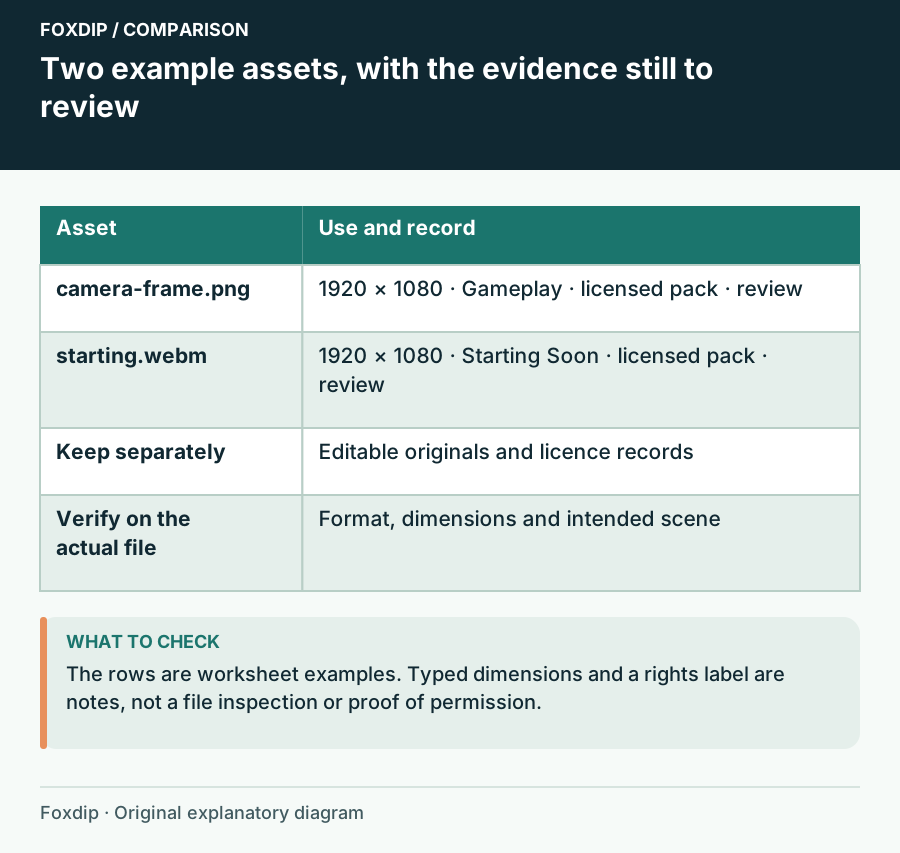
Foxdip worksheet example. Change the inputs above to make your own plan.
Copy dimensions from the file you will use
Read the actual file properties or the trusted application that opens it. Do not infer dimensions from the name of the pack. Record whether a moving asset is a video, GIF or a widget destination; those are different ways to deliver motion.
For an editable design, retain a row or note for the original as well as the stream-ready export. The project file helps with future edits, while OBS needs the supported output you selected. This worksheet does not open or measure files, so an entered size remains your note until you check it.
Connect the file to the scene, not just the folder
Name the scene that uses the asset and its role in the source stack. OBS places sources above other sources visually, so a frame and its camera belong in an intentional order. Write a short layer note when that relationship would be easy to forget during a rebuild.
The two starting rows show a camera-frame PNG and a Starting Soon WebM, both marked review. They are examples rather than files supplied by the worksheet. Replace the filenames and sizes with your own exports, then confirm each source in the actual scene.
Keep the purchase record useful without exposing the download
Use the rights or source column to identify a licence record you retain privately, such as the pack name and purchase reference in your records. Do not paste a paid download URL into a document you may share. A filename is not evidence that a commercial use is permitted.
When you replace an asset, keep enough history to distinguish the old design from the new one. Note which export is current and where the editable original is backed up. An item marked review is a reminder to inspect those details; it is not a legal or file-integrity check performed by this page.
Use the inventory before a move or redesign
Choose Update preview to collect the entries and spot incomplete rows. Fill the missing columns, then Download notes or Print before reorganizing the folders. Save in this browser is convenient for returning to the list, but it does not back up the underlying graphics.
After moving the setup, compare the inventory with each real scene and make a short recording. The list helps you notice a missing file or outdated screen; the recording confirms how the pieces appear together. Keep client files and private licence records in their own storage rather than attaching them to a public help request.
Keep installation and sharing notes with the file
The worksheet now accepts eight columns: asset, file or format, dimensions, scene, rights source, status, installation and sharing rights. Existing six-column notes still load; the two added fields remain blank until you fill them in.
Choose Download inventory JSON to keep those fields as a structured manifest. It records your entries, not a scan of the files or a legal finding about the licence. Review private paths and licence notes before giving the manifest to an editor.
If you need the next part of this task. Continue with the related guide ↗
Sources & references
Original Foxdip worksheet guidance. Platform details follow the linked primary references.
- OBS Project — Sources Guide ↗Checked 2026-10-27
Spotted something out of date? Let Alex know.
How we put our guides together ↗