
A direct Xbox broadcast does not import an OBS scene or overlay file. Custom graphics need a supported cloud composition service or a PC capture workflow.
You can choose a supported graphics path and confirm viewers receive the overlay before purchasing more assets.
In this guide
Before you start
- Xbox Series X|S or Xbox One with a supported streaming account.
- An overlay you have the right to use and a short test design.
- Know whether you want to keep a console-only broadcast or use a PC.
- MicrophoneCable & connection
- Operating systemInput & permission
- OBS mixerSource, meter & mute
- RecordingTrack & playback
Put the graphic where the video is assembled
An overlay has to be combined with the gameplay somewhere before the final stream reaches viewers. The direct Xbox broadcast controls aren't an OBS scene editor. A transparent PNG sitting on a USB drive, or an overlay open on a laptop beside the console, doesn't join that video automatically.
There are two documented alternatives: send the console feed to a cloud studio that adds graphics, or capture HDMI on a PC and compose the scene there. Start by deciding which dependency you prefer: an online service account or a computer/capture setup.
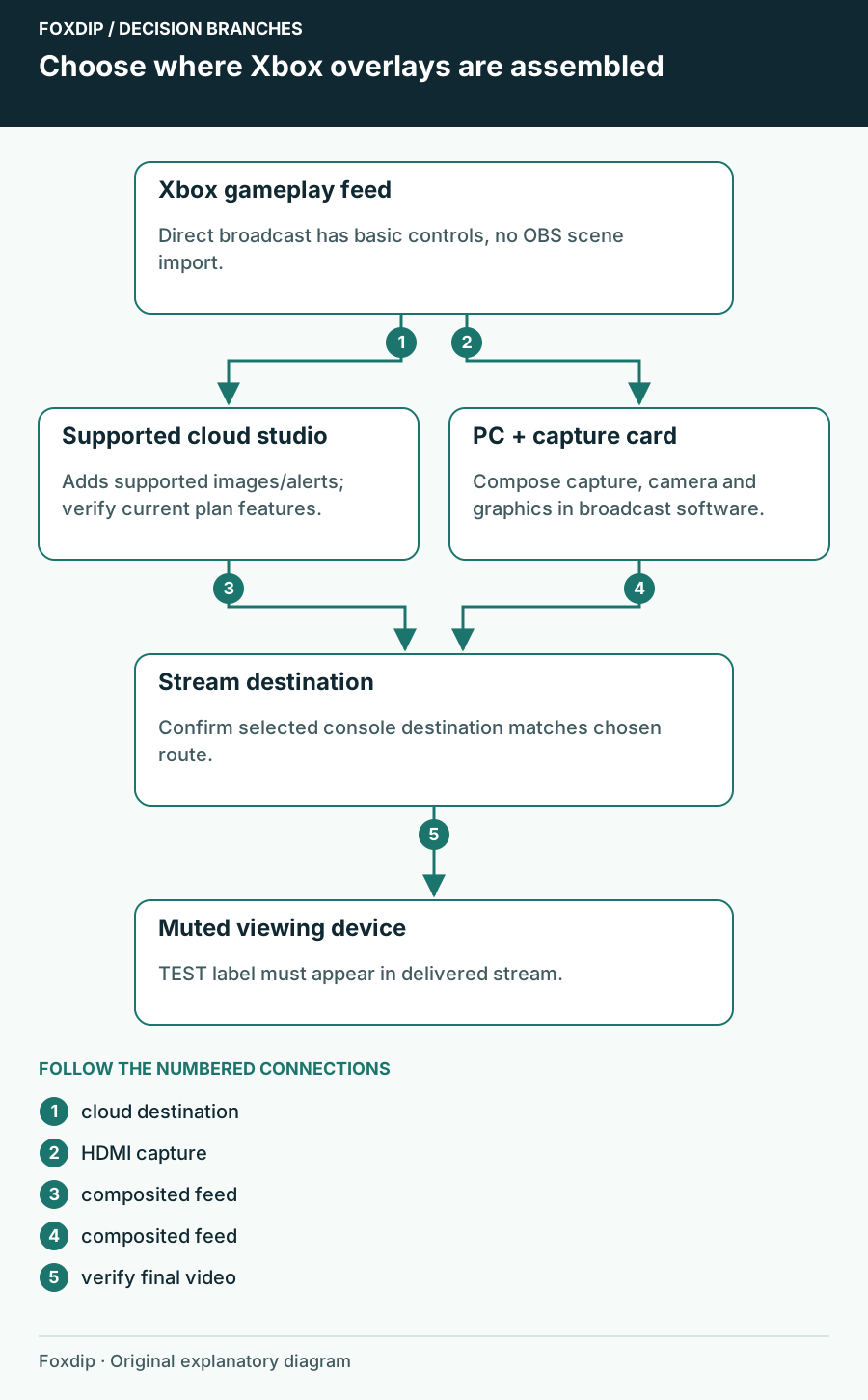
Original Foxdip schematic. Follow the labelled checks alongside the guide.
Keep direct broadcasting if the basic controls meet your needs
Microsoft's Xbox guide covers a stream title, game/mic audio, party audio and broadcast quality choices. That can be enough for a channel whose main job is showing a game and talking to viewers. You don't need to rebuild a stable setup simply because a graphics pack contains files your console doesn't import.
If you only need to thank someone, monitor your events on a second device while keeping the basic broadcast. If the requirement is an on-stream alert, custom frame or multiple branded scenes, move to a composition path that documents that feature. List the one feature you actually need before comparing subscriptions or hardware.
Check the service generation and account entitlement
Microsoft documents destination choices under Capture & share → Live streaming → More options. Cloud services such as Lightstream and Streamlabs Console can receive a console feed and add graphics before delivery. Confirm the provider currently offered on your console and the matching setup instructions in your account.
Lightstream's current site advertises cloud console capture and overlays with different Free/Premium limits. Older Gamer-project articles still describe older packages. Streamlabs Console documents custom images and scenes for Xbox. Check the current account's supported assets, resolution and billing terms rather than treating any historical free trial as a permanent offer.
Use PC capture when scene control is the real requirement
With HDMI capture, the console feeds a supported capture card and the PC places the gameplay, camera, image and alert sources in a broadcast scene. The display can remain on the card's HDMI passthrough while the PC handles composition. The card's compatibility and the PC's encoding capacity still need checking.
An OBS scene collection isn't a universal overlay file for every cloud editor. Keep the source assets organized by format and rebuild only the parts supported by your selected destination. If a pack includes editable project files, those aren't necessarily files the broadcast editor can display directly.
Use this example when choosing a PC composition workflow. Follow the HDMI capture path ↗
Test one label before moving the whole channel
Create a small temporary image labelled TEST and place it away from the game's HUD. In the cloud preview or PC scene, confirm it sits above gameplay. Then use a short clearly labelled broadcast test when your destination requires a live feed, and inspect the result from another muted viewing device.
Confirm the final output
Watch the actual destination and check the test image, game sound and commentary.
Look for: The image appears in the delivered video, not only in an editor preview.
If it is missing, verify the selected Xbox destination and active cloud/PC scene before buying or importing more graphics.
- Keep a way to return to direct broadcast if the cloud service is unavailable.
- Test animated files separately; image support does not establish every video or transparency format.
- Use one relevant frame or alert first, then inspect the stream at phone size.
Sources & references
Based on the linked manufacturer and platform documentation reviewed on 27 October 2026. No hands-on hardware test is claimed.
- Streamlabs — Using Streamlabs with Consoles ↗Checked 2026-10-27
- Microsoft — Xbox Live Streaming with Twitch ↗Checked 2026-10-27
- Microsoft — November 2022 Xbox Update ↗Checked 2026-10-27
- Lightstream — Current Studio offering ↗Checked 2026-10-27
- Streamlabs — Console FAQ ↗Checked 2026-10-27
Spotted something out of date? Let Alex know.
How we put our guides together ↗