
Prove the console works directly on the display, then restore console → HD60 X HDMI IN → HDMI OUT → display and a direct USB 3 connection to the computer.
A stable gameplay picture in both passthrough and one capture application.
In this guide
Before you start
- Elgato HD60 X, two suitable HDMI cables and the supplied USB data cable.
- Access to the console video settings through a direct display connection.
- A gameplay source you are allowed to capture; protected movie apps are outside this workflow.
- MicrophoneCable & connection
- Operating systemInput & permission
- OBS mixerSource, meter & mute
- RecordingTrack & playback
Start with the screen you can trust
Disconnect the capture card from the video path and connect the console directly to the TV or monitor. Select that HDMI input and open a game. If this picture is missing too, fix the console, display input or cable first. A capture application cannot recover a video signal the console never sends.
Keep a short note with three results: direct display, passthrough display and software preview. These are separate observations. A working TV picture through the card proves more than a glowing USB light, but it still doesn't prove the computer is receiving video.
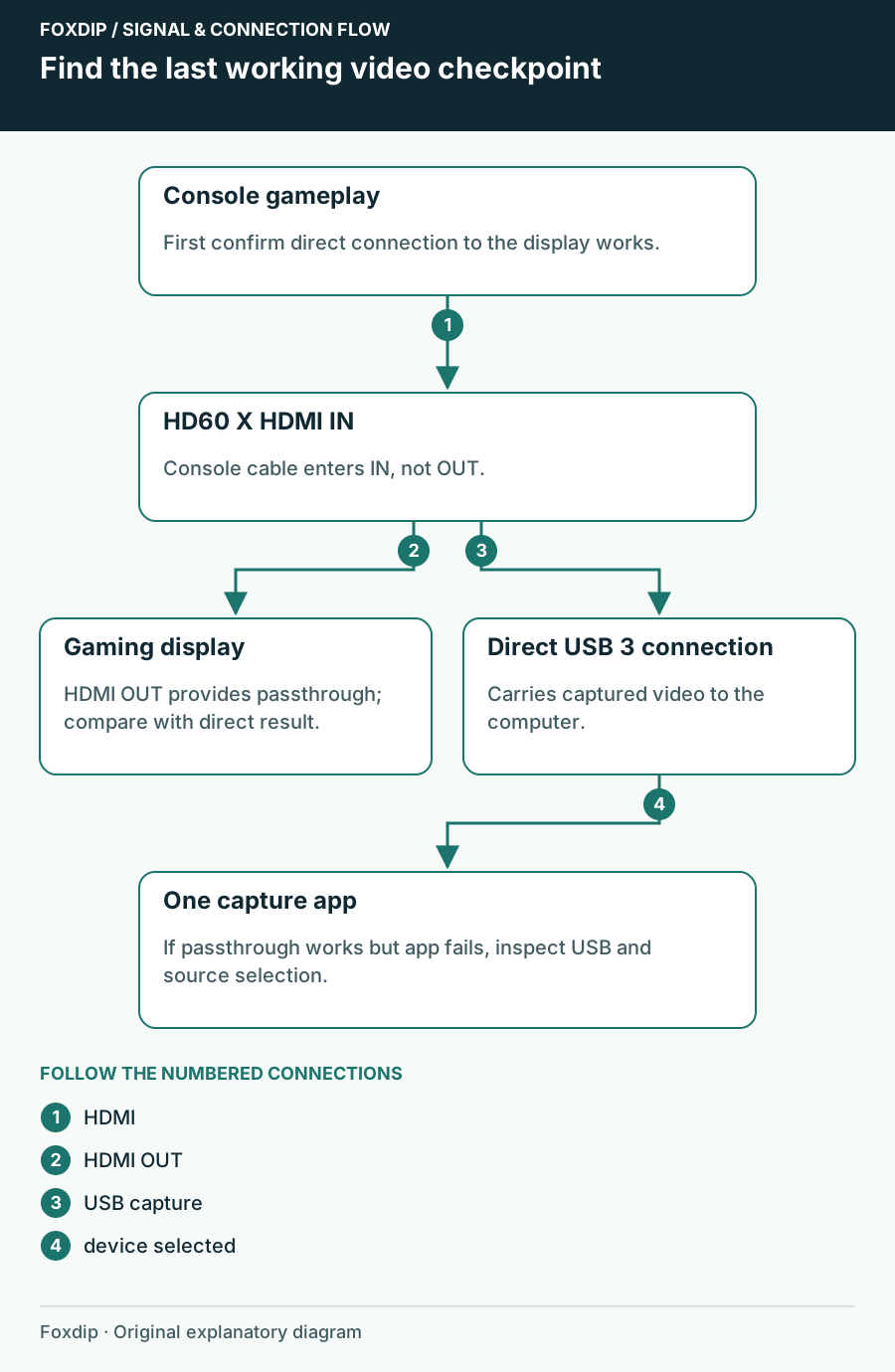
Original Foxdip schematic. Follow the labelled checks alongside the guide.
Restore the path in the right direction
The card's HDMI sockets are directional. The console belongs on IN; the gaming display belongs on OUT. USB connects HD60 X to the recording computer, not to the display. Reseat each plug without stretching the connectors, and remove intermediate switches while establishing a baseline.
Reconnect the labelled sockets
Follow console HDMI OUT → card HDMI IN, then card HDMI OUT → display. Connect the card directly to a USB 3 port with its data cable.
Look for: The display shows the same game as the direct connection.
If it fails here, swap one HDMI cable with the known-working direct cable and repeat before opening OBS.
Give the whole chain a modest baseline
Set the console to a supported 1080p60 SDR output while connected directly to the display. Temporarily turn off HDR, VRR and high-refresh modes for this test, recording their original values first. This is a diagnostic baseline; it doesn't mean you must keep those features off forever.
Reconnect HD60 X and test again. If the picture returns, restore one feature at a time. The first change that removes the signal gives you a specific mode to compare with the card and display specifications. Don't change resolution, cable, application and HDR together: you would lose the evidence about which change mattered.
Separate HDMI trouble from a computer preview problem
Close other capture applications, then open one empty test scene with HD60 X selected as the video device. In Elgato Studio, read the detected input information rather than judging only the preview. If the display works and the device isn't listed at all, focus on the USB cable, port and app permissions.
The HD60 X LED is another clue: Elgato documents solid blue for valid HDMI, rapidly flashing red for absent or invalid HDMI, and rapidly flashing pink for a disconnected HDMI cable. A blue light alongside an empty OBS scene points you toward the computer side; it doesn't establish that the recording is healthy.
Restore quality and keep the failed combination
For PS5 gameplay, verify the supported HDCP setting before treating a black capture as a broken cable. Protected video apps require a different viewing workflow; a capture card cannot record their protected HDMI output. Use the linked PS5 guide for that boundary.
Once both pictures are stable, record a minute with motion and audio. Then restore your preferred display options individually and record the working combination. If capture still fails, send support the console model, exact output mode, direct/passthrough/preview results, cable arrangement and app version. That is far more actionable than repeatedly reinstalling the capture program.
Check the gameplay setting when the console is a PS5. PS5 gameplay capture and HDCP ↗
Sources & references
Based on the linked manufacturer and platform documentation reviewed on 27 October 2026. No hands-on hardware test is claimed.
- Elgato — Troubleshooting: No Signal ↗Checked 2026-10-27
- Elgato — HD60 X Quick Start Guide ↗Checked 2026-10-27
- Elgato — HD60 X Status LED ↗Checked 2026-10-27
- Elgato — HD60 X current product/support page ↗Checked 2026-10-27
- Elgato — Studio Software Interface ↗Checked 2026-10-27
- Elgato — HDCP and Capture Devices ↗Checked 2026-10-27
Spotted something out of date? Let Alex know.
How we put our guides together ↗