
Smart Profiles follow the foreground application. Check the profile’s Application association, minimize the Stream Deck editor and test two distinct app windows.
The intended profile appears when its application gains focus, with a deliberate default or manual route for other apps.
In this guide
Before you start
- Stream Deck software 7.6 and at least two profiles you can recognize.
- The intended desktop application already running.
- A backup before substantial profile edits.
- MicrophoneCable & connection
- Operating systemInput & permission
- OBS mixerSource, meter & mute
- RecordingTrack & playback
Running is different from being in front
A game can keep running while your browser, launcher or chat window has focus. Smart Profiles respond to the foreground application. If the keys change as you click another window, that may be the expected association rather than a random profile loss.
Give the two profiles obvious temporary titles or one harmless identifying key. Then click the actual game window, its launcher and your browser in turn. Record which profile appears after each click. This small comparison gives you a concrete mismatch to fix instead of repeatedly selecting the desired profile by hand.
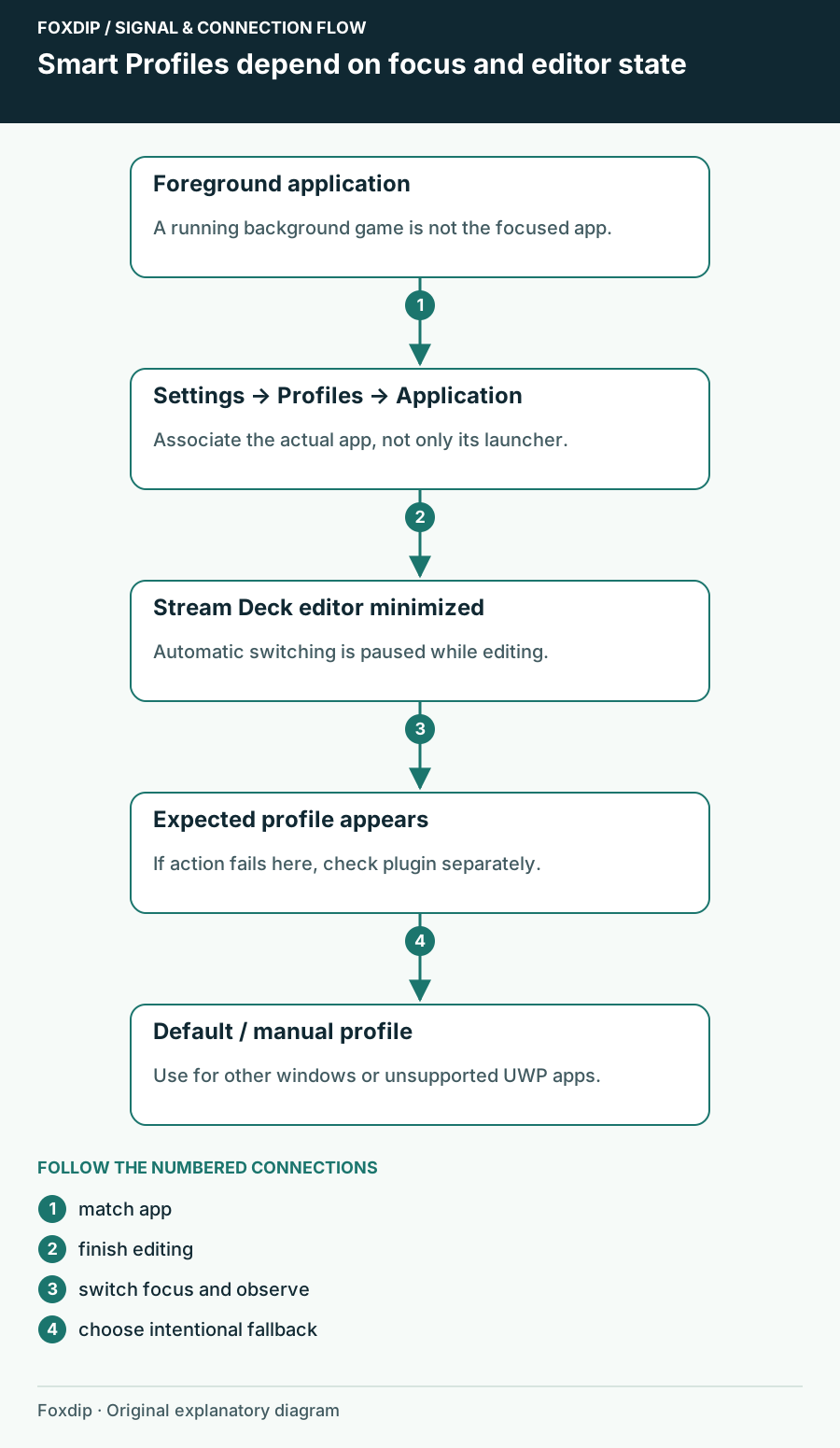
Original Foxdip schematic. Follow the labelled checks alongside the guide.
Inspect which application belongs to which profile
Open Stream Deck Settings → Profiles, select the intended profile and inspect its Application association. Choose the actual application you want to trigger it. A launcher and the game it launches can be different applications; associating only the launcher doesn't describe what should happen when the game window takes focus.
Check the other profiles too, especially copied or imported ones. Remove unintended associations and keep a note of the original choices. If the desired app is missing from the list, launch it first; the support guide also documents choosing an application manually with Other. Don't create several near-identical profiles to compensate for one wrong association.
Test a single association
Associate one recognizable profile with one ordinary desktop app, then leave its window ready for the next check.
Look for: The application icon appears beside the assigned profile.
If the app cannot be selected, verify its actual executable and whether it is a supported desktop app before adding more rules.
Minimize the editor before the switching test
Elgato explicitly says Smart Profiles are deactivated while the Stream Deck software window is open, so profiles don't change underneath you while editing. Minimize it after configuring the association. Then click the target app and the comparison app again.
This is an easy distinction to miss when the configuration looks correct but nothing happens: the act of leaving the editor open changes the test condition. Judge automatic switching from the device or the resulting harmless identifying action, not by keeping the editor in front and expecting it to switch away from itself.
Make an intentional fallback for other windows
Choose which profile should be your ordinary starting point. Elgato documents a Make this my default profile option in Profiles. That preference is separate from associating a profile with a particular application. Keep common controls easy to reach when no intended app-specific profile is active.
If you need the streaming controls while working in several unrelated apps, a manual profile-switch key may be more predictable for that part of the session. Decide whether a specific app should take over automatically before assigning it. Test app switches with broadcasting stopped, particularly if nearby keys control recording or live output.
Keep unsupported apps and missing actions separate
The newer Elgato guide states that Smart Profiles don't work with UWP applications. If a test with an ordinary supported desktop app succeeds but the target doesn't, keep that limitation in view. Don't treat running everything as administrator as a universal fix for a profile association.
If the correct profile appears but an action shows a question mark, investigate the plugin dependency instead. If an OBS action fails on the correct profile, follow the OBS connection/plugin guide. Once switching is reliable, restore your temporary labels and export a backup so the next import or computer move doesn't erase the arrangement you just verified.
Sources & references
Based on the linked manufacturer and platform documentation reviewed on 27 October 2026. No hands-on hardware test is claimed.
- Elgato — Set Up Smart Profiles ↗Checked 2026-10-27
- Elgato — Smart Profiles Support ↗Checked 2026-10-27
- Elgato — Download and Use Profiles ↗Checked 2026-10-27
- Elgato — Stream Deck 7.6 Release Notes ↗Checked 2026-10-27
Spotted something out of date? Let Alex know.
How we put our guides together ↗