
On the old PC, make a backup in the Stream Deck app. On the new PC, back up first too, because restoring replaces the profiles already there. Then restore, reinstall your plugins and test each button before you go live.
- Old PC: open Stream Deck Preferences and make a backup.
- Copy the backup file to a USB stick or cloud folder.
- New PC: make a backup there too before you restore anything.
- Restore the backup. It replaces the profiles on the new PC.
- Reinstall your plugins. They aren't inside the backup.
- Fix buttons that open files or folders, then test each one off-stream.
Your profiles are recoverable and important actions work on the destination in an off-air check.
In this guide
Before you start
- Stream Deck software and access to the profiles you want to preserve.
- A destination computer and a private place to keep a dated backup copy.
- Time off-air to inspect actions, plugins and local media before pressing production controls.
- MicrophoneCable & connection
- Operating systemInput & permission
- OBS mixerSource, meter & mute
- RecordingTrack & playback
Save the working state before changing computers
Name the move: old computer, new computer, Stream Deck model and the profiles you actually use. Make a short list of important actions such as scene selection, microphone mute and opening a local sound. That is your verification list after the move; button artwork alone won't show that an action works.
Keep backups private because profiles can refer to account-connected services or local paths. Store a dated copy somewhere you can still access if the old computer is unavailable. A profile backup left only on the computer you are replacing is a weak recovery plan.
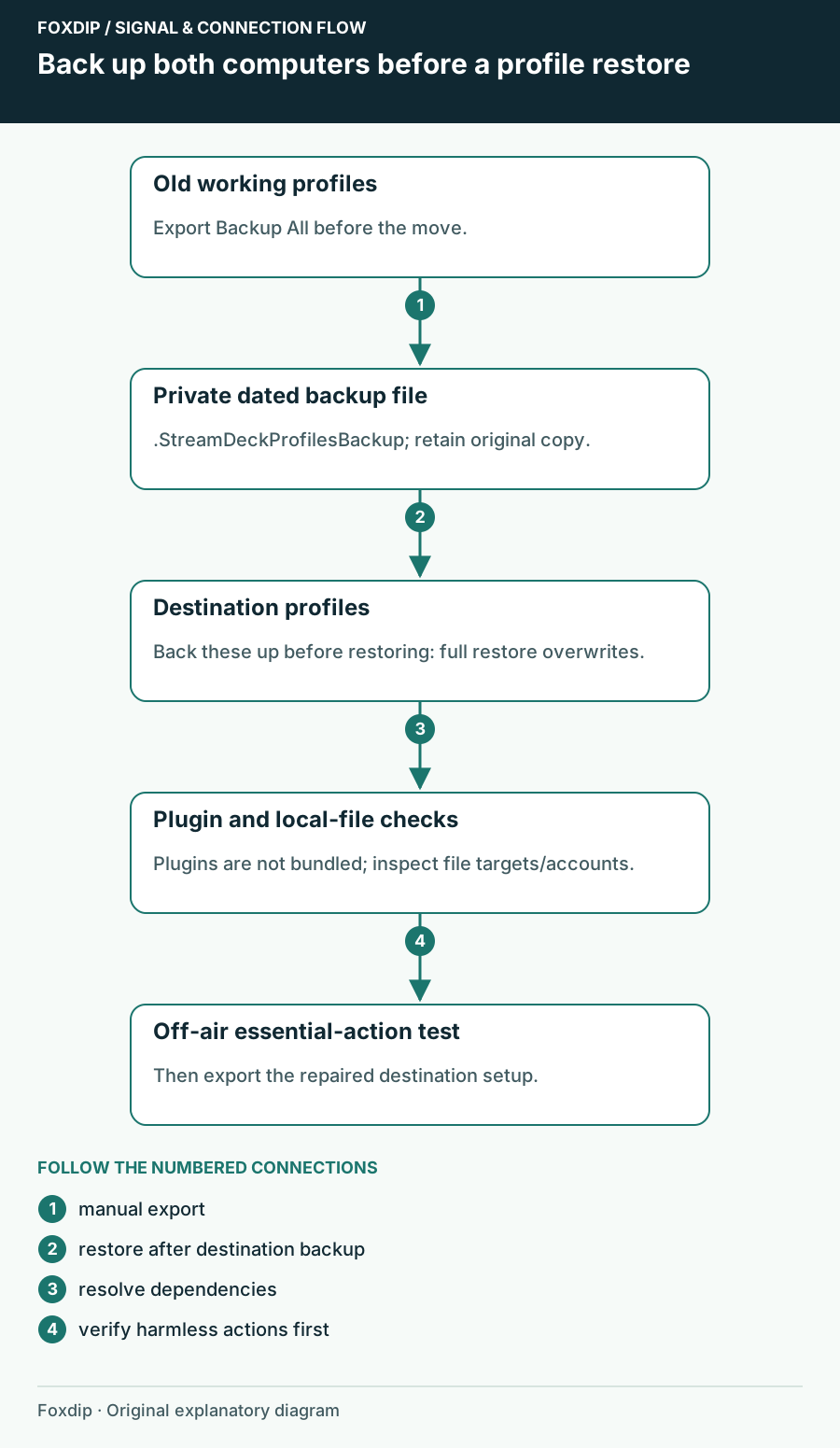
Original Foxdip schematic. Follow the labelled checks alongside the guide.
Create the complete profile backup
In Stream Deck Settings, open Profiles, use the profile options arrow, then choose Backup All → Create Backup. Save the resulting backup with a recognizable date and computer name. Verify the file exists in the folder you selected before starting the move.
Automatic backups have existed since Stream Deck 5.3 when the app is updated. That timing isn't a promise of a fresh backup after every editing session. Make a manual export after a substantial layout change or immediately before the move, even if an older automatic backup is available.
Keep the old setup recoverable
Create the manual backup and copy it to your chosen private transfer location.
Look for: A dated .StreamDeckProfilesBackup file is present and has a non-empty file size.
If export fails or the file cannot be found, keep the old setup intact and resolve the save location before restoring elsewhere.
Protect the destination before accepting overwrite
If the new computer already contains profiles you want, back those up first too. Elgato documents that restoring a profile backup overwrites existing profiles. Don't use a full restore merely to inspect one interesting key, and don't assume it merges both computers into a combined layout.
When you are ready, open the backup file, review the restore prompt and proceed only with a recovery copy of the destination already saved. After import, confirm profile names and the selected device. If the result isn't the setup you intended, stop editing and return using the destination backup you just created.
Restore dependencies before judging the buttons
Profile exports preserve assigned actions, but Elgato says they don't include plugin copies. A question mark may therefore mean a missing plugin rather than a lost profile. Newer profiles created with Stream Deck 6.9 or later can prompt for missing plugins; older exports may need manual plugin installation.
Use the official Marketplace and check OS compatibility for each required plugin. Separately inspect actions that open applications, local audio or files: their targets must exist on the new computer. Reconnect accounts through the supported plugin workflow where required. Copying button configuration doesn't establish that every external destination is ready.
Run the first button check off-air
Open a harmless test document and verify a non-destructive action first. Then check local-file actions and source/scene targets with broadcasting stopped. Keep Start Streaming, purchase actions or other consequential controls out of this first test until their configuration has been inspected.
Finally restart Stream Deck, confirm the expected profile appears and repeat your essential-action list. Note any changed file paths and plugin requirements next to the backup. Create a new export of the repaired destination setup, while keeping the original export separately. That leaves you a clean return point as well as the layout you can now use.
Sources & references
Based on the linked manufacturer and platform documentation reviewed on 27 October 2026. No hands-on hardware test is claimed.
- Elgato — Back Up and Restore Stream Deck Profiles ↗Checked 2026-10-27
- Elgato — Download and Use Plugins ↗Checked 2026-10-27
- Elgato — Stream Deck 7.6 Release Notes ↗Checked 2026-10-27
- Elgato — Stream Deck 6.1 backup reminder ↗Checked 2026-10-27
- Elgato — Stream Deck 5.3 update-time backups ↗Checked 2026-10-27
Spotted something out of date? Let Alex know.
How we put our guides together ↗