
Start with the free GG sample. View it at 28 px on both chat backgrounds and watch the full loop. Can you still make out both letters?
You can choose the small export you prefer and know what to check in your Twitch upload slot.
In this guide
Before you start
- The extracted GG sample, or an emote file you have permission to use.
- A browser for the local preview tool; no account or email needed.
 28 px
 56 px
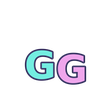 112 px
The big preview is only the beginning
A reaction can look lovely in a large preview and lose its expression when it sits beside a line of chat. For GG, the important parts are simple: two recognisable letters, a gap between them and a movement that leaves them readable. That is what you will look for here.
The free sample gives you one GG design in seven exports: three GIFs and four PNGs. It is enough to compare a still with an animation and to see how the smaller files hold up. You can do the whole exercise without buying a pack, uploading a personal file or joining a mailing list.
Get the small files ready
Download the free sample ZIP and extract it, or find the small exports in a pack you already own. Keep the original ZIP somewhere easy to find. For this example, pick out the 28, 56 and 112 px PNGs and their matching GIFs. You will use the PNGs for the still comparison and the GIFs for movement.
Open the preview tool at your normal browser zoom. Its sample rows use the separate size exports, so the 28 px row shows the small file itself. Shrinking a 512 px image in a browser can produce a different result. Screen scaling still affects what you see, so compare the files on the screen and at the distance you normally use.
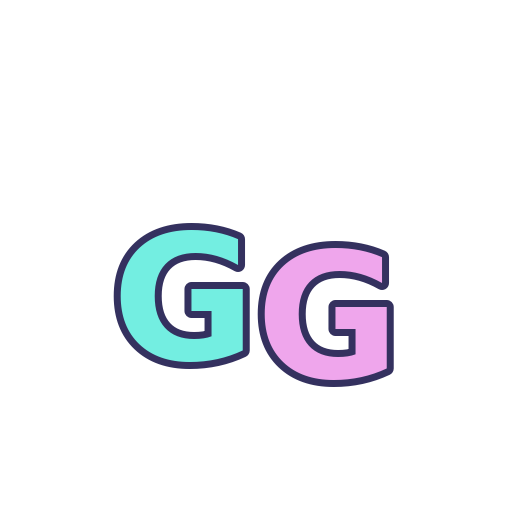
The actual GG sample artwork. This enlarged PNG helps identify the design; the chat-size examples below show how the smaller exports read.
Try the label against its real background before you commit to the palette. Check the text colours ↗
Look for the letters before the effects
Begin with the 28 px PNG. Without leaning in or opening a larger preview, can you recognise both Gs and the space between them? An outline or highlight should help you see the letters. If it becomes the main thing you notice, the small reaction may be harder to read than the large artwork suggests.
Switch between light and dark backgrounds while keeping the same file selected. Look at the outer edge as well as the centre. The chat-style row gives you some surrounding text to compare against, though your actual Twitch theme may look different. If you need to enlarge the image to understand it, note that before moving to the animation.
Actual files · chat-size preview
Dark chat Illustrative preview
Light chat Illustrative preview
Carry the same look into your About section, with words and links that visitors can use. Set up your Twitch panels ↗
Watch the moment the loop starts again
Each sample GIF has 17 frames and a 2.12-second loop, so let it run a few times. Follow the letters through the movement, including the join back to the beginning. Look for a frame that hides a letter, a stray block, a clipped border or a jump that pulls your eye away from the reaction.
Repeat the check on both backgrounds. If you prefer the quieter version, choose the PNG still: it carries the same reaction without the movement. The PNG and GIF are two versions of one design. You are choosing how you want it to appear in chat, rather than trying to get a different expression from each file.
Trying an emote you already own?
Choose a local PNG or GIF in the preview tool. It reads the file in your browser and shows its type, dimensions and three preview sizes; your selected image stays on your device. Non-square images fit inside the square area without being stretched, which helps you spot empty space or a shape that needs more room.
For a GIF, watch the animation yourself. The transparency indicator only checks one captured frame, so a passing result can miss a block that appears later in the loop. An animation editor is the better place to inspect individual frames. The tool also has its own size limits; Twitch’s upload form makes the separate decision about what your account can accept.
Choose the slot, then the file
When you are happy with the small preview, open emote management in your Twitch Creator Dashboard. Choose the slot you plan to use and read its current format and size requirements. Match a static file to a static slot, or the accepted animated file to an animated slot, then enter the code or name the form asks for.
The size folders help you find the right export. They do not change the slots available to your account. Badges have their own setup area, too. If Twitch rejects an upload, copy the exact message and compare it with the official guidance before making several resized copies. That message is a better starting point than guessing which setting caused it.
Keep the version you would actually use
By now you should have a preference: still or moving, the file you checked, and any edge or frame you want to look at again. Keep that note with the pack. It makes a later upload easier, and gives the creator something specific to investigate if you need help.
Keep using the licensed free GG on its own if it covers the moment you need. When another reaction is missing, browse the current emote collection and check its actual reaction list, formats and licence. Extra export sizes don’t add new expressions.
Give the static thumbnail its own job
Twitch uses the first GIF frame as the default animated-emote thumbnail and also allows a custom static thumbnail. Check that still image separately from the completed loop: an expression that becomes clear only halfway through the animation may be ambiguous before it plays.
At 28 px, compare a frame that communicates the reaction immediately with a frame chosen only because it starts the motion smoothly. If neither serves both purposes, prepare a compatible static thumbnail rather than filling the whole animation with larger lettering. The file still needs to meet the platform’s current formatting rules.
| Observation | Next change | Expected result |
|---|---|---|
| First frame is an empty anticipation pose | Choose a readable first frame or custom static thumbnail | The reaction makes sense before animation |
| Meaning appears only at the loop’s peak | Simplify the key expression and compare its smallest export | Recognition does not depend on watching every frame |
| Thumbnail is clear but edges fail on dark chat | Inspect transparency on both backgrounds | The still and animated versions both remain usable |
Select the static and animated exports deliberately. Inside an Emote ZIP: Find the File You Actually Need ↗
Still stuck?
Only the large preview looks clear
Judge the actual smallest export rather than increasing the preview size.
The preview works but Twitch rejects it
Keep the exact platform error and compare it with the current account/upload requirements.
Give it a run in chat.
Try the free GG emote, or bring your own PNG or GIF to the preview. Look at the smallest size first and watch the whole loop.
Dark chat Illustrative preview
Light chat Illustrative preview
Sources & references
This guide uses the checked files in our free GG sample; Twitch’s upload instructions are linked below. November 2026 addition: documentation-based diagnostic examples; no new hands-on hardware result or platform upload test is claimed.
- Foxdip — GG sample exported-file manifest ↗Checked 2026-10-18
- Twitch — Subscriber Emote Guide ↗Checked 2026-10-18
- Twitch — Animated Emotes ↗Checked 2026-11-04
Spotted something out of date? Let Alex know.
How we put our guides together ↗