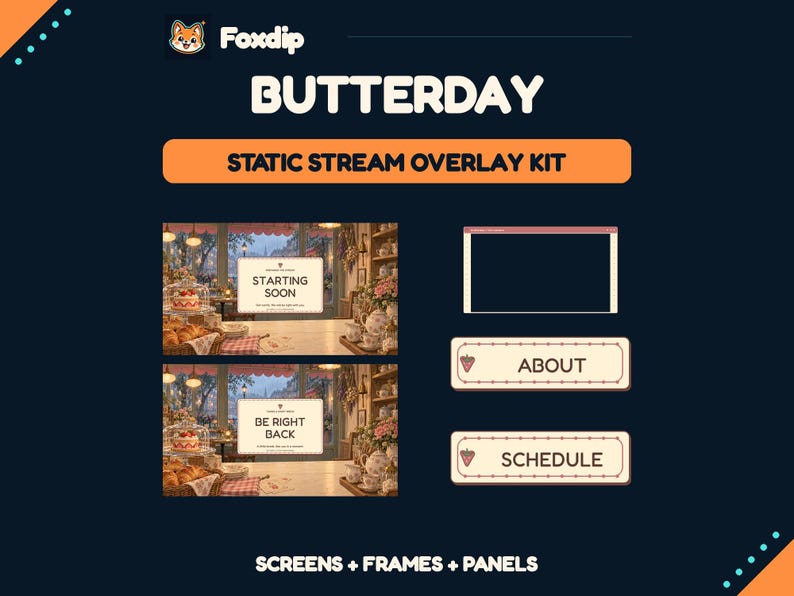
Show that the stream has started, what is coming next and whether there is a reliable start time. Use a countdown only when it is connected to a real plan you can update.
In this guide
Answer the arriving viewer’s questions
An arriving viewer needs to know whether they are in the right place and what will happen after the waiting screen. Put the channel or show identity first, then the activity and a short status message. “Starting soon — first attempt at the mountain route” communicates more than a decorative room with no explanation.
Keep secondary information modest. A social handle, music credit or one chat prompt can support the scene. A long schedule, five platform icons and a rotating block of rules can make the main message harder to find. Choose what matters during the few minutes before this particular show.
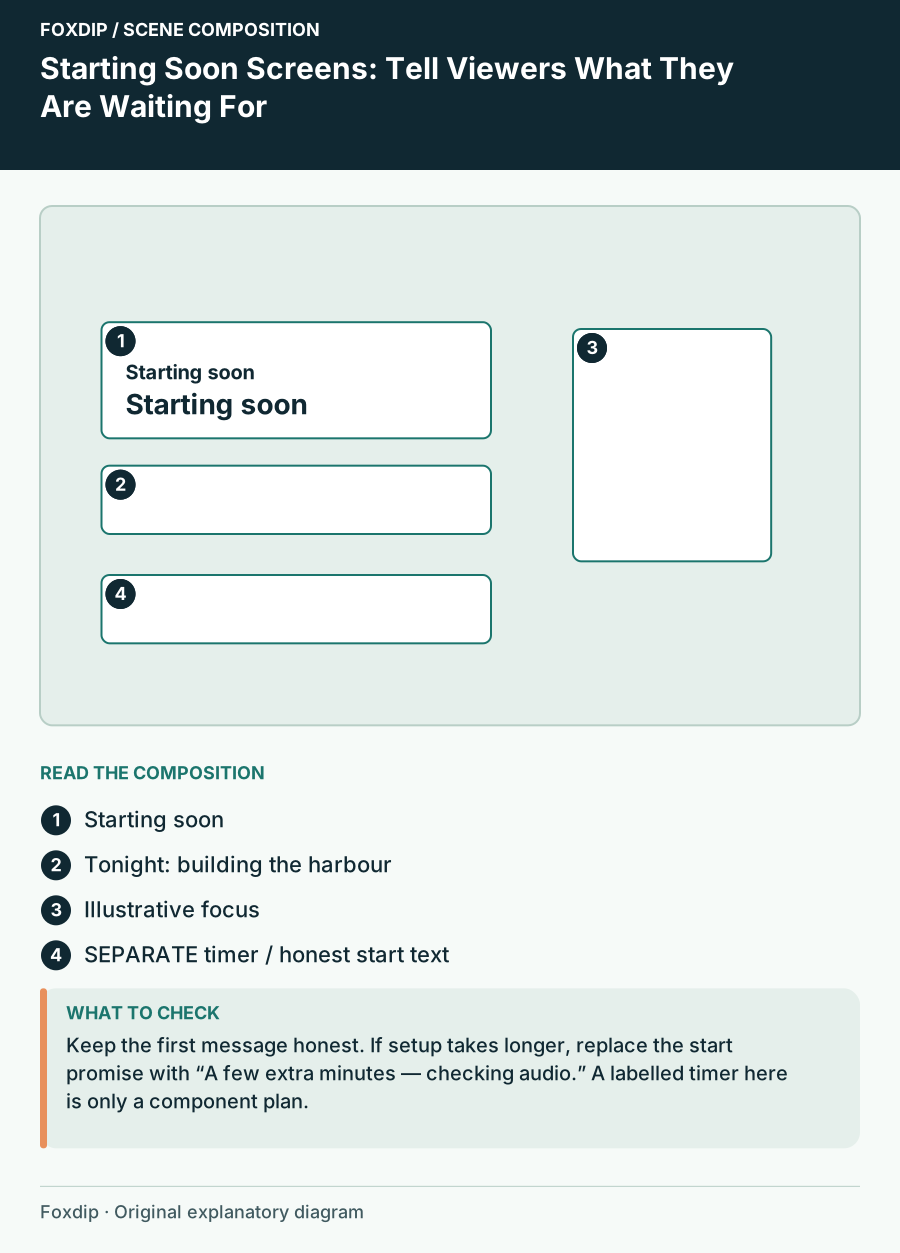
Original Foxdip scene plan. Positions illustrate this example; check the actual game or camera view.
Build a hierarchy that survives a small player
Try a composition with the main message in the left half, a short topic beneath it and the illustrative focus on the right. Keep a quiet background patch behind the words. This allows the scene to have atmosphere without making a viewer read through a busy lamp, window or particle effect.
For a 1920×1080 working example, place the message block within a central area rather than against the outer edges. Leave enough width for the longest status you actually intend to show. These positions are editorial starting points, not Twitch safe zones. Compare the actual result at your final output size.
| Visual level | Example copy | Purpose |
|---|---|---|
| Primary | Starting soon | Explain the state |
| Secondary | Tonight: building the harbour | Explain the programme |
| Optional | Say hello in chat | Offer one easy action |
Keep the timer separate from the artwork
If the background includes a painted clock or sample countdown, verify whether it is decoration or a functional timer. A rendered number in an image will not count down. Keep the start message editable so you can change it without replacing the entire scene. OBS text sources can carry independent text.
Choose between a real countdown and a plain start message based on your routine. “We start at 19:30 UTC” is useful only if that is the actual planned time; “finishing setup” is better when you cannot give a reliable minute. Do not let a timer reach zero and loop endlessly while the audience waits for an explanation.
Plan the late-start state now
Create a short alternate line such as “A few extra minutes — checking audio.” Keep it ready before the stream begins. It should explain the delay without exposing private troubleshooting details or promising a time you cannot meet. If you need a longer interruption, switch to a more accurate status instead of leaving the original countdown.
Decide how you move from waiting to the live scene. The transition should leave your first spoken words audible and the new content ready. Rehearse the handover with a local recording: show the waiting scene, switch to the programme and say the opening sentence. Watch whether any lingering label makes the new scene look unfinished.
Choose motion that supports the wait
A small moving light or slow background loop can provide atmosphere. Reserve the strongest contrast for the status and show topic. If the motion repeatedly crosses the text or pulls attention toward a corner with no useful information, a quieter version may suit the job better.
When choosing a waiting-screen product, compare space for your real wording, fixed versus editable text, and whether any music or timer is actually included. A scene can be attractive and still leave those tasks to you. The finished screen should tell a newcomer what is about to happen even with the sound muted.
Sources & references
Foxdip editorial design advice with platform behavior grounded in the linked official documentation. Layout dimensions and palettes are worked examples, not platform requirements.
- OBS: Text Sources ↗Checked 2026-10-27
Spotted something out of date? Let Alex know.
How we put our guides together ↗