
The PS5 blocks capture cards while HDCP is on. Before you plug in the capture card, go to Settings → System → HDMI on the PS5 and turn off Enable HDCP. Turn it back on when you want to watch Netflix or other video apps.
- Connect the PS5 straight to your TV first, so you can see the menus.
- Go to Settings → System → HDMI.
- Turn off Enable HDCP.
- Now connect the PS5 to the capture card, then the card to your TV.
- Start a game and check the picture in OBS.
- Video apps won't play with HDCP off. Turn it back on when you're done streaming.
Gameplay reaches the capture application, and you know how to return to protected-media viewing.
In this guide
Before you start
- PS5 or PS5 Pro and a display reachable directly over HDMI.
- A capture card that supports the chosen console video mode.
- Gameplay you are allowed to broadcast; this procedure does not capture protected movies or streaming-service video.
- MicrophoneCable & connection
- Operating systemInput & permission
- OBS mixerSource, meter & mute
- RecordingTrack & playback
HDCP is a boundary of the capture path
Sony supports external HDMI capture devices for PS5 gameplay with HDCP disabled. Elgato's current guidance gives the setting under System → HDMI. Use this option for the gameplay workflow the console exposes; it doesn't make a capture card a way to record protected video services.
A black capture when HDCP is enabled is therefore different from an OBS scene hidden underneath another source. Settle this at the console before rebuilding the streaming application. Keep the game, card and display requirements separate: turning off HDCP won't make an unsupported resolution compatible.
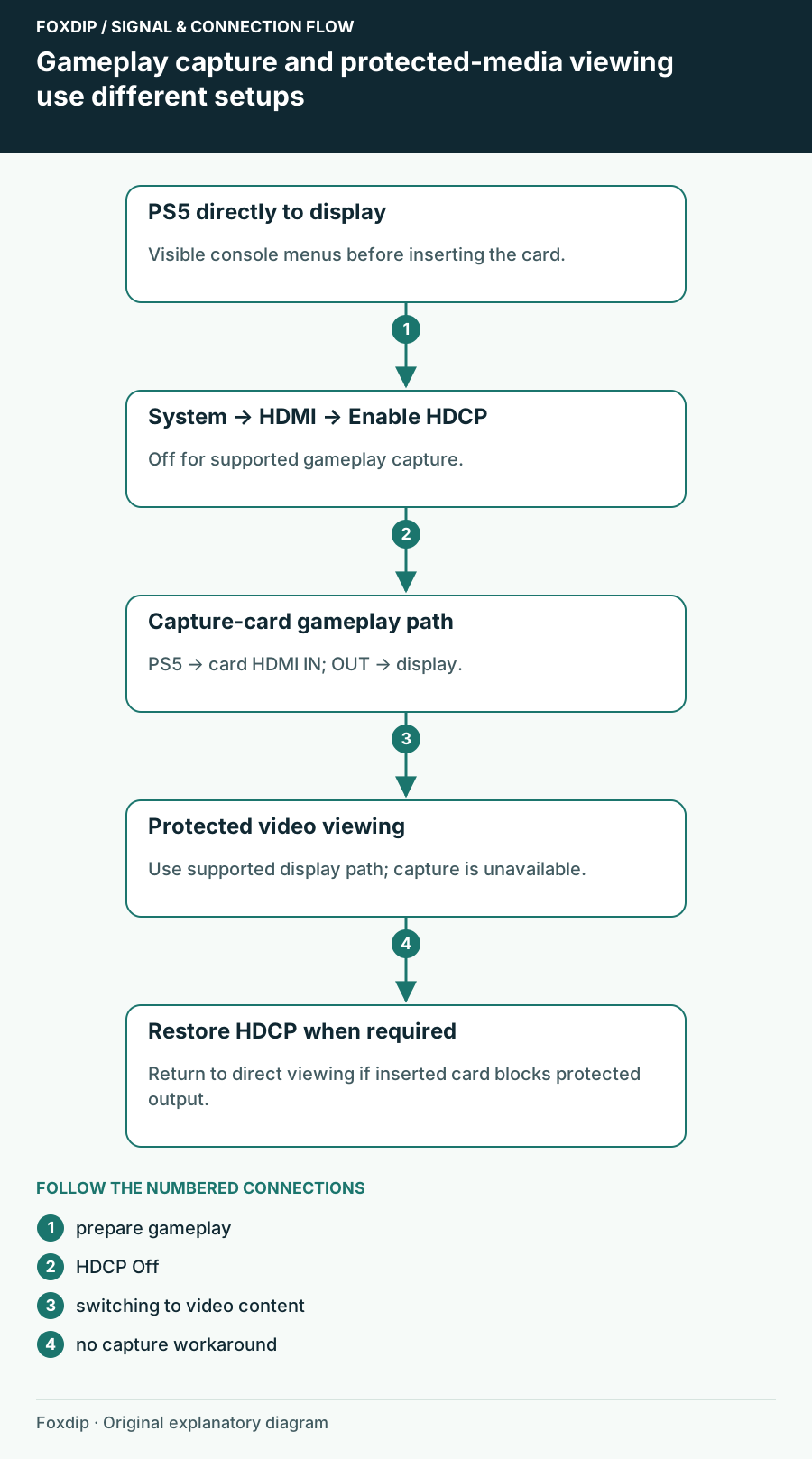
Original Foxdip schematic. Follow the labelled checks alongside the guide.
Make the setting while the display still works
Connect PS5 directly to the TV or monitor, bypassing the card. Select the correct display input and wait for the home screen. This gives you a visible place to make the change even if the card has been showing only black.
Disable gameplay HDCP
Open Settings → System → HDMI and switch Enable HDCP off.
Look for: The console remains visible on the directly connected display with the setting off.
If the direct display is also blank, fix the display/cable/output issue before continuing; do not use a blind button sequence.
Insert the capture card and prove gameplay
Connect the PS5 HDMI output to the card's HDMI IN, then the card's HDMI OUT to the display. Connect the card's USB cable to the recording computer. Open one capture application and select that actual device. Launch a game, avoiding a movie or TV app as your first test.
For HD60 X, the 3.5 mm input is analog line-in and USB carries captured video to the computer. These have different jobs from HDMI passthrough. If you see the game at the TV but not in the app, inspect the computer capture connection and source selection instead of repeatedly toggling HDCP.
Use the symptom to choose the next check
If no picture appears even through the direct connection, return to the console/display troubleshooting path. If direct display works but both card passthrough and capture fail, simplify the output mode and check cables and HDMI direction. If only a protected media app fails, stop treating it as a gameplay-capture fault.
For a troublesome high-resolution setup, save the current video choices and test a modest SDR gameplay mode supported by the whole chain. Once that works, restore your preferred features one at a time. This gives you evidence about the incompatible combination; toggling every video option together only hides it.
Continue here if a game still fails after the supported PS5 setting. HD60 X no-signal checks ↗
Return to normal movie viewing afterwards
When you want to watch protected video, use the console's supported viewing arrangement and re-enable HDCP where required. If the inserted capture card prevents that arrangement from working, connect PS5 directly to the display. Protected output isn't a fault to fix with splitters, modified firmware or a capture workaround.
Before the next stream, repeat a short gameplay recording and listen to it. A successful video test doesn't confirm your game or party sound, and headset routing may have changed while you were watching other content. Save a two-line reminder with your gameplay HDCP state and normal viewing setup so switching activities stays straightforward.
Check the audio route after video is working. HD60 X video with missing sound ↗
Sources & references
Based on the linked manufacturer and platform documentation reviewed on 27 October 2026. No hands-on hardware test is claimed.
- Sony — PS5 Ultimate FAQ, capture-device support ↗Checked 2026-10-27
- Elgato — HDCP and Capture Devices ↗Checked 2026-10-27
- Elgato — HD60 X PS5 Setup ↗Checked 2026-10-27
Spotted something out of date? Let Alex know.
How we put our guides together ↗