
Keep the camera still, isolate one lamp, and match an exposed anti-flicker control to the lighting’s 50Hz or 60Hz environment. Check the recording after each change.
A recorded comparison identifies the lamp/control combination that removes or reduces the visible flicker.
In this guide
Before you start
- Logitech HD Pro Webcam C920 on a Windows 11 PC.
- OBS Studio, one repeatable camera scene and access to the lamps lighting your face.
- A supported current camera-control app; driver control availability can vary.
- MicrophoneCable & connection
- Operating systemInput & permission
- OBS mixerSource, meter & mute
- RecordingTrack & playback
Describe what changes in the picture
Keep your face and camera still and record ten seconds. Look for repeating dark bands or rapid brightness pulses. Then move a bright object through the frame. If the entire image slowly brightens and darkens mainly when the scene changes, automatic exposure may be the part reacting rather than a repeating lighting mismatch.
These observations are a way to choose your next check, not proof of a hardware defect. Save the first clip so you can compare actual footage. The camera preview, a streaming platform's player and your monitor can make a fleeting symptom difficult to remember accurately.
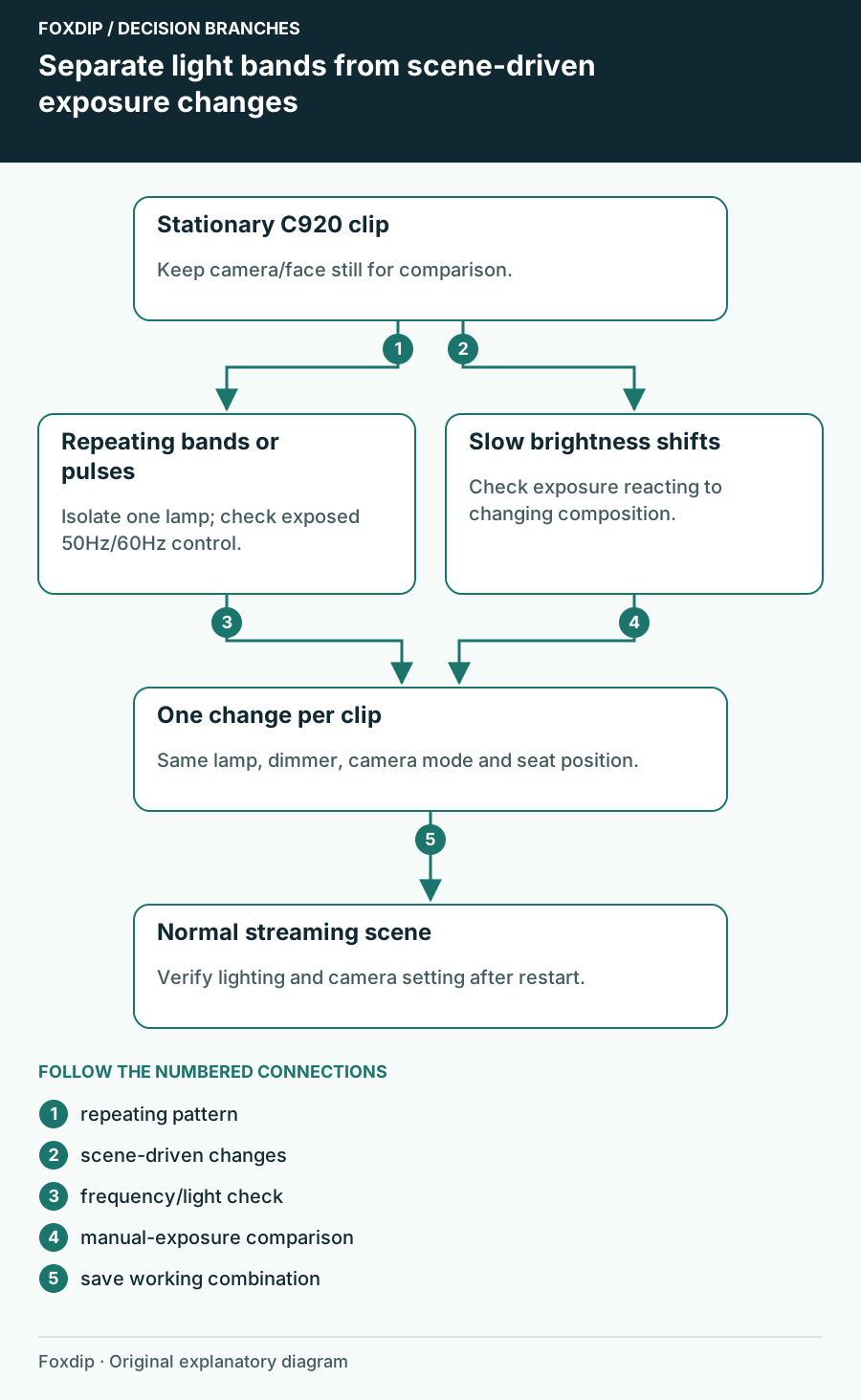
Original Foxdip schematic. Follow the labelled checks alongside the guide.
Find which light changes the symptom
Turn off one room light at a time while keeping another safe source of illumination. Repeat the stationary clip after each change. If the bands disappear when one desk lamp or ceiling fixture is off, leave that light out of the baseline while checking camera settings.
Also test the light at the brightness you normally use. Record each lamp's on/off and dimmer position. If a borrowed lamp or daylight gives a clean picture, you have a useful comparison without buying a new webcam. Changing every light and camera option together would lose that clue.
Try the documented control when your app exposes it
Logitech's C920-specific legacy documentation lists 50Hz, 60Hz and Off anti-flicker choices. Use a currently supported control surface; the old Logitech Gaming Software screens are a capability reference, not a reason to install that retired application.
On Windows OBS, the capture source's Configure Video button opens controls supplied by the camera driver. If an anti-flicker or power-line-frequency control is exposed, record its starting value and try the value matching your lighting environment. This control is separate from the OBS scene's output frame rate. If it is absent, do not assume another webcam model's Logi Tune menu exists on your C920.
Compare one setting
Keep the same lamp, position and camera mode; change only the exposed frequency setting, then record again.
Look for: The repeated bands or pulses lessen in the new clip.
If neither setting helps, return to the original value and continue with lamp isolation and exposure.
Check automatic brightness only when the symptom fits
For slow scene-driven pumping, try a custom camera configuration with steady lighting and manual exposure where supported. Logitech notes that manual settings can prevent repeated automatic adjustments. Make modest changes while watching your face and hand movement; a bright still image that blurs during gestures isn't a complete fix.
G HUB's supported C920 camera controls are separate from OBS output settings. If controls are gray, check whether you are editing a built-in preset rather than a custom mode. Keep one application responsible for settings while comparing clips, so another app doesn't quietly restore a different exposure.
Test your real scene before calling it solved
Return to your normal camera position, overlay and game lighting. Record again while leaning, speaking and moving your hands. If flicker returns only with one lamp or dimmer position, keep that observation attached to your saved setup rather than applying heavy colour filters to every scene.
Finally restart the capture application and verify the selected camera mode persists. If it doesn't, check which camera app or profile reapplies settings. Your useful endpoint is a repeatable combination of lamp, brightness and camera control—not a universal numeric preset that supposedly works in every room.
Sources & references
Based on the linked manufacturer and platform documentation reviewed on 27 October 2026. No hands-on hardware test is claimed.
- Logitech — C920 controls in Logitech Gaming Software (legacy reference) ↗Checked 2026-10-27
- OBS Project — Video Capture Sources ↗Checked 2026-10-27
- Logitech — Optimize Webcam Settings ↗Checked 2026-10-27
- Logitech — G HUB Update Release Notes ↗Checked 2026-10-27
- Logitech — Webcam Settings Grayed Out in G HUB ↗Checked 2026-10-27
Spotted something out of date? Let Alex know.
How we put our guides together ↗