
Choose SDR or HDR delivery first, then make sure the card, capture source and output agree. Compare the saved file before correcting colours with filters.
A consistent colour workflow with no accidental HDR interpretation or forced range mismatch.
In this guide
Before you start
- HD60 X with stable video and an example scene containing dark, bright and neutral areas.
- Know whether the console is currently outputting HDR.
- A local recording and a player appropriate to its SDR or HDR format.
- MicrophoneCable & connection
- Operating systemInput & permission
- OBS mixerSource, meter & mute
- RecordingTrack & playback
Choose the recording you mean to make
If the stream will be SDR, the recording should follow an SDR path even when the gaming display stays in HDR. HD60 X can tone-map incoming HDR to SDR onboard. That conversion changes how highlight and colour information fits an SDR image; it isn't a promise to reproduce an HDR TV's brightness on every screen.
If you intend to produce HDR, plan that as a complete workflow. OBS documents 10-bit capture formats such as P010 and Windows support for external HDR devices. Merely seeing HDR on the TV doesn't show what OBS receives over USB.
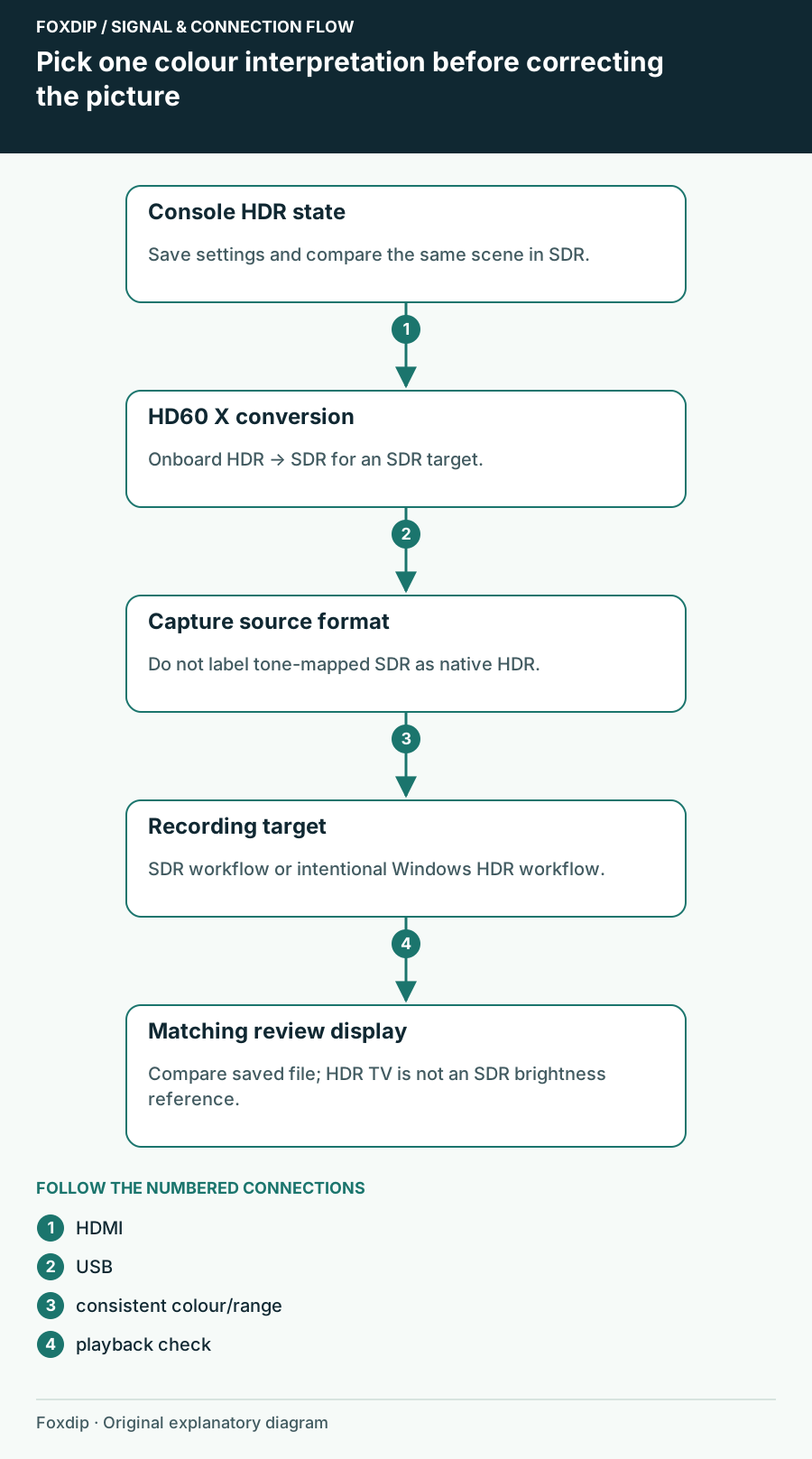
Original Foxdip schematic. Follow the labelled checks alongside the guide.
Make one SDR comparison before chasing saturation
Save your existing settings, then temporarily set the console to SDR at a supported resolution. Record the same scene with extra colour filters disabled. Use a static in-game menu or your own test image rather than a fast-moving scene that changes with every attempt.
View the saved clip on an SDR display or in a player configured for SDR. If this baseline looks sensible, the fault is probably in your HDR interpretation or conversion path. If blacks are already lifted or crushed in SDR, investigate range before trying to repair the picture with brightness and contrast.
Record a repeatable baseline
Capture ten seconds with HDR off and note console output, source format and output colour settings.
Look for: The saved file has plausible blacks, whites and neutral colours.
If it does, reintroduce HDR deliberately. If it does not, check range and the playback environment first.
Avoid a forced range on only one end
Full and limited range must be interpreted consistently. Forcing one setting on the console and a different interpretation in the capture source can wash out blacks or hide shadow detail. Start from automatic/default capture choices and remove overrides added during previous troubleshooting.
The older 4K Capture Utility interface guide explicitly recommends Bypass for its HDMI Color Range control. That instruction belongs to that application's documented interface, not an invented Studio menu. If you still use 4K Capture Utility, check its exact control; in OBS, inspect the capture source's documented colour-space and range properties.
Reintroduce HDR only through an intentional conversion
For an SDR stream with HDR gameplay, confirm whether the card is supplying tone-mapped SDR before assigning HDR characteristics to the source. Don't apply an additional correction just because the passthrough TV says HDR. Keep a note of where conversion happens so a later update doesn't leave you with two competing assumptions.
For native HDR recording on Windows, use a compatible device format and recording pipeline, then review it in an HDR-capable player/display. Studio 1.1's HDR recording is Windows-only and requires compatible hardware. A pale preview on an SDR screen alone isn't enough evidence that the HDR file is damaged.
Judge the saved file in its delivery context
Compare shadow detail, bright detail and neutral areas, not just which version looks more vivid. If only one player looks wrong, investigate that player's HDR handling and display mode before changing the capture card. If every SDR playback looks wrong, return to the recorded baseline and the last setting that changed it.
Finish by saving a short reference clip and the working signal notes: console HDR state, card conversion choice, source format, recording output and review display. Add artistic colour adjustments after that chain behaves predictably. Keep the reference clip unchanged so the next update can be compared with an actual known result rather than memory.
Sources & references
Based on the linked manufacturer and platform documentation reviewed on 27 October 2026. No hands-on hardware test is claimed.
- Elgato — HDR Tonemapping ↗Checked 2026-10-27
- OBS Project — Video Capture Devices with HDR Support ↗Checked 2026-10-27
- Elgato — 4K Capture Utility Software Interface ↗Checked 2026-10-27
- OBS Project — Video Capture Sources ↗Checked 2026-10-27
- Elgato — Studio 1.1 Release Notes ↗Checked 2026-10-27
Spotted something out of date? Let Alex know.
How we put our guides together ↗