
If Twitch won't accept your animated emote, check the GIF against the upload mode you've selected before exporting it again. A file rejected by the uploader, an emote awaiting approval and an uploaded emote without an active slot need different next steps.
- Platform
- Web browser
- App / launcher
- Twitch Creator Dashboard
- Scope
- Use the current dashboard and the upload mode or source described below.
In this guide
Find out whether the upload actually failed
Keep the exact message and note when it appears. Does Twitch reject the selected file immediately, refuse the final submission, or save the emote but leave it unavailable in chat? Those observations matter more than a general description such as ‘my emote doesn't work.’
Open Creator Dashboard → Viewer Rewards → Emotes. If the emote is already in your Library, the file reached Twitch. A watch icon and Pending Approval status mean review is still outstanding. An approved emote stored only in the Library also needs an available slot before viewers can use it. Follow that branch before changing the artwork.
Check the animated file requirements
Use the animated-emote requirements below. A static PNG upload and an animated GIF upload have different limits; advice about static emotes can send you toward the wrong export. Check the actual saved GIF, rather than the dimensions or frame count of an earlier editing project.
The inspector reads the file you choose on your device. It does not submit anything to Twitch or decide your account’s eligibility. If it cannot decode an animation property, use its stated limit rather than treating a missing result as a pass.
Confirm that it is a GIF
Export a real .gif file. Changing a video's filename from .mp4 or .webm to .gif doesn't convert it. Open the saved result and confirm that the animation itself plays.
Look for: You have the intended animated GIF rather than a preview video or a renamed file.
If it is the wrong format, return to the original project or ask the creator for the GIF export.
Match dimensions and bytes to the upload mode
For auto-resize, use one square GIF from 112 × 112 to 4096 × 4096 pixels, no larger than 1 MB. For manual mode, prepare 28 × 28, 56 × 56 and 112 × 112 GIFs, each no larger than 512 KB.
Look for: The files match the selected mode, including both pixel dimensions and file size.
If you're near a size boundary, export a smaller copy and leave the original untouched.
Inspect frames and flashing
Check the exported GIF in an editor that shows its frames. Twitch allows no more than 60 frames, and the animation must not flash or flicker more than three times within one second.
Look for: The saved animation meets both limits.
If it doesn't, shorten or simplify the motion in the original project, then inspect the new export.
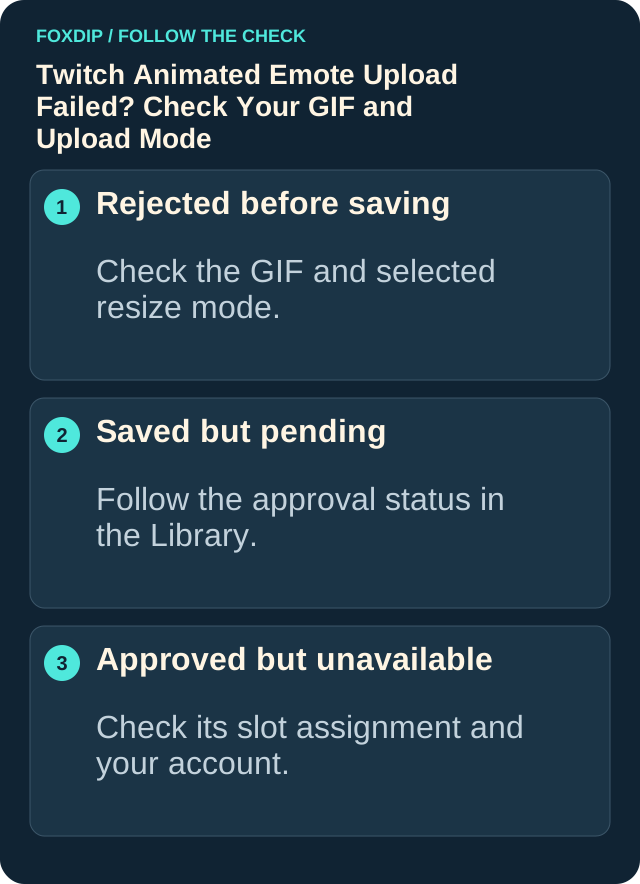
Illustration: follow the branch that matches what you see; menu paths are explained in the steps below.
Read the actual dimensions, bytes and animation properties before exporting again. Inspect your saved PNG or GIF locally ↗
A technical file check does not judge whether the reaction remains readable. View the full loop at chat size ↗
Reduce the file without losing the expression
If the bytes are the problem, work on a copy. Try a shorter action, fewer frames or a smaller square export within the allowed range. Change one thing at a time, then check the saved file's size again. Merely making the animation play faster doesn't necessarily remove any frames or reduce its file size.
Watch the new version at chat size. Can you still tell what the face, gesture or word means? Compression that produces a small file but destroys the expression hasn't given you a useful emote. Keep the smallest readable version that meets the upload requirements, rather than chasing the lowest possible number of bytes.
Complete the selected upload mode
Return to the animated-emote uploader and check its mode before selecting your files. Auto-resize uses one source GIF. Manual mode needs all three sizes: Twitch says missing images prevent the animated emote from going live. Fill every required size rather than repeatedly submitting the largest GIF.
Enter the emote name, check the full code formed with your channel prefix and submit the upload. If the dashboard asks you to establish an emote prefix first, complete that requirement. If you uploaded into the Library, assign the approved emote to an available appropriate slot. Keep review status separate from file validation: a successfully uploaded GIF may still require approval.
Compare the browser only after the file checks
If a compliant file still fails, retry that same file in a browser supported by Twitch. Update the browser and disable extensions for the comparison; Twitch identifies extensions as a possible source of browser problems. Keep the file and upload mode unchanged so you can tell whether the browser made a difference.
If it succeeds there, investigate the original browser before re-exporting the art. If it fails in both, send Twitch Support the exact message, upload mode, dimensions, byte size, frame count and the step that failed. If you received a rejection email after review, follow its stated reason instead. Repeatedly resubmitting an unchanged rejected design isn't a substitute for addressing the rejection.
Sources & references
Based on the official support references below. Choose the steps that match your message, operating system and current app controls.
- Twitch — Emote Formatting & Instant Emote Upload Requirements ↗Checked 2026-10-23
- Twitch — Animated Emotes ↗Checked 2026-10-23
- Twitch — Subscriber Emote Guide ↗Checked 2026-10-23
- Twitch — Supported Browsers ↗Checked 2026-10-23
Spotted something out of date? Let Alex know.
How we put our guides together ↗