
Match the message first: VAN 9001 concerns TPM 2.0 detection; VAN 9003 concerns Secure Boot. Read the status in Windows before considering a firmware change.
Identify the failed security requirement and prepare the right manufacturer-guided next step without guessing firmware settings.
- Code / message
VAN 9001·VAN 9003- Platform
- Windows 11
- App / launcher
- Riot Client and Vanguard
- Scope
- Current official support guidance reviewed on 27 October 2026; no specific affected client build is listed.
In this guide
Before you start
- Windows access for read-only status checks and the exact Vanguard message.
- Your PC or motherboard’s exact model, a current file backup and an accessible BitLocker recovery key before any firmware work.
Use the requirement printed in the message
Riot’s current dedicated pages distinguish these codes: VAN 9001 means Vanguard does not detect the required TPM 2.0 as enabled; VAN 9003 means Secure Boot is not enabled. Preserve the VAN prefix. A VAL client error needs a different diagnostic, and a VAN: RESTRICTION message can list additional requirements.
For a Windows 11 PC, begin with the two read-only checks below. They do not clear TPM keys, alter a disk or change the way Windows starts. Note the results before opening any firmware menu.
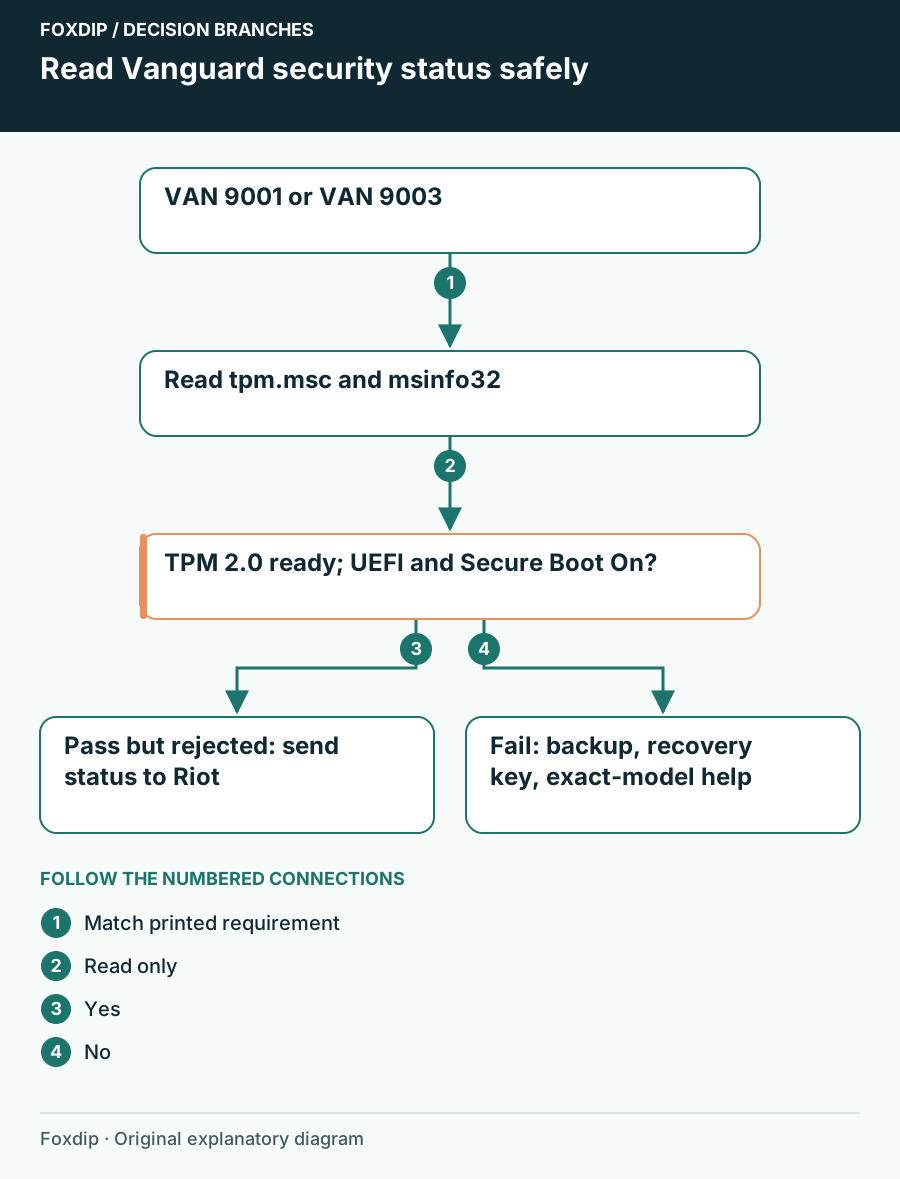
Original Foxdip schematic. Follow the labelled checks alongside the guide.
Confirm the prefix before applying a security requirement guide. Check VAL versus VAN ↗
Read the current Windows status
Inspect TPM
Press Windows+R, enter tpm.msc and read Status plus Specification Version. If the console will not open, look under Windows Security > Device security > Security processor details.
Look for: A ready TPM with specification version 2.0 satisfies this status check.
If missing or version 1.2, note the result for your manufacturer; do not use Clear TPM as a fix.
Inspect boot mode and Secure Boot
Press Windows+R, enter msinfo32 and read BIOS Mode and Secure Boot State.
Look for: The desired readings are UEFI and On.
If you see Legacy, Unsupported or Off, keep those exact readings and use the matching manufacturer guidance before changing anything.
Prepare recovery before changing firmware
Back up files you cannot replace, including local game saves and stream assets. If BitLocker or device encryption protects Windows, verify that you can access the correct recovery key from another device or an approved separate backup. A key stored only on the locked computer will not help at the recovery screen. For a managed PC, involve its IT administrator.
TPM version changes, Secure Boot key changes and firmware work can affect encrypted-drive access. Do not clear the TPM, reset Secure Boot keys or switch TPM modes simply because a video says to. These are distinct actions with different consequences; the code does not authorize all of them.
Follow the guide for your exact model
Riot directs users to PC or motherboard manufacturers because menu names and behavior differ. Find the support page for the exact model and firmware revision, then give support your Windows status readings and complete Vanguard message. Ask which supported setting or update addresses those readings and what recovery preparation it requires.
If Windows reports Legacy boot, stop before forcing UEFI or disabling CSM. A working Windows installation may depend on its current disk and boot configuration. Disk conversion and firmware flashing are not universal launcher fixes. With dual boot, a custom security-key setup or an uncertain recovery plan, get qualified help instead of improvising.
Verify the result back in Windows
After a manufacturer-guided change, let Windows start normally and repeat both status checks. Record what changed, then launch the game once. If TPM 2.0 is ready and Secure Boot reads On but Vanguard still rejects the PC, keep the new message rather than making progressively broader changes.
Send Riot the exact code, Windows version, model, firmware revision and status readings. Keep recovery keys out of screenshots and attachments. Once the game runs, confirm your normal audio and capture paths before your next stream; firmware troubleshooting should not become a public walkthrough of private security settings.
Confirm the recording once Windows and the game work normally. Check the stream after restarting ↗
Still stuck?
BIOS Mode says Legacy
Stop before changing boot mode; ask the manufacturer about the existing installation and recovery preparation.
Both Windows checks pass but the code remains
Capture the current code and status readings for Riot Support rather than clearing keys.
Sources & references
Guidance follows the linked publisher and operating-system support resources.
- Riot Support: VAN 9001 ↗Checked 2026-10-27
- Riot Support: VAN 9003 ↗Checked 2026-10-27
- Riot Support: Check TPM 2.0 status ↗Checked 2026-10-27
- Riot Support: Check Secure Boot and boot mode ↗Checked 2026-10-27
- Microsoft Support: Preserve an accessible recovery key ↗Checked 2026-10-27
Spotted something out of date? Let Alex know.
How we put our guides together ↗