
Identify the drive containing the Epic Launcher and compare it with the game’s selected destination. Epic’s IS-DL01 guidance calls for reinstalling the game on the Launcher’s drive.
Choose the drive required by the IS-DL01 support path without confusing the Launcher folder with the game folder.
- Code / message
IS-DL01- Platform
- Windows
- App / launcher
- Epic Games Launcher
- Scope
- Current official support guidance reviewed on 27 October 2026; no specific affected client build is listed.
In this guide
Before you start
- The complete IS-DL01 message and the game’s current installation destination.
- A separate backup of that game’s saves and custom files before uninstalling.
Match IS-DL01 to the actual Launcher drive
IS-DL01 has a specific Epic support entry: the game download target and the Launcher are on different drives. This is more precise than the broad description “download failed.” Confirm the letters, hyphen and final digits before applying its fix; a similar-looking code can refer to a different installation stage.
This instruction is scoped to this error. It does not establish that every Epic game always has to share the Launcher’s drive. If games on another drive work normally, you do not need to relocate that entire library to troubleshoot the one installation that shows IS-DL01.
Use your Launcher shortcut’s file-location or properties controls to inspect the executable location. Read its drive letter, then compare it with the destination shown for the affected game. Do not assume the Launcher is on C: or confuse a shortcut stored on the desktop with the actual program location.
Epic now documents different default executable locations for the legacy Launcher and Early Preview. The Preview default is under your user’s local application-data area; the legacy default is under Program Files. Those examples help identify the application, but a custom installation can differ.
Record both locations
Write down the actual Launcher drive and the affected game’s selected install drive. Include whether you use the standard Launcher or Early Preview.
Look for: You can tell whether the two drive letters differ.
If they already match, retain both paths for Epic Support instead of moving unrelated games.
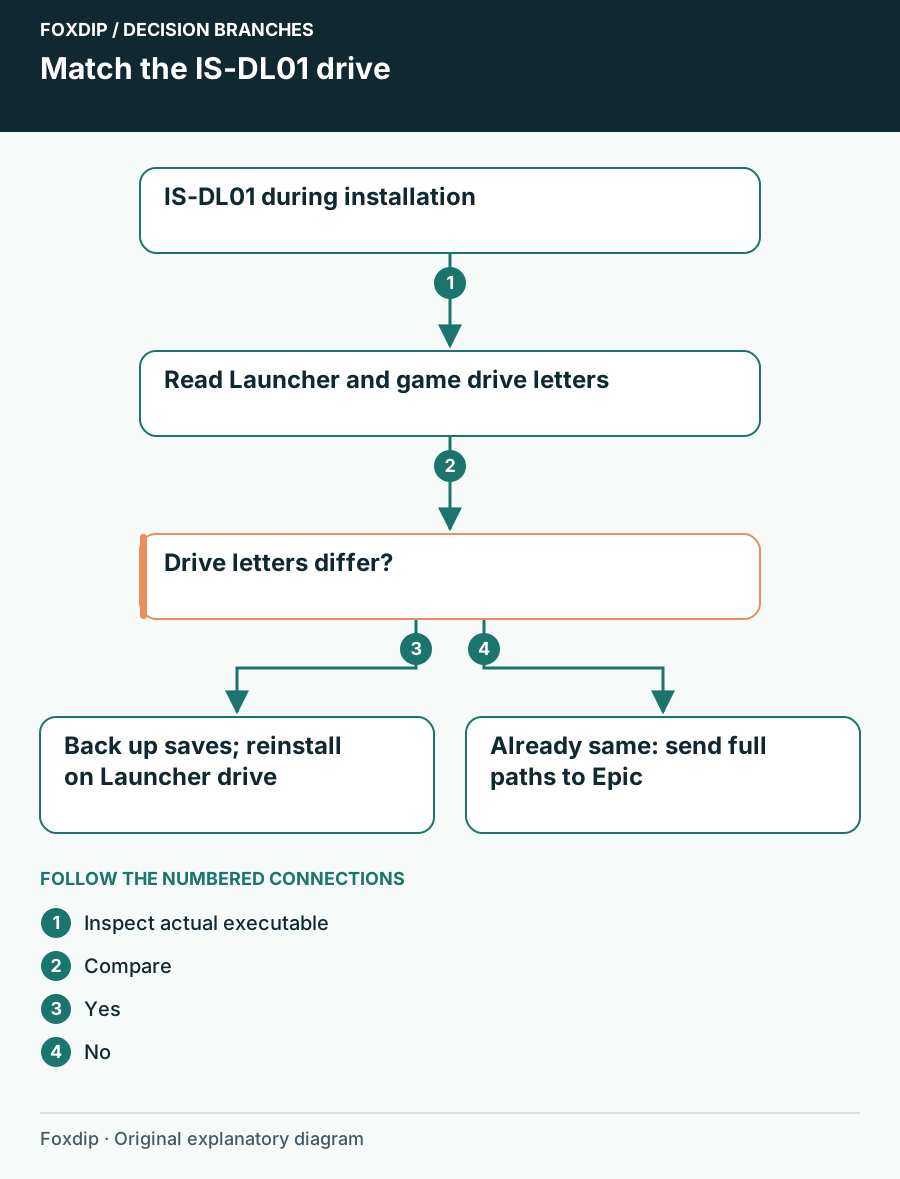
Original Foxdip schematic. Follow the labelled checks alongside the guide.
Protect progress before removing the game
Before the documented reinstall, check the game publisher’s save instructions. Copy local saves and custom content to a separate location, and check any cloud-sync warning before continuing. A cloud icon is not a reason to assume that every configuration, mod or local save is protected.
Also confirm that you can sign into the account that owns the game. Write down which optional add-ons or language files you need. This preparation is especially useful before a scheduled stream, when a second download or missing content pack can consume the remaining setup time.
Reinstall to the identified drive
Use the game’s installation controls
After preserving the game’s data, uninstall the affected game through the Launcher, choose Install and select an appropriate game folder on the drive that contains the Launcher. Do not select the Launcher’s own program subfolder as the game folder.
Look for: The installation starts with the game destination on the same drive as the Launcher.
If space is insufficient, stop and plan storage first; do not delete save folders or unrelated program files.
Observe the next installation stage
Let the download and installation finish without launching another copy of the game.
Look for: The game reaches its normal launch control without IS-DL01.
If the error remains despite matching drives, give Epic the exact paths, Launcher variant and failure stage.
Keep the follow-up tied to what changed
Launch the repaired game once and check the expected save or profile. If a new error mentions a file relocation, ownership or an already-running game, record that new code. Repeating a same-drive reinstall for every subsequent message will not help you isolate the next stage.
When the game is ready, check the OBS source against the running window. You may only need to select the relaunched executable or window again. Keep the old data backup until you have confirmed your progress and settings.
Make sure the scene captures the running game. Check OBS capture after the reinstall ↗
Still stuck?
The game and Launcher already use the same drive
Record both full paths and Launcher variant for Epic Support.
The required drive lacks free space
Plan safe storage cleanup or seek Epic support before uninstalling more software.
Sources & references
Guidance follows the linked publisher and operating-system support resources.
- Epic Support: IS-DL01 and the installation drive ↗Checked 2026-10-27
- Epic Support: Launcher troubleshooting ↗Checked 2026-10-27
Spotted something out of date? Let Alex know.
How we put our guides together ↗