
Compare your device’s date, time and time zone with the real local time. Epic links AS-1010 to an out-of-sync clock; correct it and retry sign-in.
Retry Epic sign-in with an accurate system clock and preserve any different error that remains.
- Code / message
AS-1010- Platform
- Windows
- App / launcher
- Epic Games Launcher
- Scope
- Current official support guidance reviewed on 27 October 2026; no specific affected client build is listed.
In this guide
Before you start
- Windows access to date and time settings.
- Your Epic sign-in method; keep account credentials out of screen capture.
Start with the date as well as the hour
A clock can look nearly right while the date or time zone is wrong. Epic’s AS-1010 guidance identifies an out-of-sync device clock as a possible reason for this Launcher sign-in error. That is a specific check you can make before clearing application folders or replacing the launcher.
Read the full code carefully. AS-1010 is different from AS-18031 or a game installation code beginning IS-. If the screen shows another value, keep that value in your notes and use its own support entry. One sign-in code should not become a reason to apply every Epic fix you can find.
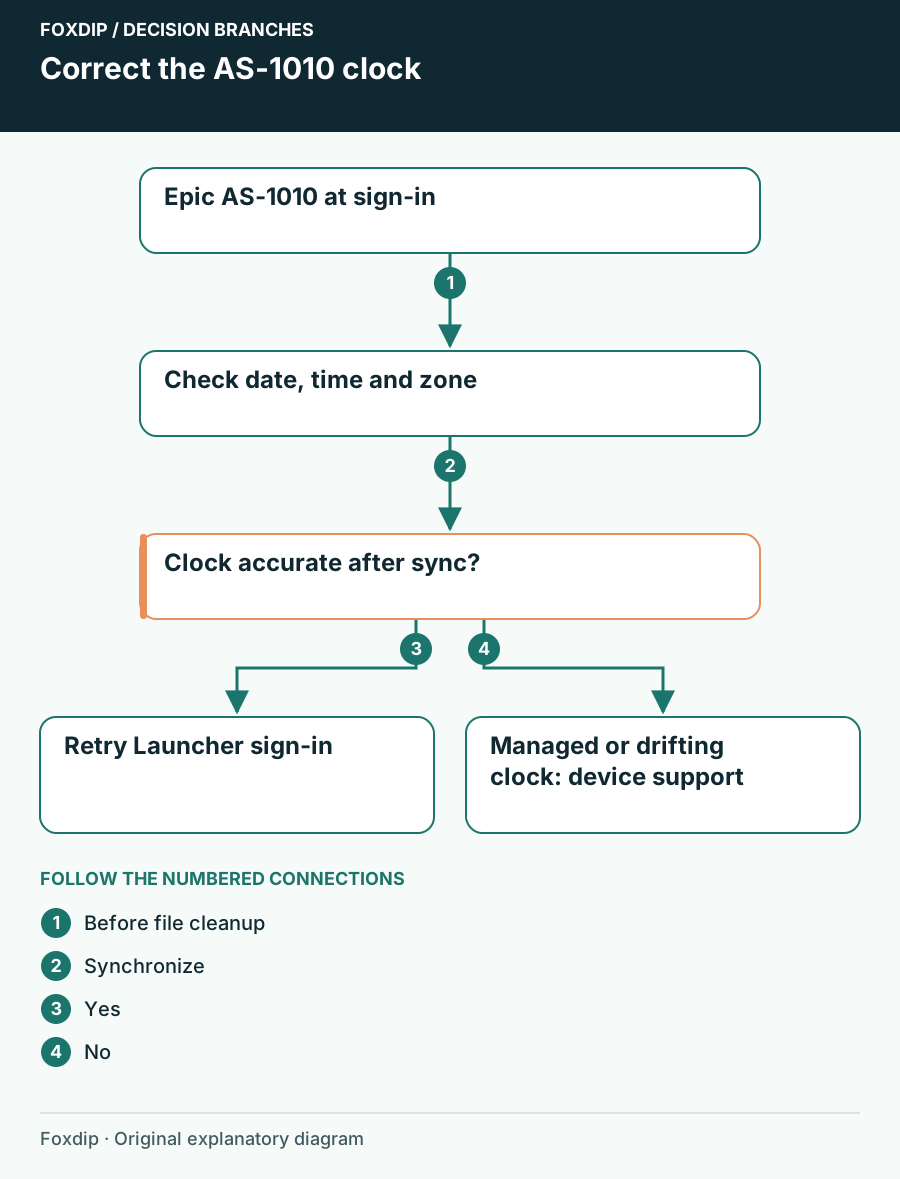
Original Foxdip schematic. Follow the labelled checks alongside the guide.
Check the Windows time settings
On Windows, open Settings, then Time & language and Date & time. Look at the displayed date, local time and time zone. Compare them with a trusted clock, such as an accurately set phone. A difference of whole hours often points you toward the zone setting, while a wrong year is easier to miss on a crowded desktop.
Use the appropriate automatic settings
Where available, enable automatic time and the correct automatic time-zone setting, or select the correct zone manually if location-based zone detection is unavailable. Use the offered synchronization control.
Look for: Windows displays the correct date, local time and zone.
If synchronization fails or the setting is managed, ask the device administrator rather than editing system services.
Make one sign-in attempt after correcting it
Close the Epic Launcher normally, reopen it and sign in through your usual method. Keep the test limited to the Launcher first. Opening a game through a desktop shortcut can add another sign-in handoff and make it harder to see whether the original AS-1010 is gone.
Compare the result
Retry sign-in and record whether AS-1010 disappears, remains unchanged or becomes another error.
Look for: The Launcher reaches your account and library without AS-1010.
If a different code appears, follow that code; if AS-1010 remains, capture the current time settings and contact Epic Support.
If the clock becomes wrong again
Check the displayed date and time after the next normal restart. If they drift again, treat the repeating clock problem as a device issue to discuss with Windows support or your computer manufacturer. Correcting it for a single session does not explain why it keeps happening. Avoid changing firmware clock options without model-specific help.
A work or school computer may enforce its own time policy. Give the administrator the code and your observed time difference. Do not override a managed configuration just to test a launcher. Keep screenshots limited to the relevant settings; account names elsewhere on the screen are unnecessary.
Return to your library, then the stream
Once signed in, open the intended game and verify that it reaches its normal start screen. If it then shows an ownership or running-process error, that is a separate stage. Preserve its complete code instead of assuming the time correction failed.
Keep this troubleshooting outside your live display capture. After the game is ready, record a short OBS sample with your usual scene and listen back. That checks the part your viewers will experience without broadcasting your sign-in or account pages.
Confirm game audio and microphone after sign-in succeeds. Check the recording before going live ↗
Still stuck?
Time synchronization is managed or unavailable
Ask the device administrator to check the clock configuration.
The code changes after the clock is corrected
Use the new exact code to choose the next diagnostic.
Sources & references
Guidance follows the linked publisher and operating-system support resources.
- Epic Support: AS-1010 during Launcher sign-in ↗Checked 2026-10-27
- Epic Support: Synchronize a device clock ↗Checked 2026-10-27
- Microsoft Support: Windows date and time settings ↗Checked 2026-10-27
Spotted something out of date? Let Alex know.
How we put our guides together ↗