
Close Roblox, update the copy you launch through its official source and restart the device. Keep your account access ready before reinstalling.
Launch an up-to-date official Roblox client and know which device needs further support.
- Code / message
280- Platform
- Windows · macOS · iOS · Android · Amazon Fire OS · ChromeOS
- App / launcher
- Roblox Player
- Scope
- Current official support guidance reviewed on 27 October 2026; no specific affected client build is listed.
In this guide
Before you start
- Your device, operating-system version and Roblox installation source.
- A working account sign-in and any verification method you use.
Find which copy is opening
Roblox associates 280 with the version of the player on a PC, Mac or mobile device. Start by naming the device and how you open it: a website launch, a desktop shortcut or a store application. If you have more than one copy installed, an update to one does not establish that your usual shortcut opens that copy.
Do not treat a code-page heading for an older operating system as a compatibility guarantee. Check the current Roblox requirements for your device before spending time refreshing an unsupported setup. Virtual machines and cloud computers are outside Roblox’s stated supported environment.
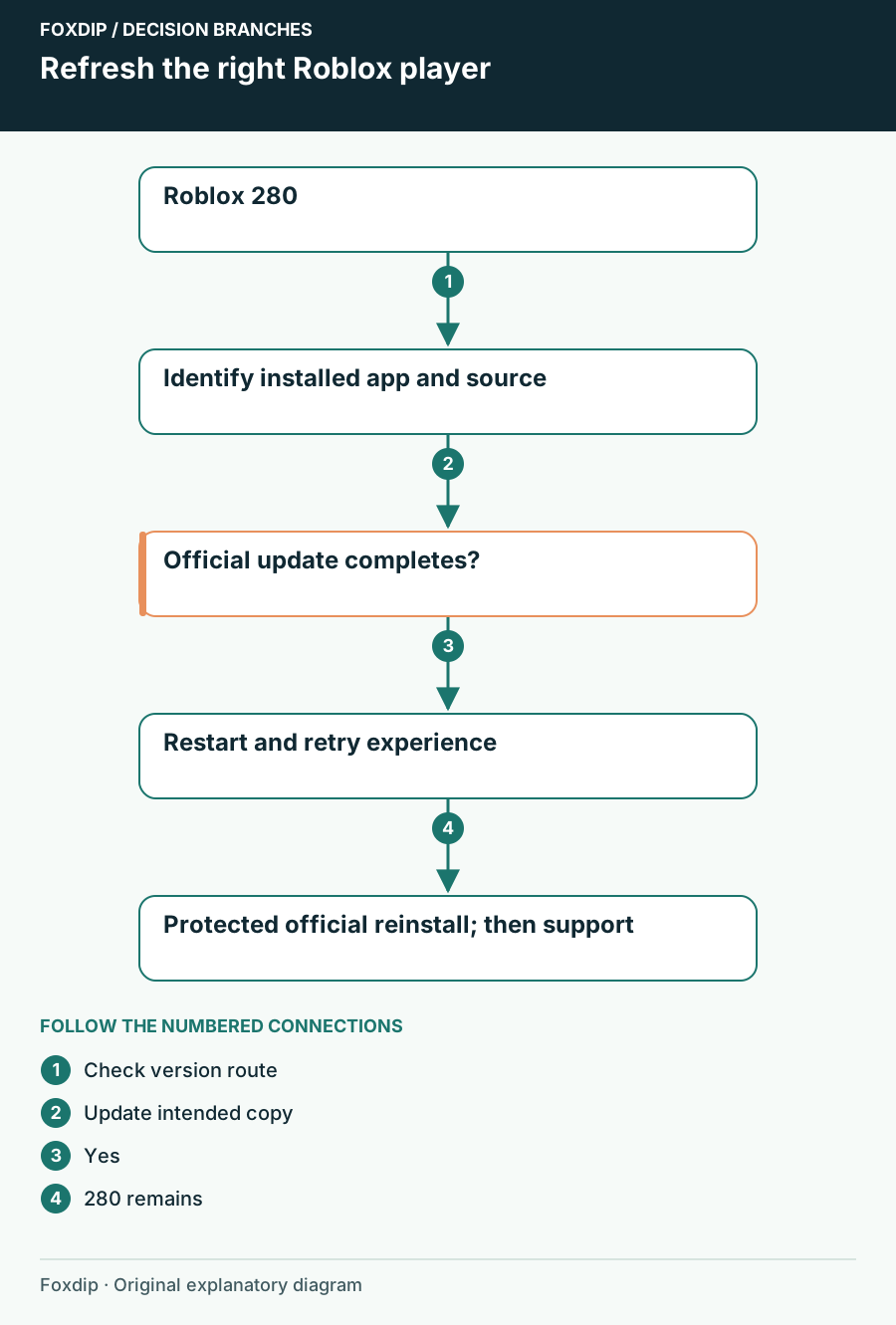
Original Foxdip schematic. Follow the labelled checks alongside the guide.
Give the installed client a clean start
Save anything unrelated that you have open. Leave the experience, close Roblox completely and restart your device. On a phone or tablet, make sure you close the app rather than simply switching away from it. Then open Roblox from the source you intend to keep using.
For the Microsoft Store version on Windows, Roblox identifies the current listing as Roblox - Windows. Check that listing and the blue-icon app, rather than refreshing the older gray-icon copy. Sign in to the new app successfully before removing the old one.
Apply the official update
On a store-installed device, open the official store listing and apply an available Roblox update. For a website-installed desktop player, follow Roblox’s current installation link rather than downloading a third-party package.
Look for: The installation or update completes and the player opens normally.
If 280 repeats, note whether the same shortcut is still launching a different installed copy.
Separate the version check from your experience
Retry the experience that showed 280, then try one other experience. You are looking for a useful comparison, not a long list of random games. If the same player opens another experience, keep the original link in your report. If both refuse to start with 280, include that result too.
On mobile, confirm the device date and time are accurate as part of the code-specific support checklist. Change an incorrect clock through the device’s normal settings and retry. There is no need to repeatedly change time zones while testing a player-version message.
Reinstall only the affected player
A fresh official installation is the next client step if updating and restarting do not clear 280. First confirm your username, sign-in access and verification method. Keep local creator projects and any files you want to retain backed up separately; this guide concerns Roblox Player, not a Studio project repair.
Replace the app through the official route
Use your operating system’s normal app uninstall control for Roblox Player, restart if requested, then reinstall from Roblox or the official device store.
Look for: A fresh player opens and can join an experience.
If it still shows 280, stop repeating the reinstall and send the device and installation details to Roblox Support.
Keep the useful details together
Record the operating system, store or website installation source, the error screenshot and whether the code appeared before or after the update. Include the experience link and the time zone for your test time. Do not publish a full device screen if it exposes your email address or account settings.
If the error changes to 279, you now have a connection symptom and should use that diagnostic route. If a private experience instead gives 524, permission settings need their own check. Once the experience launches, test your game capture before going live rather than assuming an app update left the capture source attached.
Confirm the running player appears in your scene. Check game capture after the update ↗
Still stuck?
The store shows an update for a different Roblox copy
Check which installed app your launch shortcut opens.
280 persists after one fresh official installation
Report the device, installation source and exact code to Roblox Support.
Sources & references
Guidance follows the linked publisher and operating-system support resources.
- Roblox Support: Error 280 and the installed client version ↗Checked 2026-10-27
- Roblox Support: Error code directory ↗Checked 2026-10-27
- Roblox Support: Identify the current Microsoft Store app ↗Checked 2026-10-27
- Roblox Support: Current desktop platform requirements ↗Checked 2026-10-27
Spotted something out of date? Let Alex know.
How we put our guides together ↗