
Choose what the viewer must keep seeing before you crop. A centre crop is quick; a two-region layout is better when the camera and action sit far apart.
Choose a portrait composition that preserves the part of the action and host you need.
In this guide
Before you start
- A short source clip with permission to edit it.
- The free practice bundle, if you want to reproduce these exact examples.
- FFmpeg installed separately only if you use the supplied command-line recipes.
Start with one short moment
Download the practice bundle and open foxdip-practice-mix.mp4. The moving marker occupies the large left region; the deliberately simple host placeholder sits on the right. Those two points of interest make the trade-off obvious without using anyone’s gameplay.
The clip is eight seconds long at 1280 × 720 and 30 fps. The supplied portrait versions are 720 × 1280. They are examples to compare, not a statement of a platform’s current upload requirements.
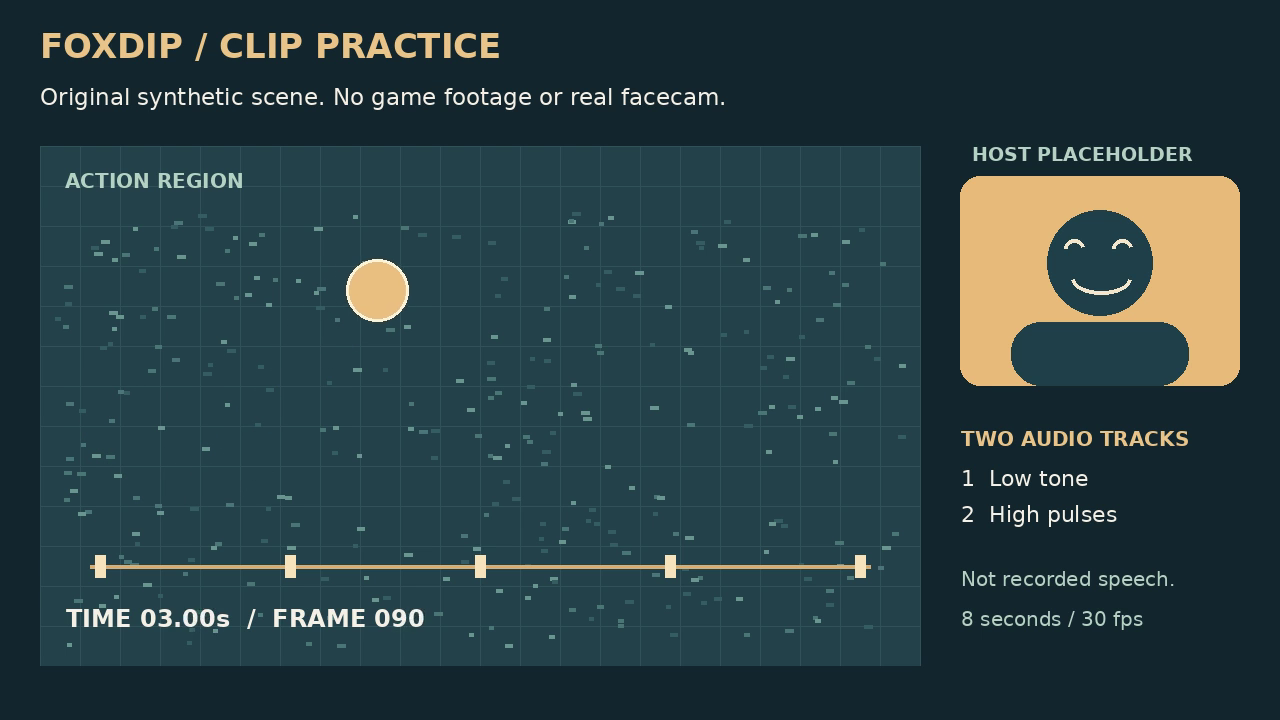
The actual exercise at 3 seconds. It is a synthetic scene, not game footage, a real facecam or an editor screenshot.
Use the same source and outputs as this exercise. Download the clip practice bundle ↗
You may edit and share these specific practice files. Read the exercise permission ↗
Decide what the narrow frame can lose
Watch the action across the entire clip. It moves, so a crop that looks fine in a paused frame may cut it off a second later. Then ask whether the host must stay visible. A reaction clip often needs both regions; a close look at the action may not.
The centre-crop example keeps a 405 × 720 region from the original before scaling it to portrait. Its separate host region disappears. That is the cost of this crop, not a missing facecam error.
- Keep the subject, result or UI detail that explains the moment.
- Leave room for captions you intend to add.
- Do not stretch a wide image to make it tall; crop or recompose it.
- Check the first frame, the key moment and the end.
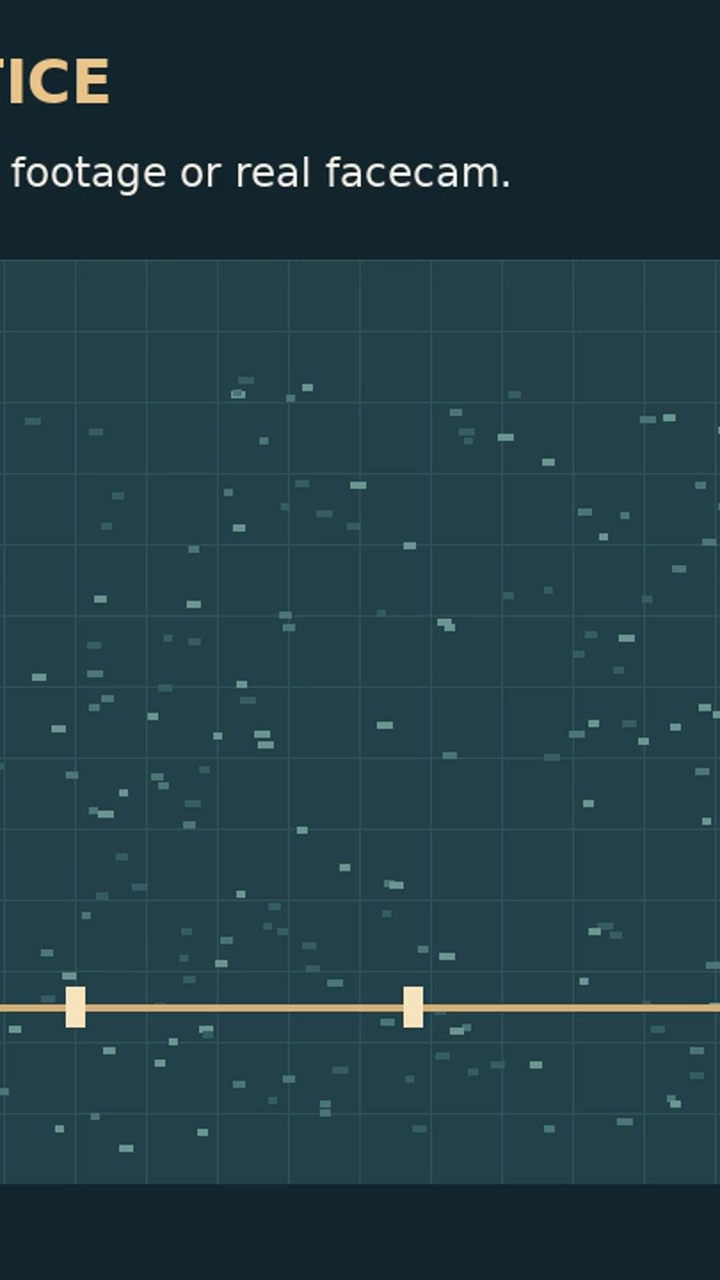
Centre-crop export of the same frame. Keeping a narrow central strip removes the separate host region.
Try two regions before shrinking everything
Open foxdip-vertical-two-regions.mp4. It crops the original host placeholder and action region separately, then stacks them. The bottom is left empty for later text. The host is deliberately large here so you can compare it with the missing host in the centre crop.
Use the supplied FFmpeg recipe if you want to reproduce the files. It creates a new output from the named practice source. The coordinates belong to this exact scene; on your own recording, measure the regions again. An editor can make the same composition with two copies of the clip, each cropped to a different region.
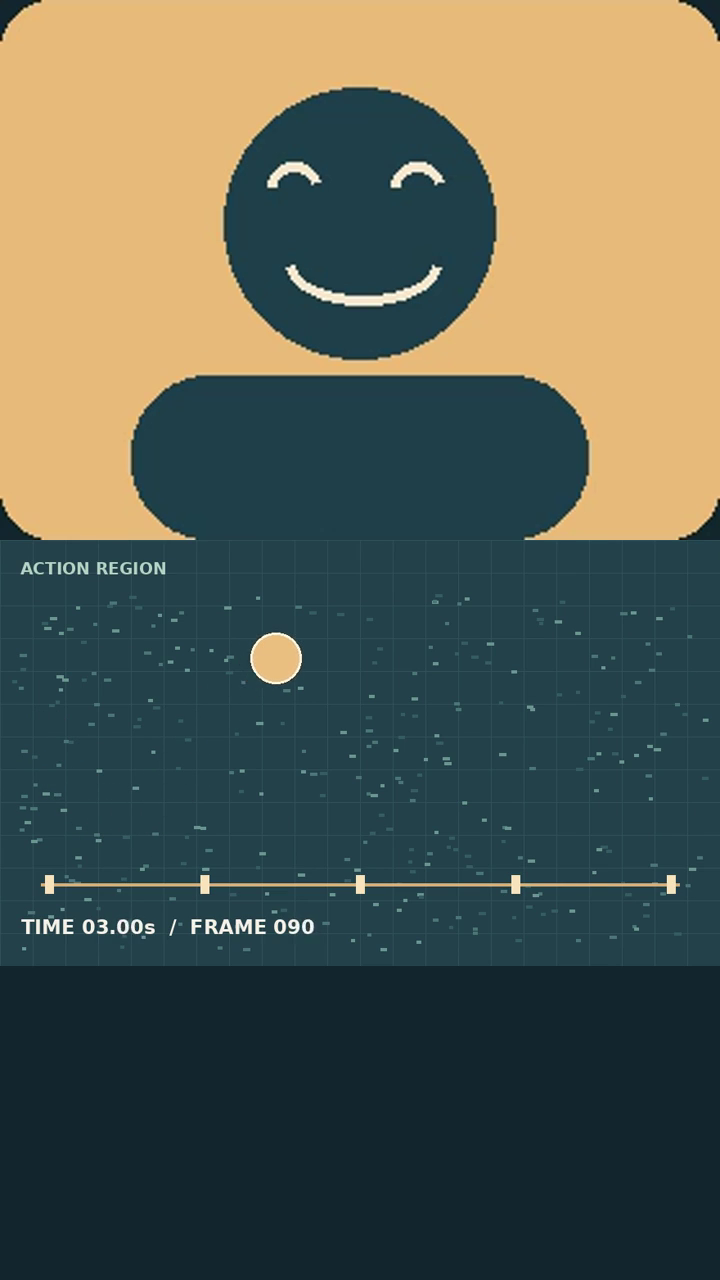
Two source regions in a 720 × 1280 export. The empty bottom area is intentional; it is not a guaranteed platform safe zone.
The recipes include the exact crop and stack operations used here. Open the reproducible commands ↗
Watch the whole export at phone size
Open both portrait outputs at the same width. Can you follow the moving marker? Is the host large enough for the role it plays? Is any text now too small? If one layout loses the point of the clip, change the composition before adding decoration.
Then listen through once. Reframing the picture should not silently remove the audio you need. This practice mix has one audio stream; the separate two-track file is provided for a different exercise.
If you change your footage or add captions, repeat this check on the finished export. Platform controls may cover parts of a portrait video, so use current platform guidance and an actual preview when available.
Check the regions that matter for your layout. Preview your own protected areas ↗
A separate caption track and burned-in words behave differently. Choose how to add captions ↗
Sources & references
The downloadable exercise and its exports were generated and decoded with FFmpeg 6.1.1. Software and destination guidance comes from the linked primary documentation; this does not imply a live account upload or a hands-on test of a desktop editor.
- FFmpeg — video and subtitle filters ↗Checked 2026-10-27
- FFmpeg — stream selection and encoding ↗Checked 2026-10-27
Spotted something out of date? Let Alex know.
How we put our guides together ↗