
Measure how late or early one cue is, then compare a cue near the end. Apply one offset only if the same correction fits both.
Correct the supplied constant 1,250 ms offset, then recognise when a single offset will not fix another file.
In this guide
Before you start
- A copy of the original recording; keep your only source file unchanged.
Find out whether the error stays the same
Play the practice mix with captions-delayed-1250ms.srt in a player that accepts SRT. Its cues are deliberately 1.25 seconds late. The first cue starts at 00:01.250 even though its matching event starts at the beginning of the clip.
Check a later cue too. The final one is also shifted by 1.25 seconds. This is a constant offset, so one correction can move the whole set back into place. If the error grows or jumps after an edit, this exercise is not the right repair.
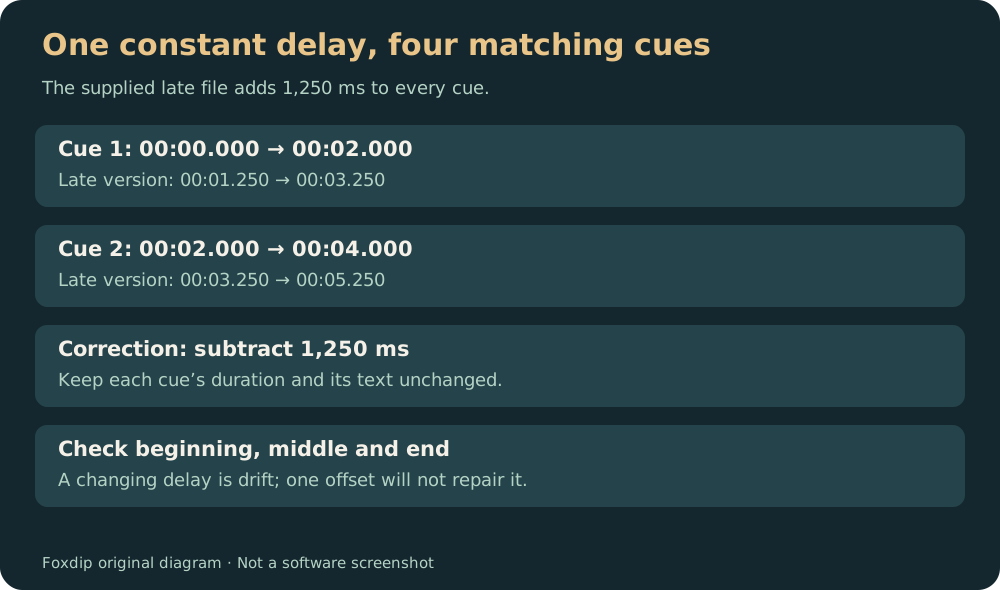
Original timing diagram using the supplied SRT timestamps. No subtitle-editor interface is shown.
Use this file with the mixed practice video. Download the deliberately late SRT ↗
The source is eight seconds long. Download its matching practice video ↗
Late cues move earlier; early cues move later
Write down the correction in milliseconds before applying it. For this fixture, subtract 1,250 ms. The first start becomes 00:00.000 and the last end becomes 00:08.000. Every cue keeps the same text and duration.
Work on a copy. An offset may push an early cue before time zero. Review the tool’s handling of negative times and inspect that cue instead of assuming no content was lost.
Open the late file in the timing tool
Choose the supplied late SRT and enter an offset of -1250 milliseconds.
Look for: The preview starts its first cue at zero and ends its last cue at eight seconds.
Export to a new filename
Keep the late fixture and save the corrected result separately.
Look for: The two files can still be compared or restored.
Adjust a local SRT or VTT file and inspect its preview. Open the subtitle timing tool ↗
Check three points, not just the first word
Replay the first cue, a middle cue and the last cue against their actual events. In this exercise the captions describe the low tone and high pulses, so you can listen as well as watch.
Compare the corrected file with captions.srt, which is the reference supplied in the same bundle. Matching timestamps prove this fixture’s arithmetic; they do not guarantee that a different video has no missing words or timing errors.
Use it to compare the four cue boundaries. Open the correctly timed reference ↗
If the delay changes, stop shifting the whole file
A cue that is correct at the start and wrong at the end points to drift or a changed edit. Check whether the video was shortened, sped up or replaced. A gap after one cut may need the later cues moved separately.
Use the final video as the timing reference and inspect the transitions around the change. Repeatedly adding a new global offset may make one section feel better while damaging the others.
Choose the form that fits your destination and revisions. Keep an editable caption master ↗
Sources & references
The downloadable exercise and its exports were generated and decoded with FFmpeg 6.1.1. Software and destination guidance comes from the linked primary documentation; this does not imply a live account upload or a hands-on test of a desktop editor.
- W3C — WebVTT text track format ↗Checked 2026-10-27
- YouTube — supported caption files ↗Checked 2026-10-27
Spotted something out of date? Let Alex know.
How we put our guides together ↗