
Keep a timed text file as your editable master. Burn words into the video when the finished picture needs them, and check whether your destination also accepts a separate caption track.
Keep an editable caption master and choose whether the delivered words should be optional or part of the picture.
In this guide
Before you start
- A copy of the original recording; keep your only source file unchanged.
Try the two versions
Open the caption practice player. In the first video, a WebVTT file supplies the optional captions. In the second, the captions were rendered into the frames. The words describe synthetic tones and motion; there is no recorded dialogue or automatic transcript.
Use the first player’s caption control to toggle its text. The exact control depends on your browser. In the second video, turning captions off cannot remove the words because they are now part of the image.
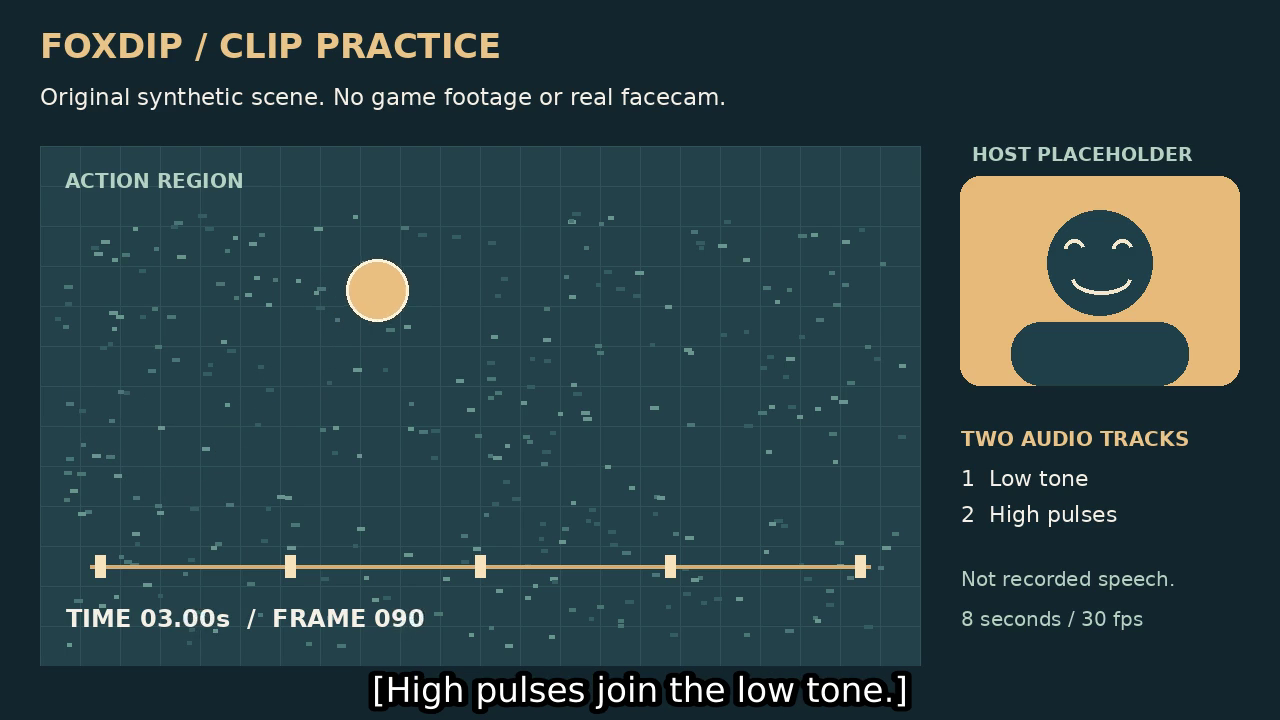
Actual frame from the burned-in caption export. The text is part of the pixels, not an optional player track.
Compare a real sidecar track with a burned-in video. Open the caption comparison player ↗
Keep the originals while you try your own export. Download both versions and the text files ↗
The text file is the version you can fix cheaply
An SRT stores timed cues as plain text. It does not carry a finished graphic design everywhere: YouTube’s basic SRT support, for example, ignores styling markup. WebVTT is a separate timed text format used by the practice player.
If you spot a typo or need another language, change the appropriate text file and recheck its timing. Keep the language and version in the filename. That is easier than finding out which video export contains yesterday’s wording.
| Choice | What changes later | What the viewer controls |
|---|---|---|
| SRT or another accepted sidecar | Text and timing can be edited separately from the picture. | Depends on the destination/player and its available tracks. |
| Burned-in words | Changing them requires a new video render. | They cannot be hidden through a caption toggle. |
| Both, where supported | Keep the versions consistent and avoid showing duplicate text. | Test the final viewer-facing result. |
Pick for the place the clip is going
Check the destination’s current caption options before export. A file accepted by your editor is not automatically a supported upload format. Some workflows attach timed text; others need the words inside the picture.
For a busy portrait clip, watch where the text lands at a small size. Do not cover the action or important interface details just because there is an empty area in a still. Keep line breaks readable and describe meaningful non-speech sounds when they matter.
If you use both an uploaded track and words burned into the picture, view the finished video with captions enabled. Two copies of the same sentence are a useful warning that the setup needs another pass.
Save the small files with the video
Put the caption master beside the source and export. Keep the UTF-8 text file, its language, and the source version it matches. The practice bundle includes captions.srt and captions.vtt for the same eight-second clip.
A separate subtitle file can drift out of sync after you cut or speed up the video. Re-time it to the final edit rather than changing the original recording to fit an old subtitle file.
Use an offset only when the timing error stays the same. Fix a constant subtitle delay ↗
Give the next editor the matching versions. Package the recording and captions ↗
Sources & references
The downloadable exercise and its exports were generated and decoded with FFmpeg 6.1.1. Software and destination guidance comes from the linked primary documentation; this does not imply a live account upload or a hands-on test of a desktop editor.
- YouTube — supported caption files ↗Checked 2026-10-27
- W3C — WebVTT text track format ↗Checked 2026-10-27
- FFmpeg — video and subtitle filters ↗Checked 2026-10-27
Spotted something out of date? Let Alex know.
How we put our guides together ↗