
Check Roblox status, retry a different experience and compare one other connection before reinstalling. Code 279 identifies a connection failure, not a single cause.
Identify whether to report one experience, your network route or the installed Roblox player.
- Code / message
279·ID 17- Platform
- Windows · macOS · iOS · Android · Amazon Fire OS · ChromeOS
- App / launcher
- Roblox Player
- Scope
- Current official support guidance reviewed on 27 October 2026; no specific affected client build is listed.
In this guide
Before you start
- Your device type, OS and exact279/ID 17 message.
- Two experience links and, if permitted, a second network for a short comparison.
Keep the message and platform together
Roblox’s official 279 page describes trouble establishing a connection between its client and servers on PCs, Macs and mobile devices. Preserve ID 17 if your message includes it. The number alone does not prove that your firewall is wrong, Roblox is down or the experience creator has banned you.
Write down whether the experience failed before your avatar appeared or after you had already played. That observation is useful, but do not use it as an absolute rule separating 279 from 277. The code pages describe overlapping connection symptoms.
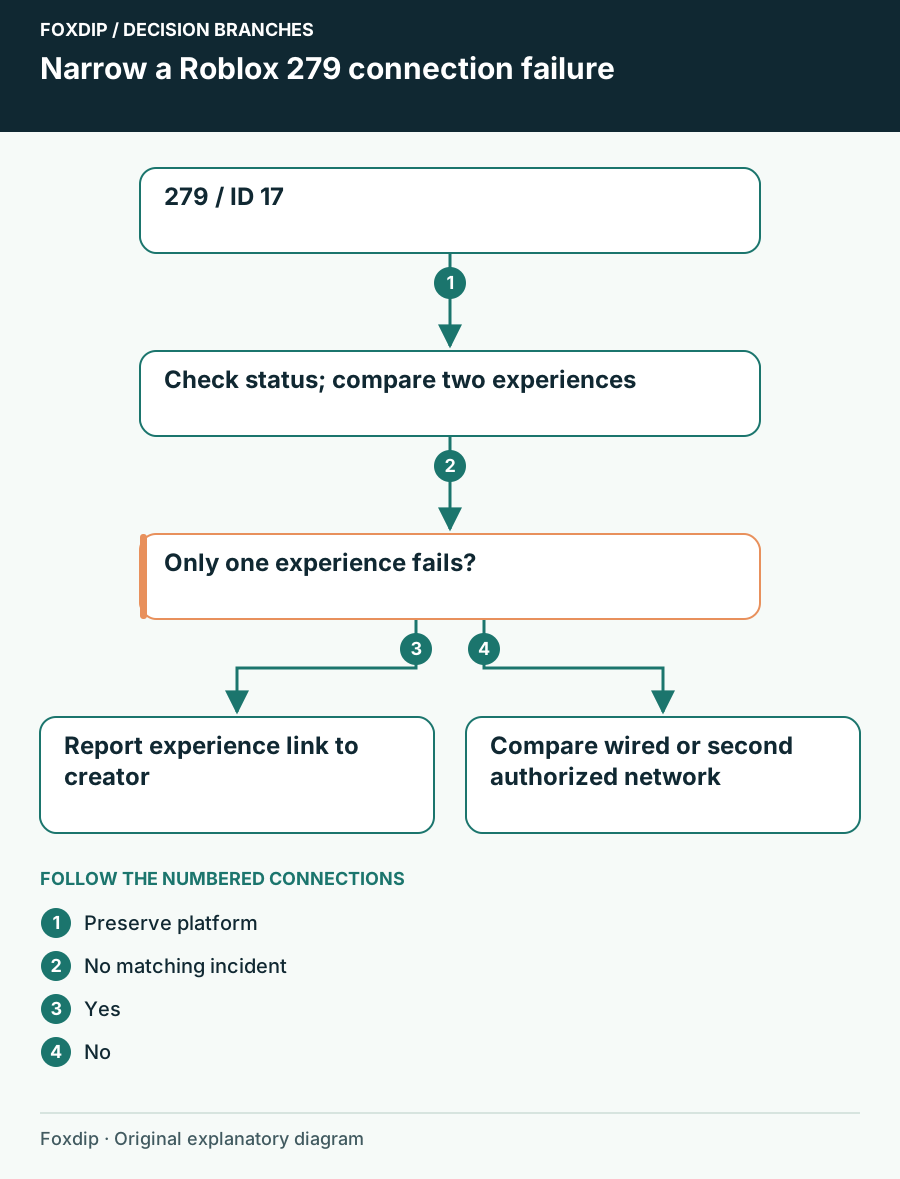
Original Foxdip schematic. Follow the labelled checks alongside the guide.
Check the service, then one other experience
Open Roblox’s current status page and read any incident affecting player or game-join services. If a matching incident is active, follow its updates before changing local settings. A resolved incident in the history is not evidence that your current error has the same cause.
Next, compare the failing experience with one other experience. Use the same device and network. A single failing experience is a reason to preserve its link and notify its creator; a successful comparison does not prove every part of Roblox is healthy.
Make a small comparison
Try the original link once, then a second experience. Record whether each reaches a playable state.
Look for: You have a one-experience or multiple-experience pattern.
If only one fails, report that link; if both fail, compare the connection next.
Change one part of the connection
If you can, test Ethernet instead of Wi-Fi on the same computer. Alternatively, use an authorized second network for a brief join attempt. Stop large game downloads for that short test and keep the device and experience unchanged. Do not use a mobile connection for a full game download unless you are comfortable with its data use.
Compare the route
Try the same experience over the alternate connection, then return to your normal network.
Look for: A difference tells you which connection needs closer investigation.
If only the original route fails, speak to its administrator or ISP; if both fail, keep device and app details for Roblox Support.
Inspect permissions before broad changes
On a desktop, review whether your security software reports blocking Roblox and follow that product’s help for the affected application. Ask the administrator on a managed computer. Keep firewall protection enabled while you inspect events; opening a broad port range or disabling protection is not a first diagnostic step.
If you launch from the website, keep the browser current and confirm it hands off to the intended official Roblox player. A browser page loading successfully does not establish that the player can reach an experience server.
Refresh the player only when the comparisons point there
Restart Roblox and the device before considering an official reinstall. Preserve account access and any local creator files before removing software. Use the platform-specific Roblox instructions; do not paste a recursive folder-deletion command into a terminal as a routine279 fix.
If you still cannot join, send Roblox Support the username, exact message, device model, OS, experience links and results on each network. Keep credentials private. Once joining works, verify OBS captures the player normally before starting the broadcast.
Repair capture after the connection works. Check the running Roblox player in OBS ↗
Still stuck?
Only one experience fails
Keep its link and report the pattern to its creator.
Only one network fails
Take the comparison to that network’s administrator or ISP.
Sources & references
Guidance follows the linked publisher and operating-system support resources.
- Roblox Support: Error 279 and connection establishment ↗Checked 2026-10-27
- Roblox: Service status and incident history ↗Checked 2026-10-27
- Roblox Support: Diagnose an experience connection ↗Checked 2026-10-27
- Roblox Support: Security software and router permission ↗Checked 2026-10-27
- Roblox Support: Restart before reinstalling ↗Checked 2026-10-27
Spotted something out of date? Let Alex know.
How we put our guides together ↗