
In this guide
You already have a mic. Choose for the listening side.
With a separate microphone handling your voice, start with how you want to listen. Shortlist HyperX Cloud III wired if you want a cable, Arctis Nova 5 Wireless if you want to move around with a USB dongle, or Logitech PRO X 2 if a 3.5 mm option matters alongside wireless. The boom microphone can take a back seat in this decision.
Before buying, write down where you want game audio, voice chat and alerts to go. Your headphones and your audience don’t necessarily hear the same mix. If the stream is unbalanced, replacing the headset may leave that problem untouched. Sort out the intended audio routes first so you’re choosing for a missing feature rather than chasing a settings issue.
Match the connection to your desk
Here are three options with different connection choices. Prices below were displayed on US manufacturer pages on 18 October 2026, before tax and delivery. They apply to the listed variants and are in USD; check the final price for your own market before comparing the cost.
| Model | Connections | Reason to shortlist it | Price and detail to watch |
|---|---|---|---|
| HyperX Cloud III wired | 3.5 mm, with USB-C dongle and USB-A adapter included | A detachable boom and a wired route | USD 69.99; White/Pink US variant only |
| SteelSeries Arctis Nova 5 Wireless | 2.4 GHz USB-C dongle or Bluetooth | Wireless movement and retractable boom | Current direct price not confirmed; Quick-Switch is not simultaneous mixing |
| Logitech PRO X 2 LIGHTSPEED, black | LIGHTSPEED, Bluetooth, 3.5 mm | An analog option as well as wireless | USD 219.99 on US page; exact mode support must suit your devices |
If you want to hear your own mic, check which monitoring route the setup gives you. Direct Monitoring vs OBS Monitoring: Why Your Headphones Sound Different ↗
Cloud III wired: a cable and a removable boom
The wired Cloud III is a closed-back, over-ear headset with a detachable microphone, a 3.5 mm connection, a USB-C dongle and a USB-A adapter. You can remove the boom and let your separate microphone do its job. Check that the listing says wired: Cloud III Wireless is a different purchase with a similar name.
Choose the supported connection for your device, then trace the cable from that port to your seat. Does it reach comfortably without running across the mouse area? If you plan to plug into a microphone or interface headphone socket, check that route too. The attraction here is a straightforward wired arrangement, especially if charging another device would be one chore too many.
If hearing your voice is difficult, check the mic position before turning up the headphones again. Microphone Distance and Placement: Find Your Speaking Position ↗
Nova 5 Wireless: switching isn’t the same as mixing
Nova 5 Wireless gives you a retractable boom, a USB-C dongle and Bluetooth. SteelSeries advertises up to 60 hours of battery use. Its base-model page lists support including PC, Mac and PlayStation; check the exact variant if Xbox wireless is part of your plan. Similar family names don’t guarantee the same platform support.
Pay close attention to Quick-Switch. Nova 5 switches between wireless game audio and Bluetooth instead of playing both together. That matters if you want to take a phone call while still hearing the game. Write that requirement down before ordering. ChatMix also varies by platform: the product page excludes it on Mac and PlayStation, so check the controls you expect to use there.
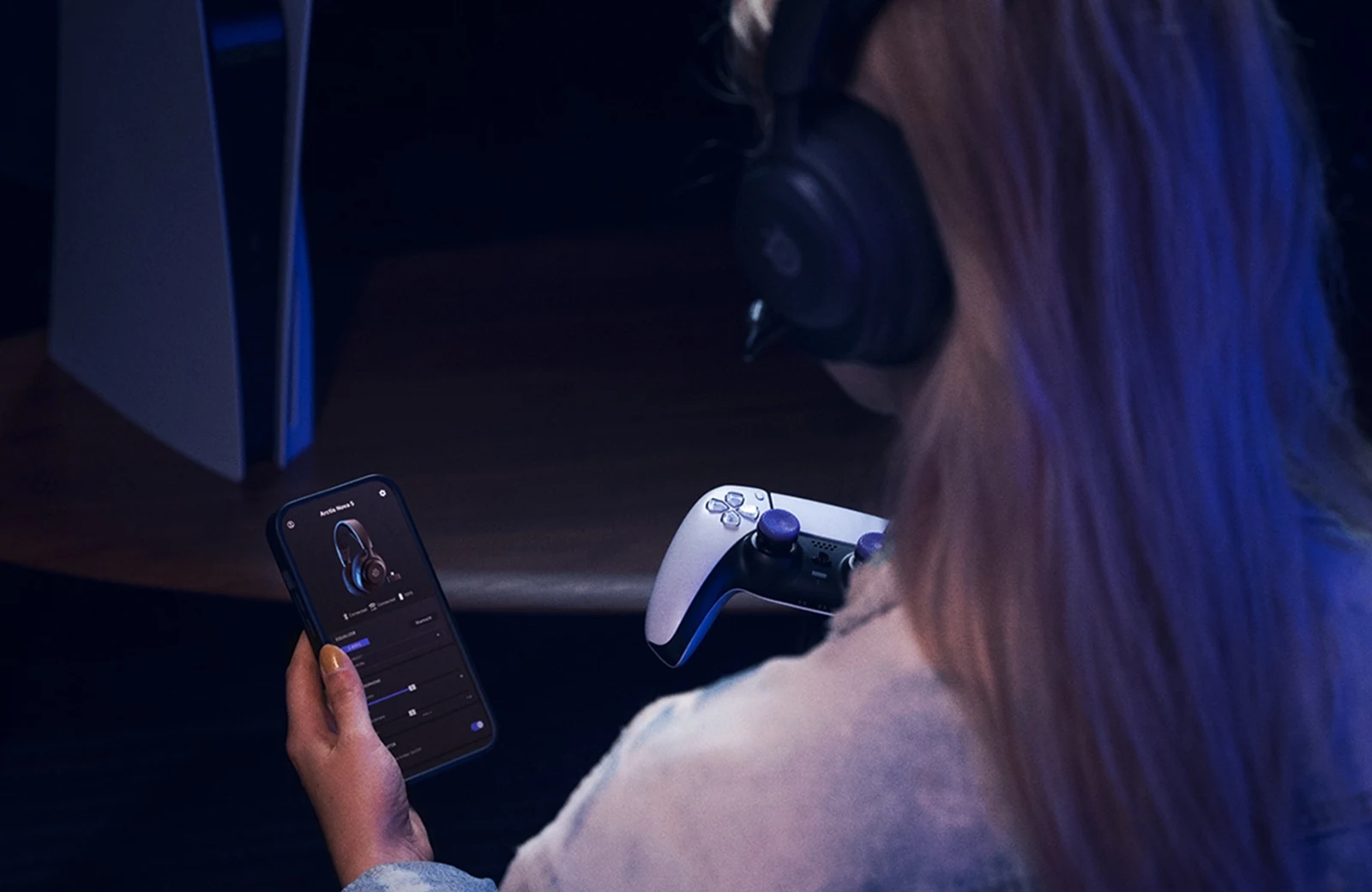
Arctis Nova 5 launch photograph supplied by SteelSeries. It shows the Companion App in use; confirm the exact 5, 5P or 5X variant and platform support before buying.
PRO X 2: will you use the extra connection?
Logitech PRO X 2 offers LIGHTSPEED wireless, Bluetooth and a 3.5 mm connection, with a detachable boom microphone. Logitech also lists memory-foam pads with leatherette and velour options and advertises up to 50 hours of battery use. The pad choices are worth checking for your preferences, but the fit still needs to work on your own head.
The strongest reason to consider it here is the extra connection route. If analog listening belongs in your equipment plan or backup setup, compare its cost against that need. If you’ll use only a PC dongle, ask whether the other options earn their place in the budget. Read the mode instructions before assuming several connectors let you mix several sources at once.
Check the stream, then check the fit
After connecting the headset, select your separate microphone explicitly in OBS and voice chat. Select the headphone output you intend to use, then record speech, game audio and an alert. Play the file back. You should hear one intended voice feed and a balance that makes sense for the stream. If the file sounds wrong while the headphones seem fine, follow the recording route.
During the seller’s return window, wear the headset in your usual seat and with your glasses if you use them. Pay attention to pressure, heat, cable reach and whether you can find the controls without looking. Specifications can narrow the choices, but they can’t settle those details for you. Keep the setup that feels manageable through the session you actually plan to run.
Rehearse a flat battery or disconnected dongle
Write a fallback before choosing wireless: if the headset stops working mid-session, which output can you select immediately? A spare connection only helps if the exact model supports listening through it in that state. Do not assume a charging cable carries audio or that every analog mode keeps the same controls.
While making a local recording, change from the normal listening output to your planned backup and back. Leave the broadcast microphone unchanged. The useful result is an uninterrupted recorded voice and a clear way to restore your own listening. Save the working output names rather than relying on a device named Default.
| Observation | Next change | Expected result |
|---|---|---|
| Recording stays correct while your headphones are silent | Change the monitoring/output device | Restore listening without rebuilding broadcast sources |
| A headset microphone replaces the separate mic | Reselect the intended input in OBS and chat | Both applications use the named voice device |
| A second voice copy appears after switching | Check desktop capture and software monitoring | Only one copy enters the recording |
Follow the extra route if a listening change creates duplicated voice. OBS Double Audio or Mic Echo? Find the Duplicate Capture ↗
Sources & references
Connection details and advertised features come from manufacturer pages checked on 18 October 2026; this is not a listening or comfort test. November 2026 addition: documentation-based diagnostic examples; no new hands-on hardware result or platform upload test is claimed.
- HyperX Cloud III — wired US product page ↗Checked 2026-10-18
- SteelSeries Arctis Nova 5 Wireless — product page ↗Checked 2026-10-18
- SteelSeries — Which Wireless Headset Is Right for You? ↗Checked 2026-10-18 · Published June 17, 2024
- Logitech G PRO X 2 — US black SKU 981-001262 ↗Checked 2026-10-18
- OBS — Audio Mixer Guide ↗Checked 2026-11-04
Spotted something out of date? Let Alex know.
How we put our guides together ↗