
Streamlabs: scenes, recording and live workflows
Choose a Streamlabs workflow for recording, destinations, guests, mobile handoffs or putting graphics into a scene.
Find your starting point.
Match the guide to the app you have open. Streamlabs Desktop, its OBS plugin and its mobile app do not present the same controls or workflow.
Start with one destination or a local recording. Confirm the viewer result before adding a second format, a guest or a mobile handoff.
- Choose the right Streamlabs app. Check the feature you need before moving a setup.
- Record without the live overlays. Compare the local file with the live composition.
- The app says live but the channel is offline. Check the destination and viewer result.
Build and control the scene
Put the files in place, then make controls predictable.
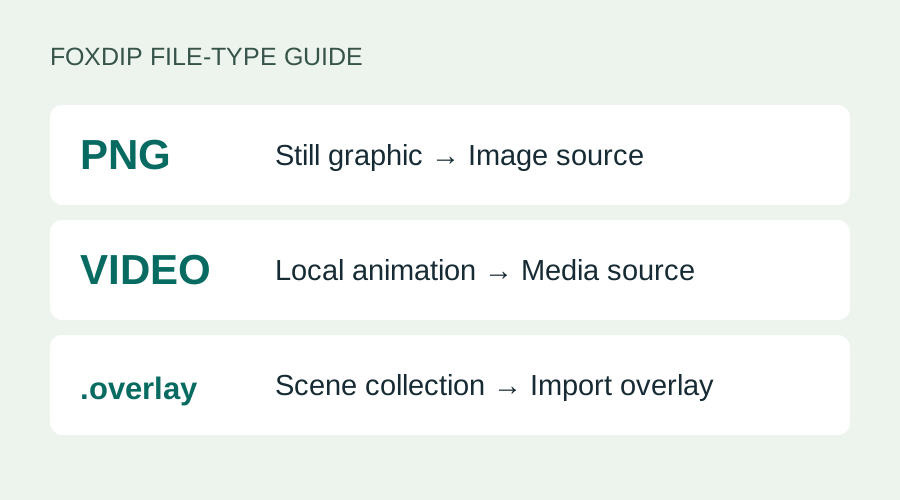
Add a PNG or Overlay to Streamlabs: Image or Media?
Your PNG won't show up in Import Overlay? Add still images as an Image source and videos as a Media source. Here's which file goes where, step by step.
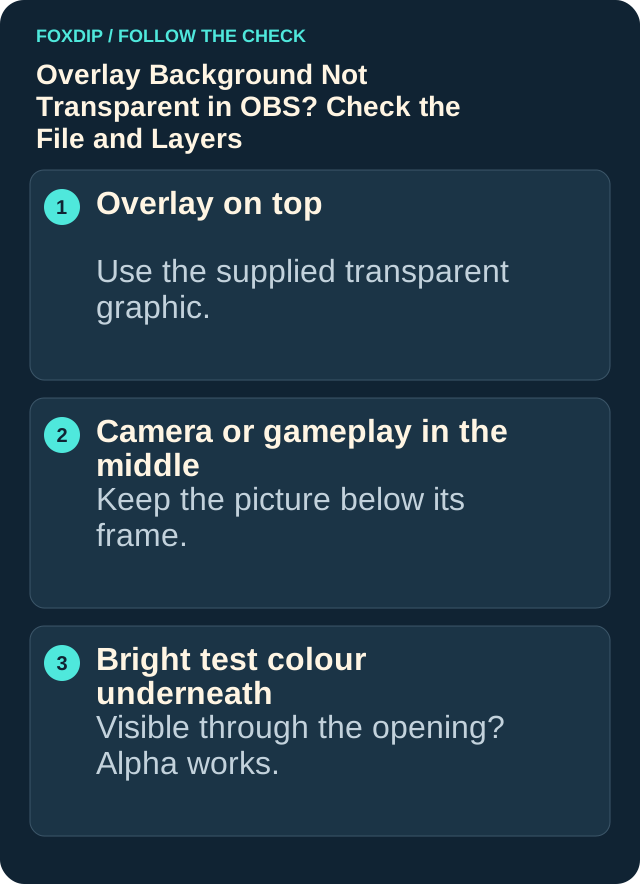
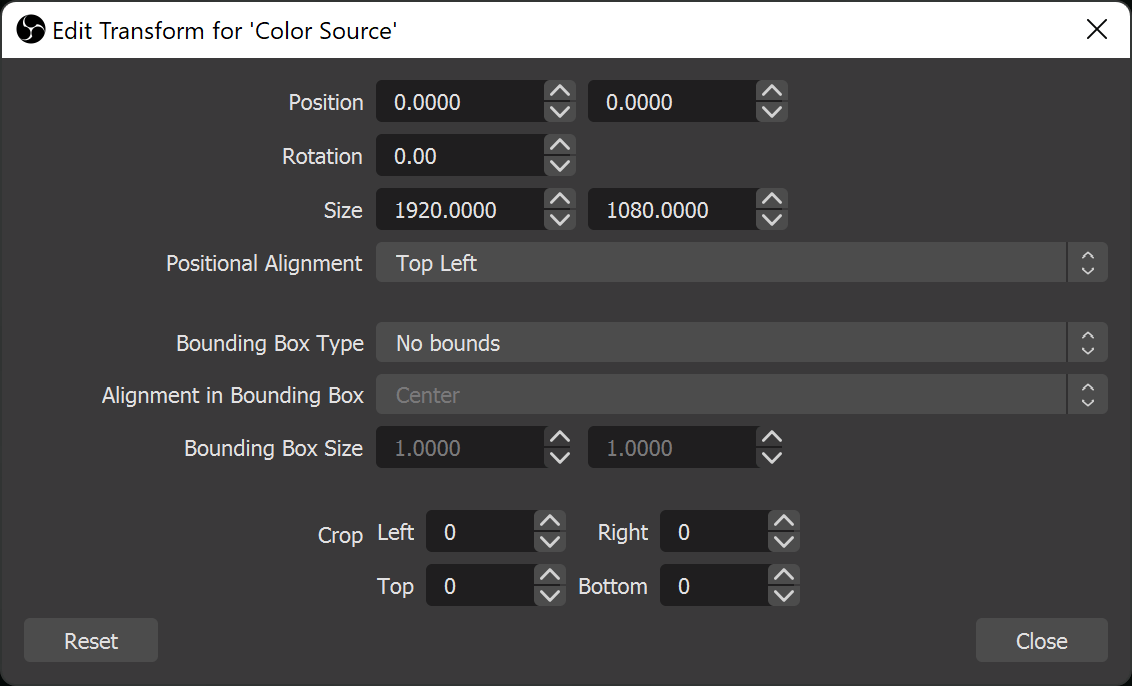
Overlay Background Black in OBS? Make It Transparent
Put a bright colour behind your overlay to see if transparency works, then fix the real cause: the wrong export, the source settings or a browser page.
Stream Layout Readability: Can Viewers See What Matters?
Check your webcam, text and overlays in a small player. Keep game information visible and give each scene a clear focus.

Set Streamlabs Hotkeys Without Triggering the Wrong Action
Assign a small set of scene and mute shortcuts, check duplicate bindings and test while the game has focus.
Read Chat on One Monitor with Streamlabs Game Overlay
Enable the in-game chat overlay, choose a supported window mode and test whether your capture includes it.
Send a Streamlabs Scene to a Meeting with Virtual Webcam
Start the virtual webcam, choose it in the meeting app and check the picture and microphone as separate inputs.
Record and replay
Check the saved output separately from what the live audience receives.
Record a Clean Video in Streamlabs Without Live Overlays
Use Selective Recording to give the stream and local recording different visible sources, then test both outputs.
Record Separate Mic and Game Tracks in Streamlabs Desktop
Build a mixed live track and isolated editing tracks, then check them in an editor instead of relying on a media player's default track.
Set Up Streamlabs Instant Replay with Separate Save and Show Controls
Start a short replay buffer, save a known moment and verify the Instant Replay source before using it during a broadcast.
Destinations and guests
Verify eligibility and each destination before relying on a more complex live workflow.
Streamlabs Desktop or the OBS Plugin: Choose by the Feature You Need
Compare the documented plugin scope before moving a working setup, especially for Dual Output, Collab Cam and platform support.
Add or Remove Streamlabs Destinations While Staying Live
Set up Live Output Editing before the broadcast, then change one destination and verify the remaining streams.
Streamlabs Dual Output: Set Up One Horizontal and One Vertical Destination
Understand the free destination limit, assign each canvas and check the real output on both platforms.
Move a Streamlabs Broadcast from Desktop to Phone with Stream Shift
Check Ultra access, device support and output consistency before rehearsing a live handoff.
Streamlabs Mobile Says Live but Your Channel Is Offline
Check the actual platform page and follow the documented disconnect-protection workaround for this specific mobile symptom.
Bring a Guest into Streamlabs Collab Cam and Handle a Blank Join Screen
Invite a guest, check their picture and sound before showing them, and use the documented mobile workaround when browser joining fails.