
Capture only the content you intend to show, then test a harmless notification in a local recording. Do not disturb helps, but its priority exceptions mean it is not a privacy guarantee.
In this guide
Make the captured area smaller first
If you only need the game or one application, start with its appropriate capture source instead of the whole desktop. A notification outside that source may stay out of the picture; an in-game overlay or a popup drawn inside the captured application can still appear. The result depends on the source and the app.
Keep private mail, account pages and conversations out of the workspace you plan to show. Check other scenes too: a carefully cropped main scene does not help if the BRB scene captures your entire desktop.
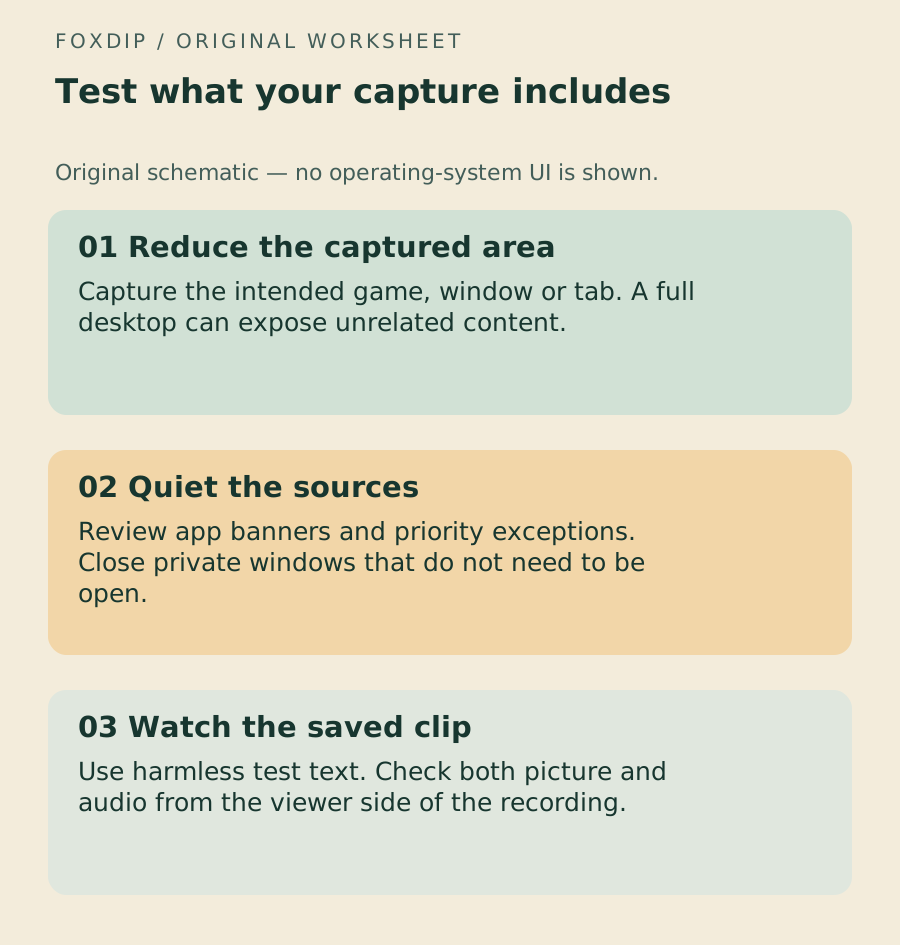
Original Foxdip worksheet. The examples are planning prompts, not a software screenshot or a measured result.
Review Windows 11 banners and exceptions
Microsoft documents notification controls under Settings → System → Notifications. Review the relevant apps and whether they may show banners or play sounds. If you use Do not disturb, inspect the priority exceptions rather than assuming the bell icon blocks everything.
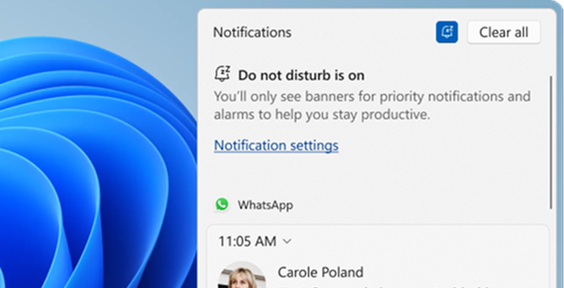
Alarms, reminders and selected priority apps can still show banners while Do not disturb is enabled. The official Windows example below makes that distinction visible. Your installed Windows version may arrange these controls differently; follow the label rather than a remembered screen position.
 1
Microsoft’s Windows 11 example warns that priority notifications and alarms can still produce banners while Do not disturb is on.
- Review Do not disturb exceptions.
Check the app’s own popups as well
Operating-system settings do not necessarily control a chat overlay rendered inside a game, a browser tab or another captured app. Review those applications separately. Disable an overlay only if it is unnecessary for the stream, and note the starting state so you can restore it afterward.
Also check what the audience hears. A message can stay off camera while its sound is picked up by desktop audio. Your app selection, audio capture and notification settings are three separate parts of the test.
Keep private chat audio separate from the programme mix when that is your goal. Review the Discord audio route ↗
Use pretend content before testing real apps
The downloadable practice page uses ordinary HTML to show and hide a clearly labelled pretend message. It does not request notification permission or produce a system notification. Use it to compare the part of a browser window your scene captures.
Open the page locally, capture the intended window and make a short recording while the pretend message is visible. Then test a harmless notification you control in the actual app. The practice page cannot prove that Windows or Discord will suppress their own banners.
Compare the saved picture and sound
Play the recording outside OBS. Show the pretend message, switch to the planned BRB scene and generate the separate harmless app notification. Review picture and audio.
Look for: Only the intended content is visible, and no private notification sound reaches the recorded programme mix.
If a popup appears, identify whether it belongs to the operating system, the captured app or an overlay, then change that source and repeat.
The ZIP includes the self-contained HTML example and licence. Download the local privacy practice page ↗
Repeat the short check after a setup change
A new display, a different capture method or an app update can change what reaches the scene. Make the harmless test part of your setup routine after those changes. It is faster than discovering an unexpected popup in a clip someone else has already shared.
Keep the test content free of real names, messages and account information. You are testing the capture path, not whether a sensitive message looks blurred enough afterward.
Listen to the actual saved file before the live starts. Finish with the short OBS recording check ↗
Sources & references
The steps follow the linked platform documentation. Practice downloads and planning examples are original Foxdip resources.
- Microsoft — Notifications and Do Not Disturb in Windows ↗Checked 2026-10-27
- OBS — Game Capture Source ↗Checked 2026-10-27
Spotted something out of date? Let Alex know.
How we put our guides together ↗