
Keep one PC when its encoder and workload can meet the stream. Consider a second PC when you have a defined production need and have budgeted the capture, audio and control paths it adds.
Keep one PC when its encoder and workload can meet the stream. Consider a second PC when you have a defined production need and have budgeted the capture, audio and control paths it adds.
In this guide
Before you start
- An OBS recording or log showing the actual constraint.
- A complete video, audio, chat-return and control plan for the second machine.
Name the job the second computer would take over
Write a concrete sentence: 'I need a production machine for these sources while the gaming machine runs this game.' That is stronger than buying another PC because a stream once stuttered. A second machine can move production work, but it also creates a new video path, audio path and set of startup tasks.
If the issue is network dropped frames, another encoder is not the first purchase to make. If local rendering or encoding cannot keep up, investigate that workload first. Keep a representative recording or log so the equipment decision responds to the actual limit rather than a vague impression of lag.
First compare the hardware encoder you already have
OBS generally recommends supported hardware encoders for performance because they move encoding from the CPU to specialized hardware. Which encoder is available depends on the actual GPU, platform and drivers. Do not assume every chip in a product family offers the same capabilities.
At the November 2026 check, the official download page lists OBS 33.0.1, released on 29 October. Its Windows release supports Windows 10 and 11; the macOS release supports 13.0 or later. Begin the single-PC comparison with the supported encoder on your actual machine and a scene workload it can sustain.
Give the current machine a fair workload
OBS's performance guidance explains that game rendering, scene composition and encoding all need resources. Try a repeatable scene with a sensible game frame-rate limit and output workload. Change one setting at a time and compare the same part of the game. Keep the working configuration so you can return to it.
This is not a benchmark claim or a promise that settings can fix inadequate hardware. It is a way to discover whether the existing machine has a workable operating point. If a modest output adjustment gives you a stream you are happy with, the extra computer may solve a problem you no longer have.
A documented two-computer route has specific ports
RØDE documents Streamer X with the gaming PC on USB2 and streaming PC on USB1, using the supplied SuperSpeed cable for the latter. The gaming PC sends HDMI video to Streamer X, and the streaming software on the second computer receives that feed. This is one concrete configuration to study, not evidence that any two spare USB cables will create a dual-PC system.
Alternatively, a separate HDMI capture card can carry the gaming image to the production computer, with audio handled by your chosen interface/mixer route. Before ordering, confirm the game display's required format and the capture format separately. The production machine still needs to meet the capture device and encoder requirements.
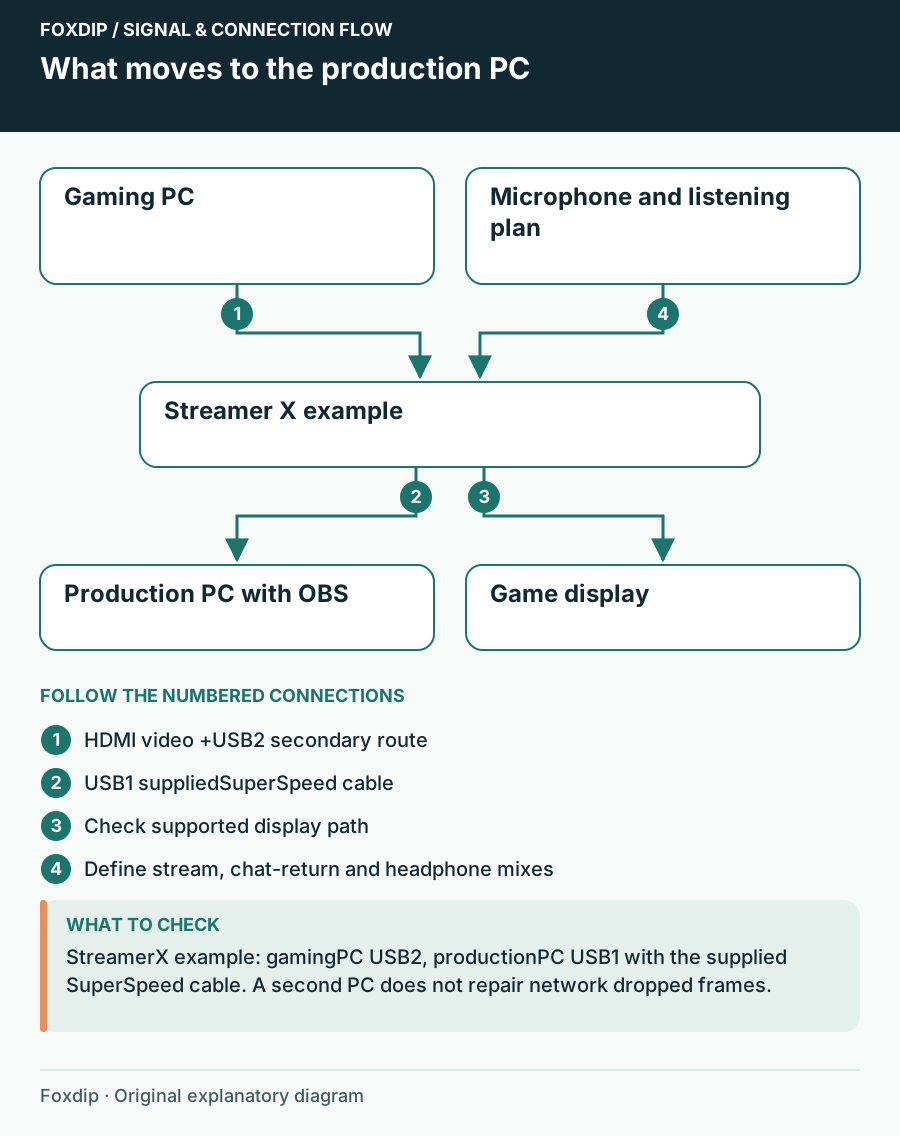
Original Foxdip schematic. Follow the labelled checks alongside the guide.
Count the work that moves and the work you add
List microphone input, game sound, voice chat, alerts and headphone monitoring. Mark which machine owns each. Decide where a mute button must act and which computer receives camera and control devices. If you cannot explain how the gaming friends hear you while the stream hears one clean voice, the shopping list is not complete.
| Stay with one PC | Move production to another PC |
|---|---|
| Fewer inter-computer audio/video paths | Capture hardware and a supported host connection |
| One scene/control environment to start | Two machines to update and start in order |
| Game and production share local resources | Production load moves, but game output still needs a compatible display/capture route |
| Current desktop footprint and power needs | Additional power, heat, space, cables and monitoring choices |
Choose after rehearsing the complete production
Keep one PC if it delivers the required stream at settings you accept. A second PC becomes easier to justify for a demanding production workload or a workflow where separate operation is itself valuable. Compare the complete basket: machine, capture, interface changes, cables, control access and space.
If you can borrow or reuse a compatible second machine, rehearse a full session before buying. Check the game display, saved stream, microphone mute, chat return and recovery after stopping. Buy only when that complete route earns its extra upkeep. A second tower is useful when its job is clear and its connections are ready.
Check the game-display and recording formats before choosing the inter-computer capture path. 4K Passthrough or 4K Recording? Read the Capture Card Spec ↗
Write the failure the production PC would remove
Use one repeatable game segment and compare a minimal OBS scene with your normal production scene. Keep game and output settings fixed. Note which performance symptom changes when cameras, browser widgets and effects return. This identifies a production load that a second computer might take over without promising that another machine will solve every slowdown.
After that comparison, test the complete planned two-PC signal path on compatible borrowed equipment if available. The proposed production PC still has to render its scene, capture the input and encode the output. A successful HDMI preview alone is not a full rehearsal.
| Observation | Next change | Expected result |
|---|---|---|
| Minimal scene is stable; normal scene overloads | Isolate the costly production sources | Estimate the workload actually moving to the second PC |
| Both scenes show network dropped frames | Follow the connection diagnosis | Do not buy an encoder to repair the upload route |
| Video works but chat or mute does not reach its destination | Complete the audio/mute routing plan | Treat communication and recovery as part of the system |
Check duplicated voice when inter-computer audio is introduced. OBS Double Audio or Mic Echo? Find the Duplicate Capture ↗
Sources & references
Manufacturer specifications and primary support documentation checked on 27 October 2026. Recommendations are editorial inferences from connections, placement and documented capabilities; no hands-on performance or comfort measurements are claimed. November 2026 addition: documentation-based diagnostic examples; no new hands-on hardware result or platform upload test is claimed.
- OBS Hardware Encoding ↗Checked 2026-10-27
- OBS official download page ↗Checked 2026-11-04
- OBS Encoding Performance Troubleshooting ↗Checked 2026-11-04
- RØDE Streamer X with two computers ↗Checked 2026-10-27
- OBS — Stream Connection Troubleshooting ↗Checked 2026-11-04
Spotted something out of date? Let Alex know.
How we put our guides together ↗