
Check data speed and power separately. Reserve direct connections where the device maker requires them, then use a suitable hub for the remaining devices rather than assuming more sockets create more bandwidth.
Check data speed and power separately. Reserve direct connections where the device maker requires them, then use a suitable hub for the remaining devices rather than assuming more sockets create more bandwidth.
In this guide
Before you start
- Device-specific host-port and power requirements.
- The hub upstream speed, host capability and complete cable map.
Draw the cable that all those sockets share
A hub gives you more places to plug in. The devices still share a path back to the computer, and that upstream path matters when several video sources run at once. Write the required host speed for each camera or capture device beside its cable. Then add the microphone, external recording drive and any other device that stays active during the stream.
Power is a separate list. Note the supply required by each device and whether the hub provides it. A powered hub can address a power shortage while leaving the same data limitation in place. A high-wattage charger is not evidence of a faster data connection.
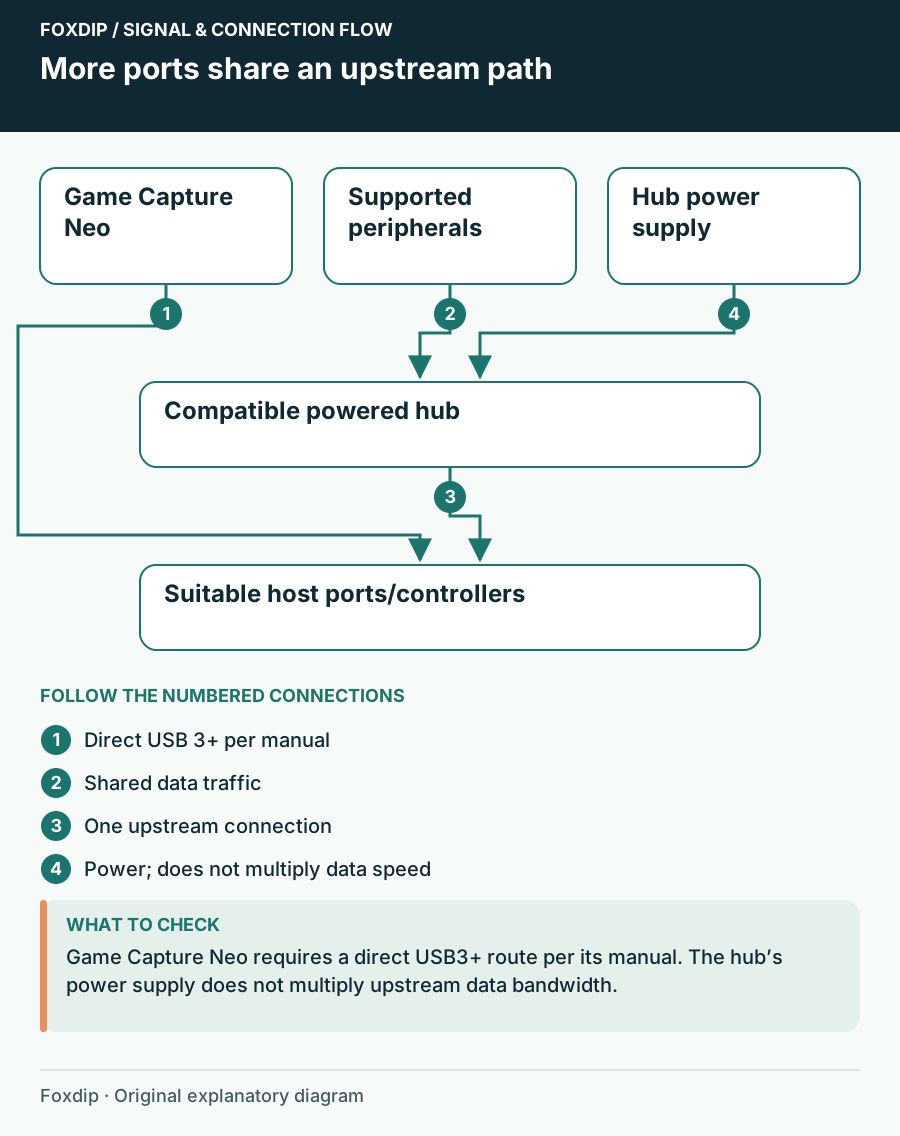
Original Foxdip schematic. Follow the labelled checks alongside the guide.
Read the device instruction before the hub listing
Elgato's Game Capture Neo manual says to connect directly to USB 3.0 or better and not use a hub. Its Cam Link 4K product page also recommends against a hub for best performance. Follow those device-specific requirements rather than treating a hub's headline speed as an exception to them.
A sensible first configuration is therefore capture card directly on a suitable host port, with keyboard, mouse and other supported peripherals on the hub. Whether the webcam or microphone can join depends on their own documentation and the host layout. Devices that work alone should also be checked while every normal source and recording drive is active.
A documented powered option still needs the right host
CalDigit Element 5 Hub is a concrete example with three 10 Gbps USB-A ports, two 10 Gbps USB-C ports and three downstream Thunderbolt 5 ports. Its support page lists Windows 11 or later and macOS 15 or later, plus host compatibility details. It includes an external power supply and provides up to 90 W host charging.
Those ports do not upgrade an ordinary host to Thunderbolt 5. Check the compatibility matrix for the exact computer connection and the device requirements. Compare it with simply moving low-demand peripherals off a crowded host port. Buying a large hub is unnecessary when the existing direct ports already accommodate the stream.
An example calculation shows why format matters
For an illustrative uncompressed 1080p60 video format using 16 bits per pixel, 1920 × 1080 × 60 × 16 equals 1,990,656,000 bits per second, about 1.99 Gbps before transport overhead. Two such streams would be about 3.98 Gbps before overhead. This is arithmetic, not a measurement of your webcam or a guarantee that a 5 Gbps hub can carry that setup.
Real devices may send compressed video or another pixel format, so the actual requirement can differ substantially. Use the maker's supported-format table and host requirement rather than applying this raw calculation to every camera. USB-IF's speed labels describe signaling capability; they are not a promise of that amount of application payload.
Rehearse the complete device load
Start with the capture device connected as its maker requires. Add the webcam, then microphone, then the recording drive while making a local recording. If a failure appears after one addition, remove that addition and repeat. Keep the same video modes so the comparison means something.
A freeze or disconnect does not by itself prove bandwidth exhaustion. Cable quality, device power and software can also matter. The exercise identifies the change associated with the symptom. Keep a port map of a working arrangement, including the actual upstream cable, so the next desk tidy-up does not erase the evidence.
Choose a topology before choosing a bigger number
Choose a powered hub when you have a documented need for its peripheral ports and supply. Choose direct host ports for devices whose manuals call for them. Consider a different host connection only after you have identified the shared path and checked what the computer supports.
Keep a modest hub for low-demand peripherals if it works reliably alongside direct video connections. Include the external supply, cable length and desk placement in a new-hub comparison. The goal is a complete stream that keeps recording, not a hub with the greatest possible number of unused sockets.
Choose a console capture card whose host connection fits the port plan. Choose a 1080p60 Capture Card for Your Console and USB Ports ↗
Sources & references
Manufacturer specifications and primary support documentation checked on 27 October 2026. Recommendations are editorial inferences from connections, placement and documented capabilities; no hands-on performance or comfort measurements are claimed. November 2026 addition: documentation-based diagnostic examples; no new hands-on hardware result or platform upload test is claimed.
- USB-IF USB Power Delivery overview ↗Checked 2026-10-27
- Microsoft Learn USB bandwidth allocation ↗Checked 2026-11-04
- Elgato Game Capture Neo manual ↗Checked 2026-10-27
- Elgato Cam Link 4K product support guidance ↗Checked 2026-10-27
- CalDigit Element 5 Hub support/specifications ↗Checked 2026-10-27
- USB-IF Data Performance Language January 2024 ↗Checked 2026-10-27
Spotted something out of date? Let Alex know.
How we put our guides together ↗